
In This Article
Accessing Notes and Attachments
Understanding Comment Grouping by Effective Date
Adding Comments from the KPI Values Page
Viewing Latest Comments on the KPI List
Viewing Latest Comments in KPI Reports
Overview
The KPI module now includes a notes and attachment feature that allows users to add comments and supporting attachments directly to individual KPI records. This functionality mirrors the proven notes and attachment capability already available in the Ideas module, bringing the same powerful documentation tools to KPI management workflow.
This feature enables users to:
- Capture contextual information alongside KPI data
- Add period-specific commentary to explain performance trends and insights
- Add comments directly from KPI value entries for streamlined data documentation
- Upload supporting documentation such as reports, spreadsheets, or images
- Associate comments with specific business dates using the Effective Date field
- Organize comments by Effective Date with collapsible groupings for improved readability
- Sort comments by Effective Date or Created Date to view commentary as business context or recent activity
- Create threaded conversations by replying to existing comments
- Maintain a chronological record of all notes and attachments with automatic timestamps
- View the latest comment on the KPI List for quick identification of recent commentary
- Include commentary in KPI reports to provide context for performance during specific reporting periods
- Export comments via API for integration with external reporting systems
Whether documenting quarterly business reviews, explaining variances, or providing additional context for stakeholders, the KPI notes and attachments feature ensures that valuable insights are captured and preserved within the system.
Accessing Notes and Attachments
To access the notes and attachments feature for a KPI:
- Navigate to Analysis > KPIs from the main navigation menu
- Click on the KPI name from the KPI list to open the KPI details
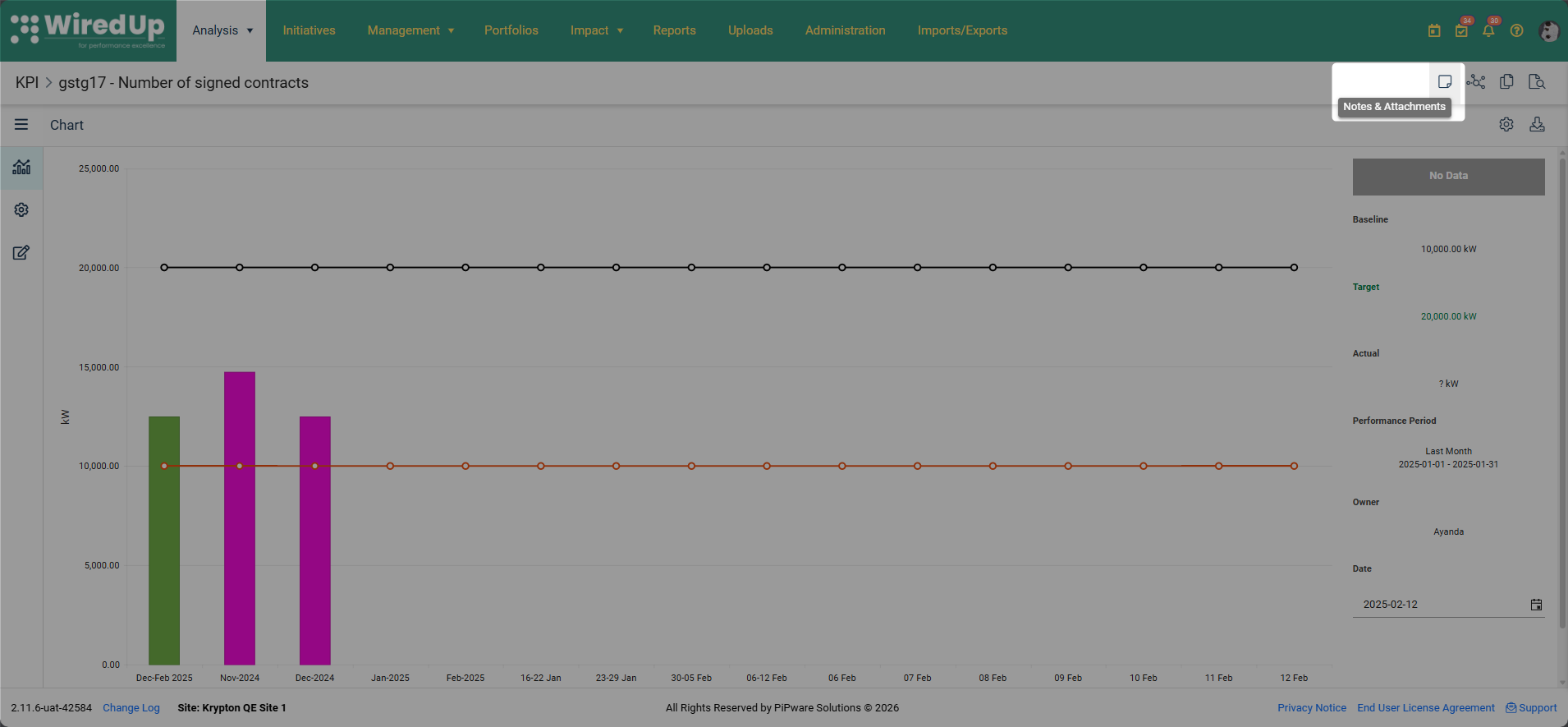
- Locate and click the Notes & Attachments icon in the app bar at the top-right corner of the screen (the same icon used in the Initiative/Ideas module)
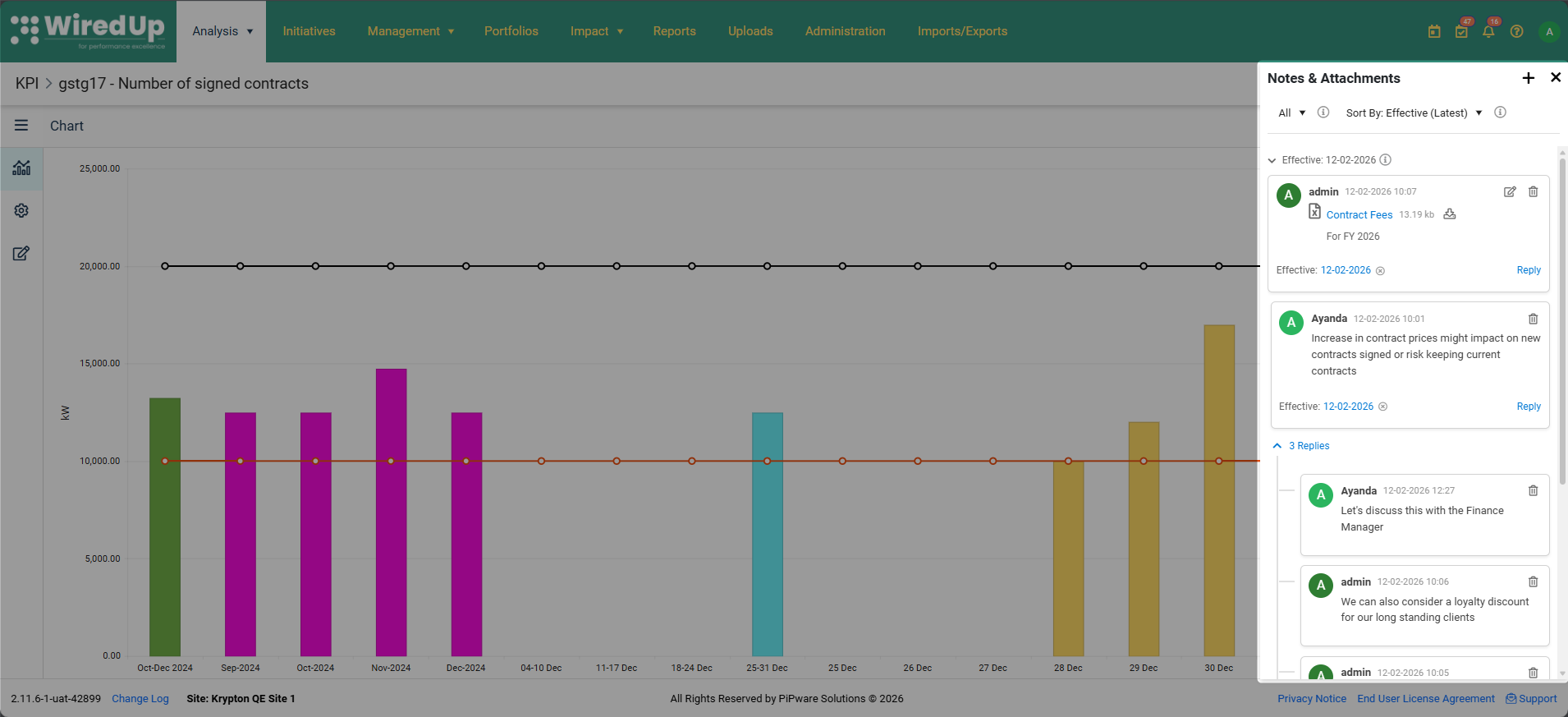
- The slide-out panel will appear from the right side of the screen, displaying all existing notes and attachments for the selected KPI in chronological order. Users can close the panel at any time by clicking the X button in the top-right corner.
- At the top of the Notes & Attachments panel, there are three filter options to help users view specific types of entries:
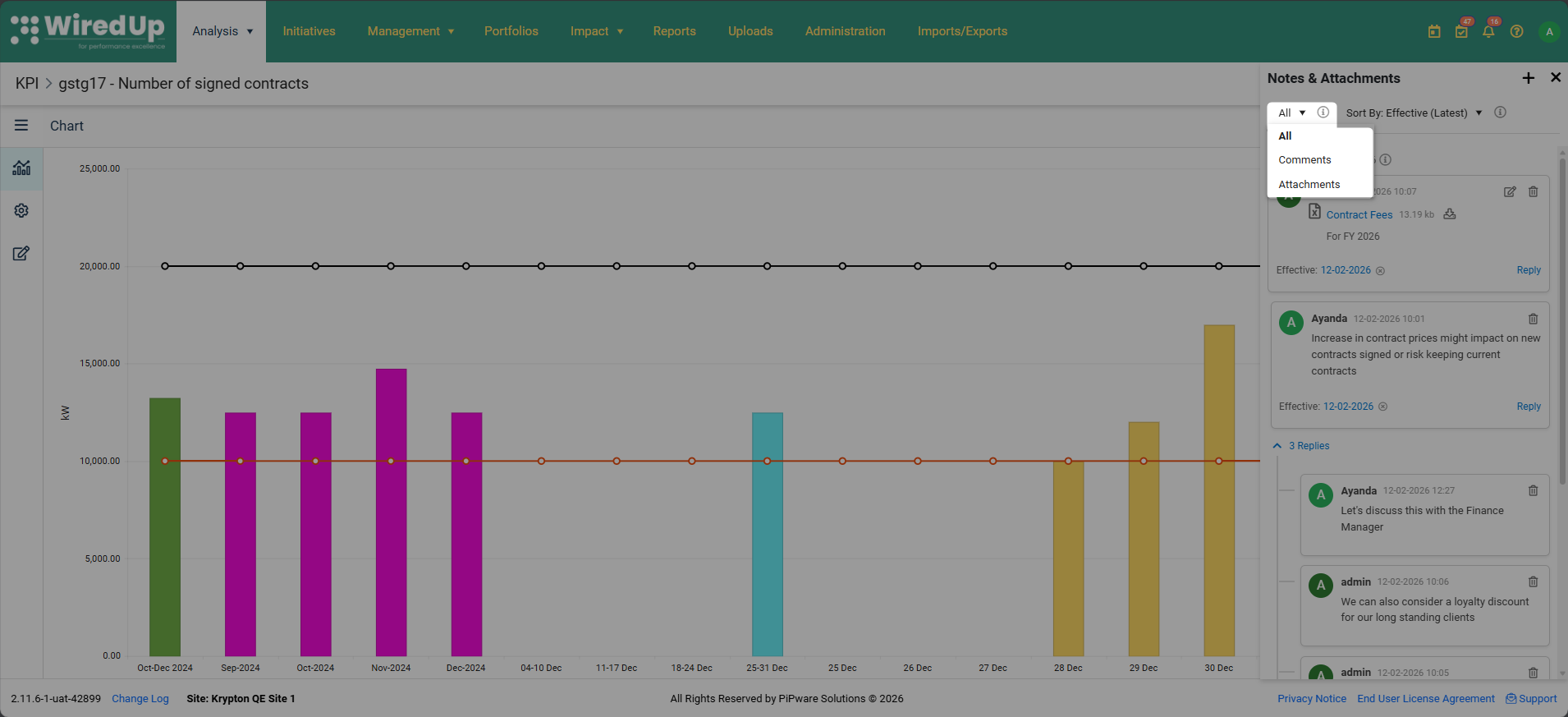
- All: Displays all notes and attachments in chronological order
- Comments: Shows only text comments without attachments
- Attachments: Shows only entries that include file attachments
Select the desired filter option by clicking on the corresponding radio button.
Adding a Comment
To add a text comment to a KPI:
- Open the Notes & Attachments slide-out panel
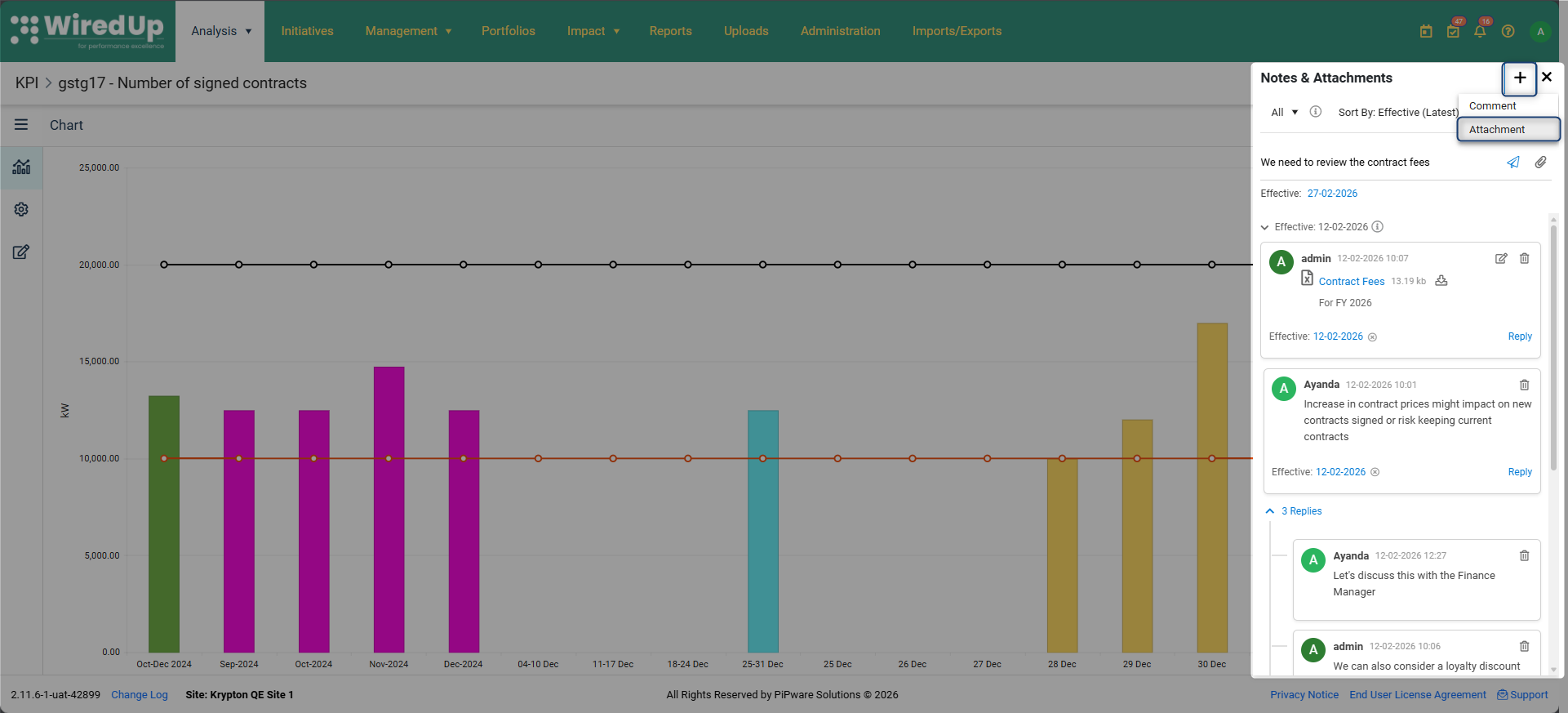
- Click the "+" icon located at the top and select the Comment option.
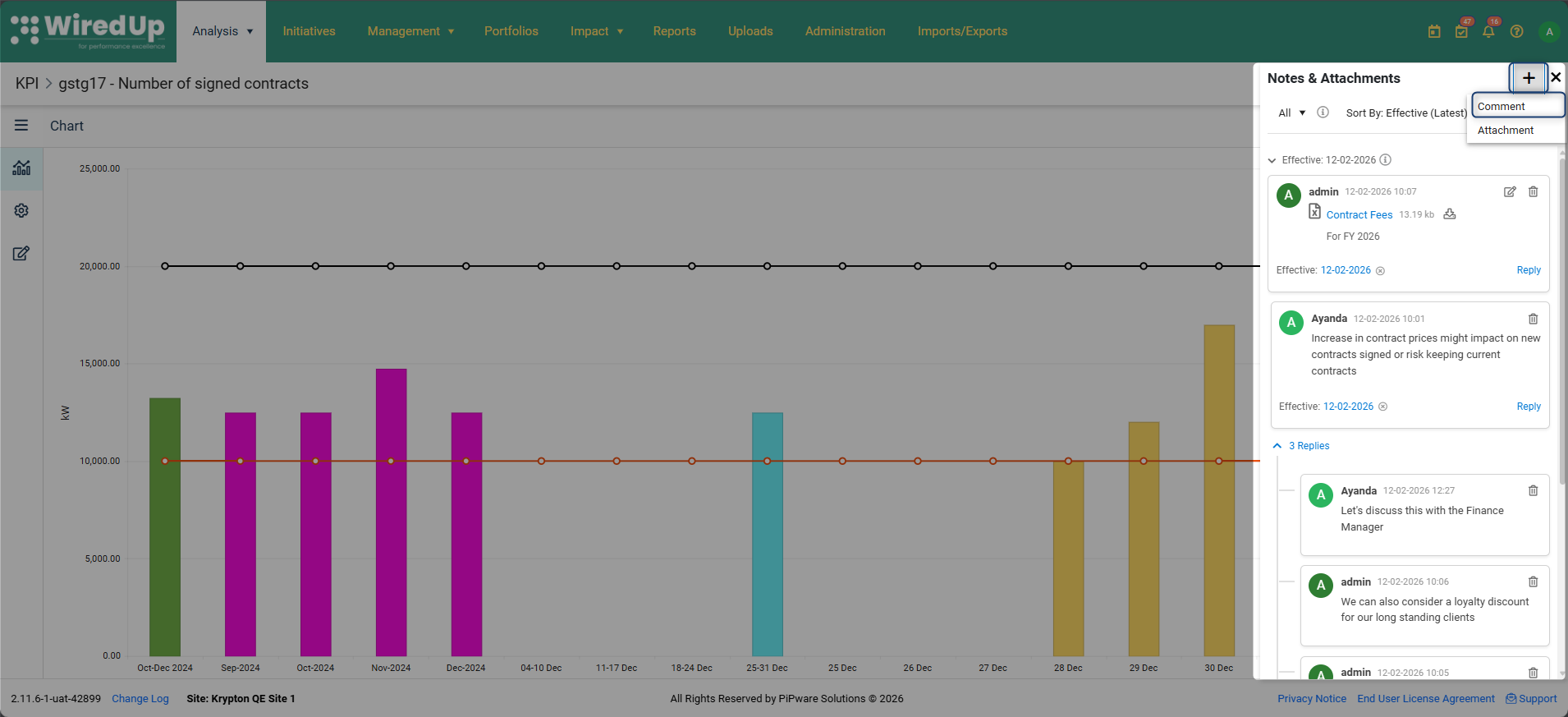
- Type the comment in the text field that appears then select Post Comment
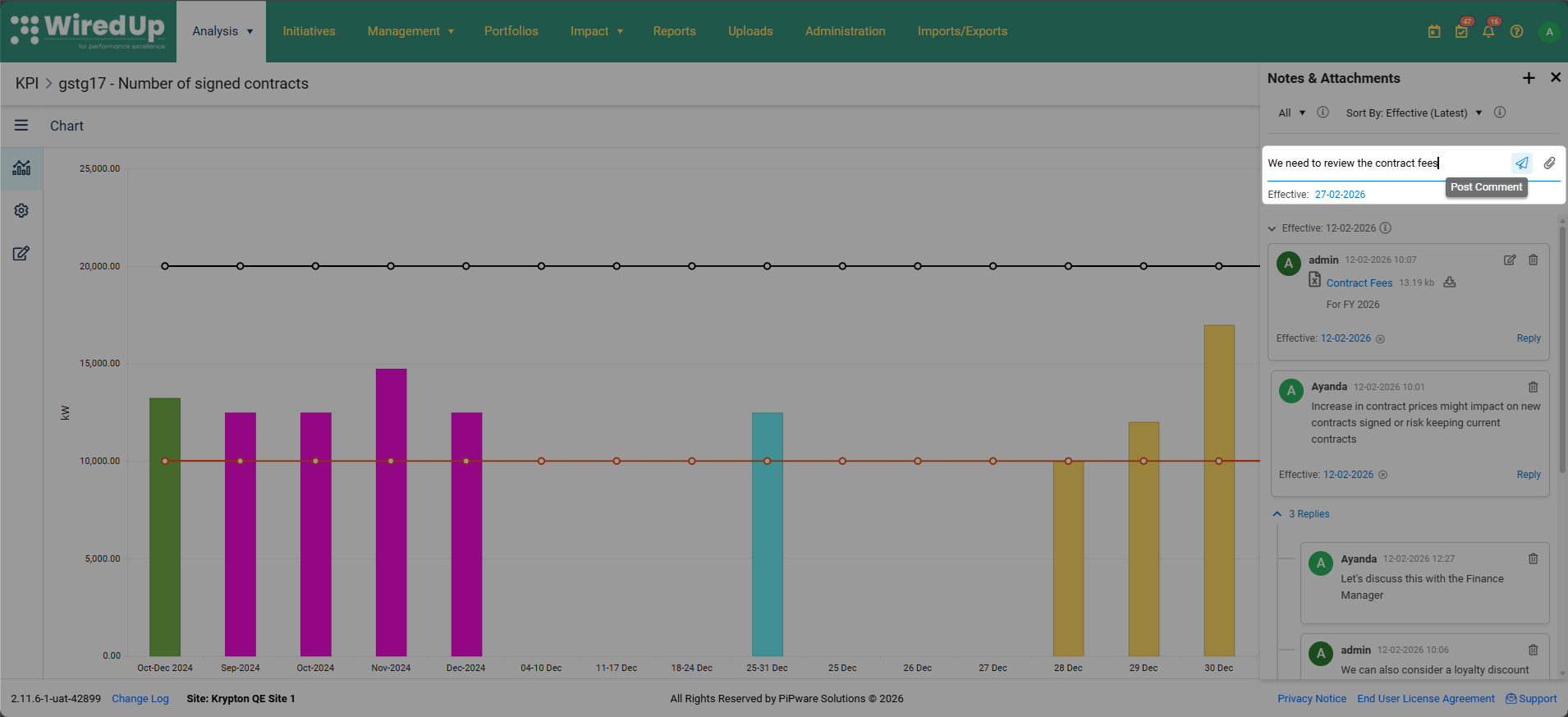
- The comment will be automatically timestamped with the date and time of creation and will appear in the chronological list.
Adding an Attachment
To upload a file attachment to a KPI:
- Open the Notes & Attachments slide-out panel
- Click the "+" button and select the Attachment option
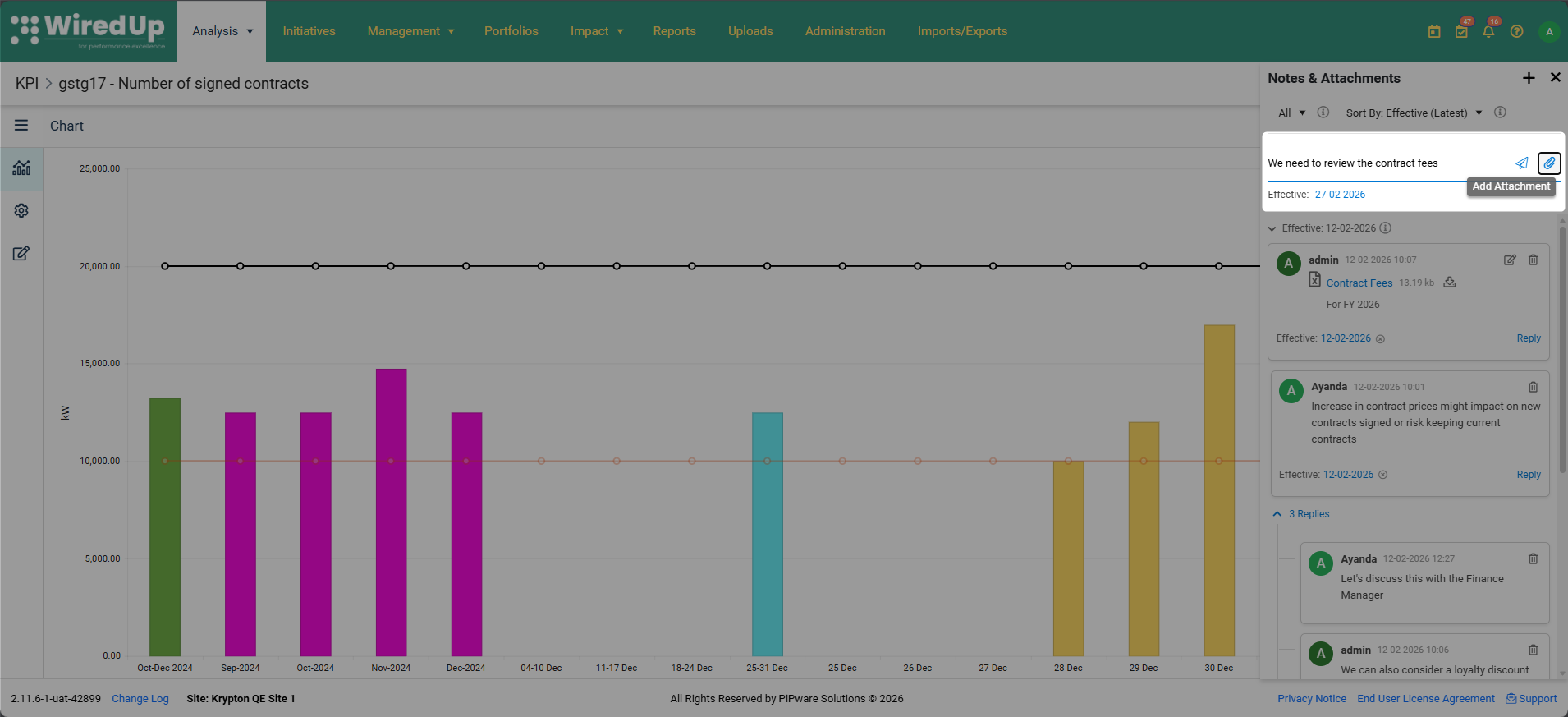
- Click on the Add Attachment icon next to the Post Comment icon
- The Add Attachment screen will open. On the screen, enter the following details:
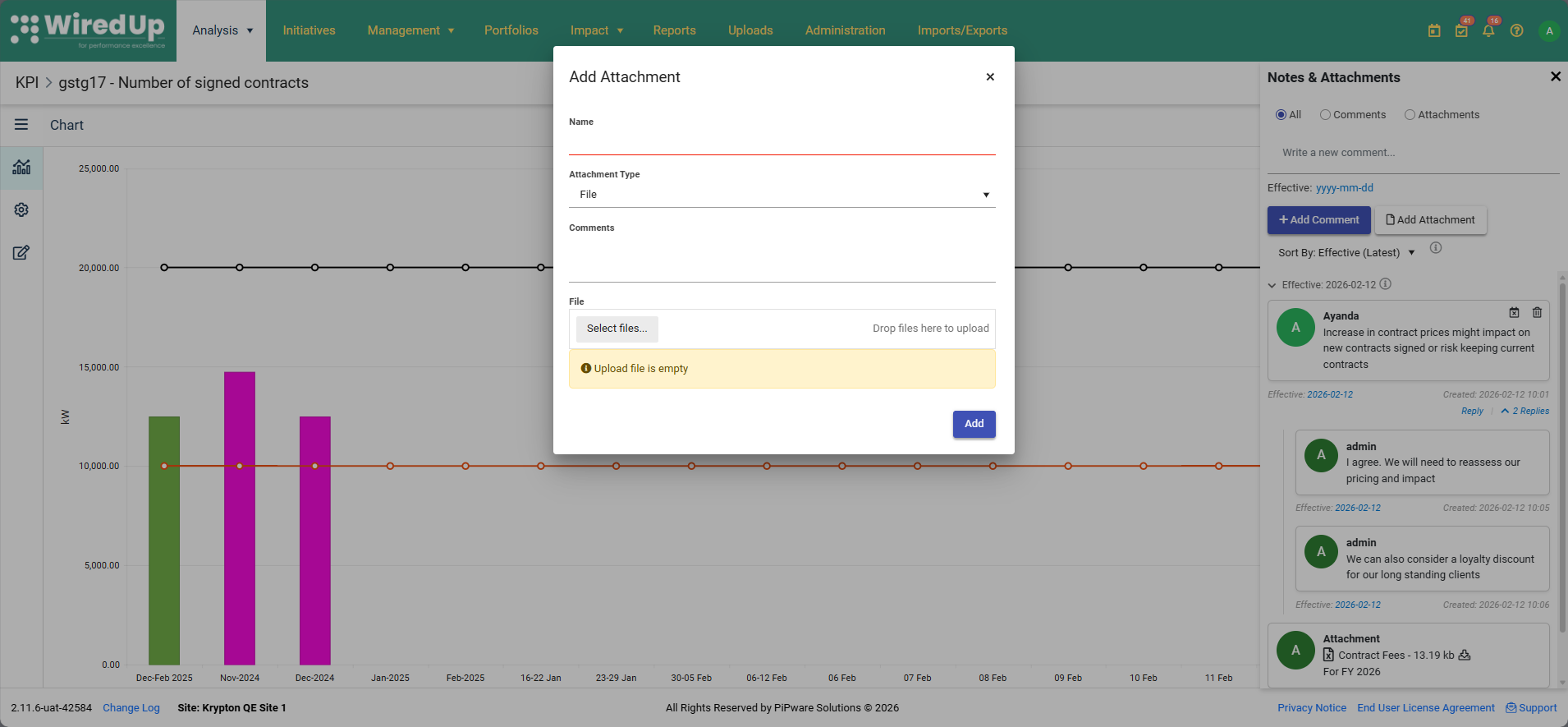
- Enter the Name of the attachment
- Select the Attachment Type as either File or URL
- Optionally, add a comment to provide context for the attachment. Both the attachment and the comment will appear on the Notes & Attachments
- If File type is selected, browse and select the file to upload from the device. If URL type is selected, enter the external link
- Once complete, click Add to save the attachment
Setting an Effective Date
The Effective Date field allows users to associate a comment with a specific business date that the note applies to or describes. This is particularly useful when documenting observations or explanations for specific time periods, even if the comment is written at a later date.
Understanding Effective Date vs. Created Date:
Each comment or attachment entry displays two date/time fields at the bottom: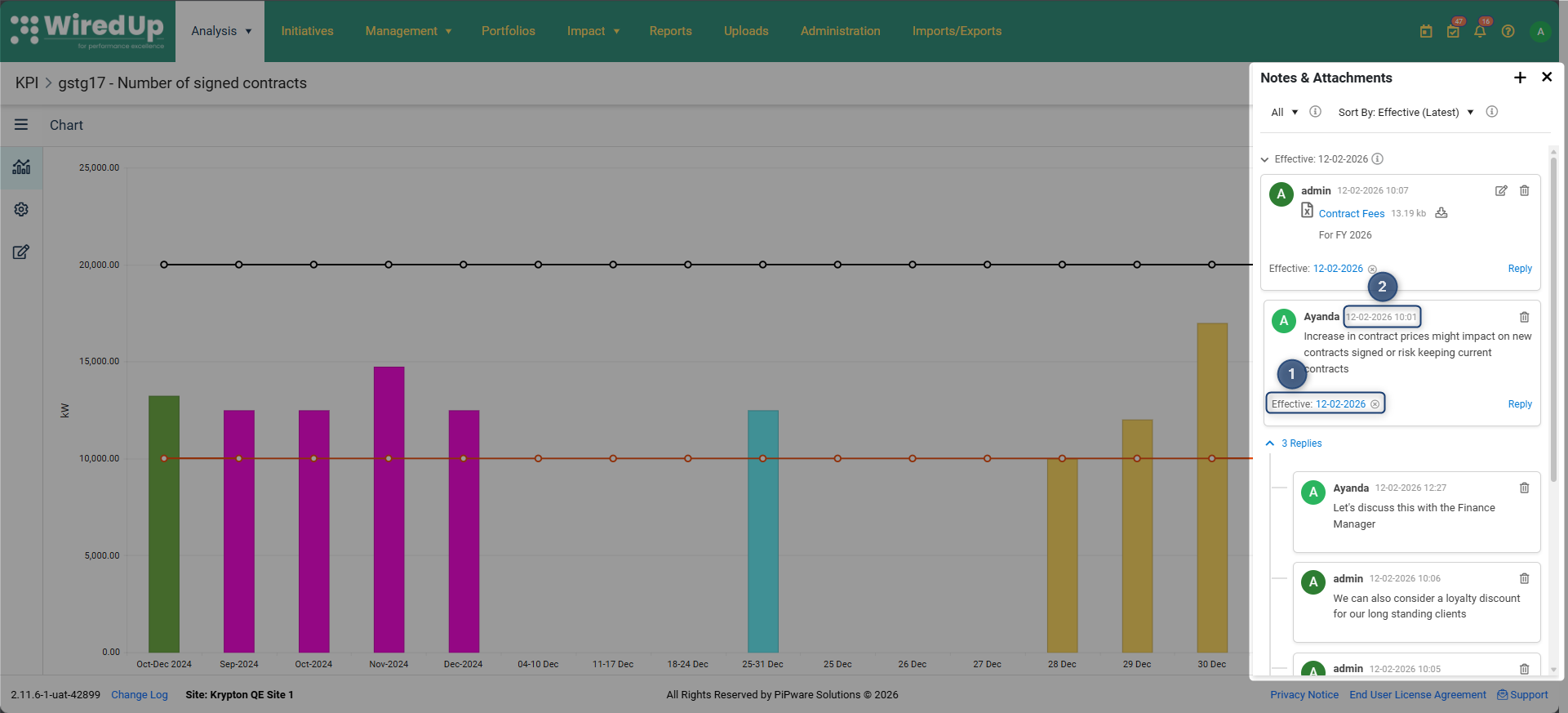
- Effective Date: The business date the comment applies to (optional, can be set or cleared by the user). When a new comment is added, the effective date defaults to today's date
- Created Date: The actual date and time when the comment was added to the system (automatically generated)
This dual-date system allows users to maintain accurate historical records while documenting insights for specific business periods or KPI measurement dates.
Example: A note about Q3 performance written on November 12, 2025 would have:


Effective Date: 2025/09/30 (Q3 end date)
Created Date: 2025/11/12 15:40 (when the note was actually written)
To change the default Effective Date:
- After adding a comment, click on the default effective date displayed on the comment entry to open the calendar picker or on the calendar icon displayed on the comment entry (if no Effective date has been set)
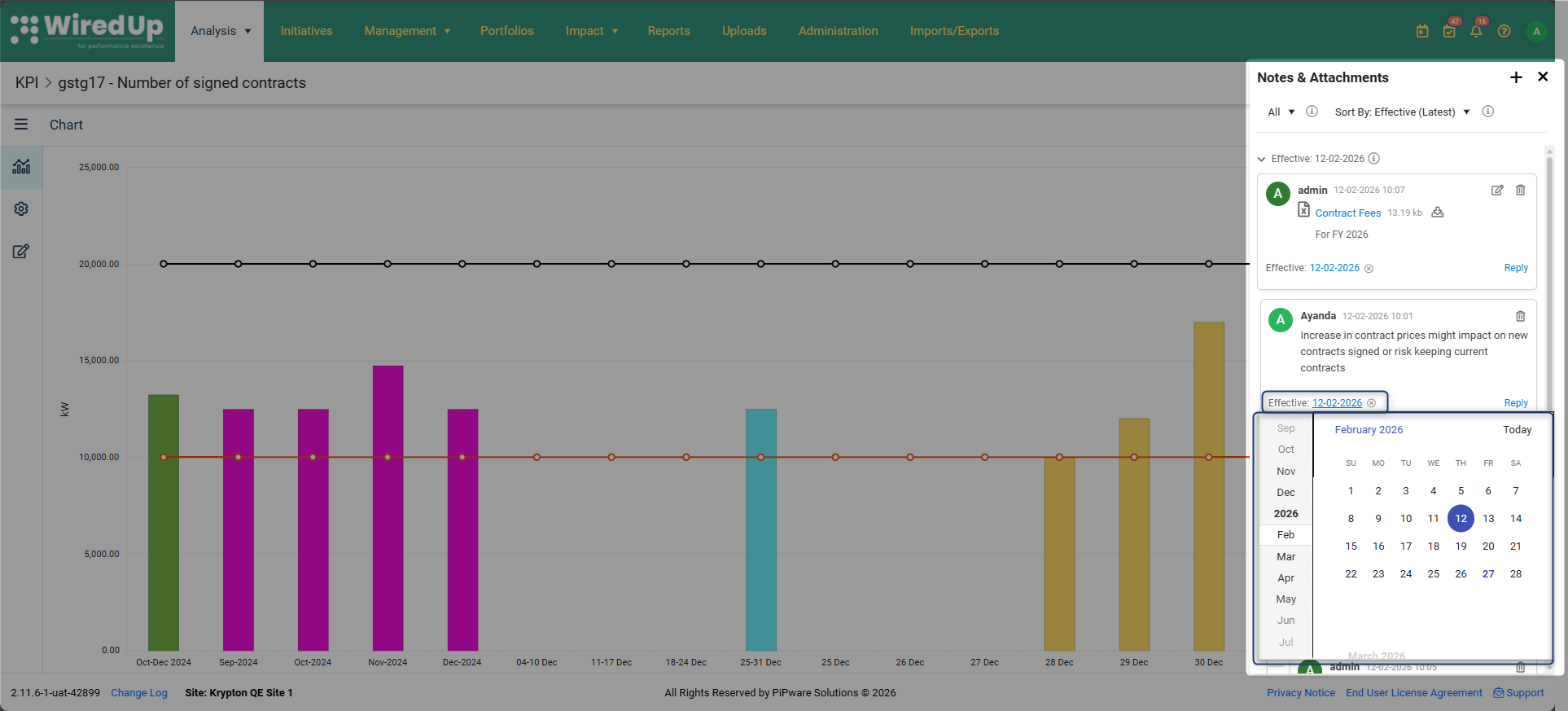
- Select the desired date from the calendar picker
- You can set the default effective date before adding comments that will be applied to all added comments by selecting the link to the effective date calendar picker located on the comment line
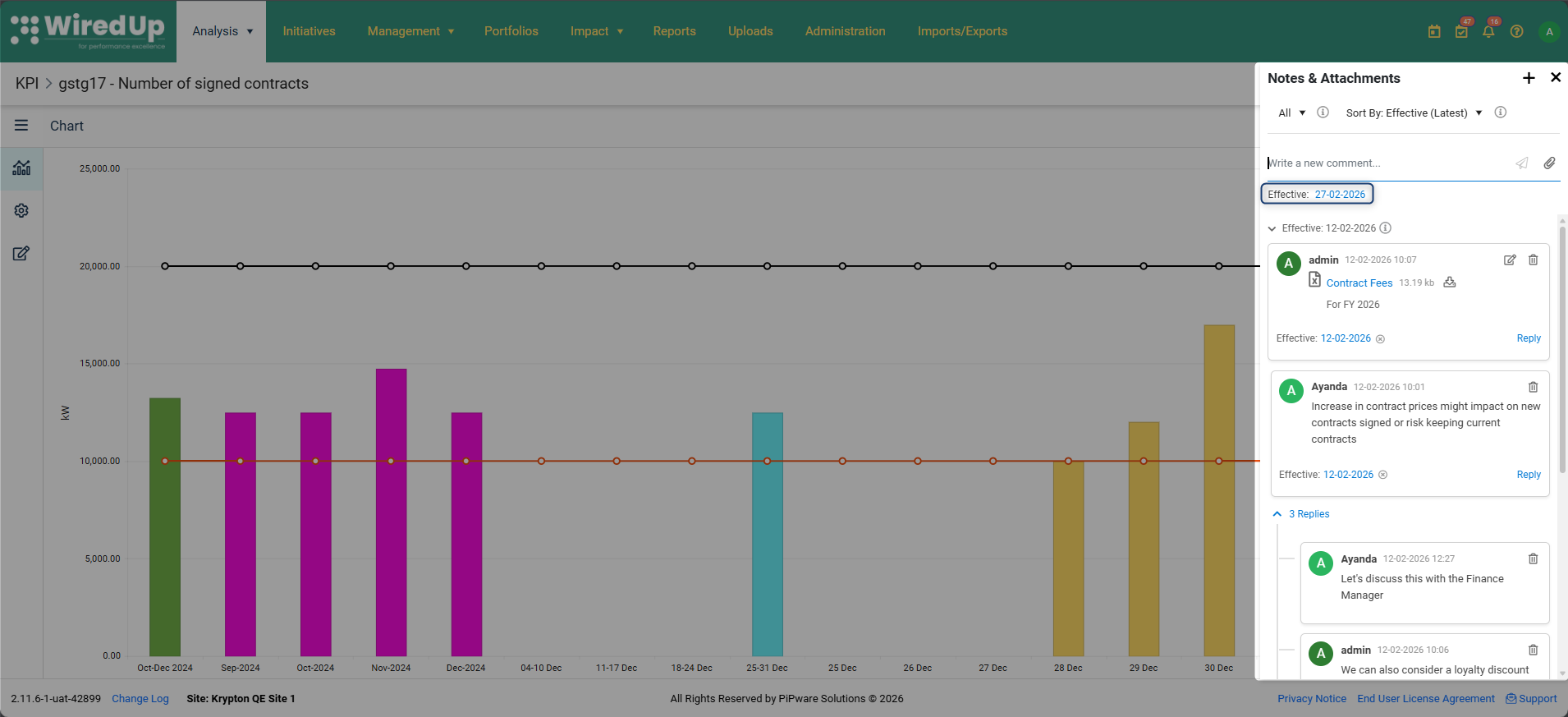
The Effective Date will be displayed at the bottom of the comment in the format: "Effective: yyyy/mm/dd" (format varies based on site settings)
To clear an Effective Date: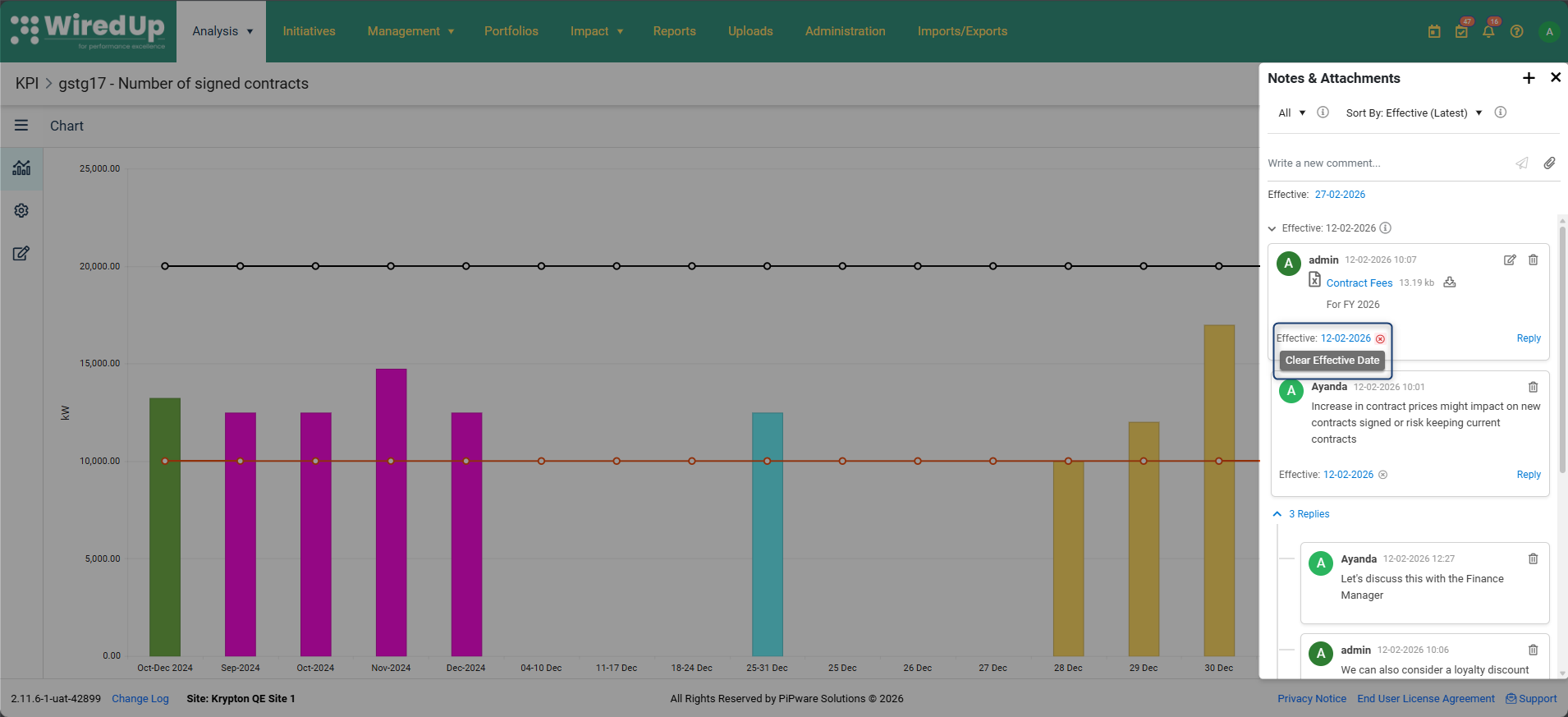
- Locate the X icon (clear icon) next to the effective date on the comment entry
- Click the clear icon to remove the Effective Date
The Effective Date will display as: "Effective: No Date Set"
Important Notes:
- The Effective Date field is not required - users can leave it unset if not needed
- When a new comment is added, the Effective Date defaults to today's date
- The date format is based on the site setting format (e.g., yyyy/mm/dd, dd/mm/yyyy, or mm/dd/yyyy)
- When the Effective Date is cleared, the field displays as: "Effective: No Date Set"
- The Effective Date can only be set on comments and not on replies
Understanding Comment Grouping by Effective Date
Comments in the Notes & Attachments panel are automatically organized by their Effective Date to improve readability and organization. This grouping system works as follows:
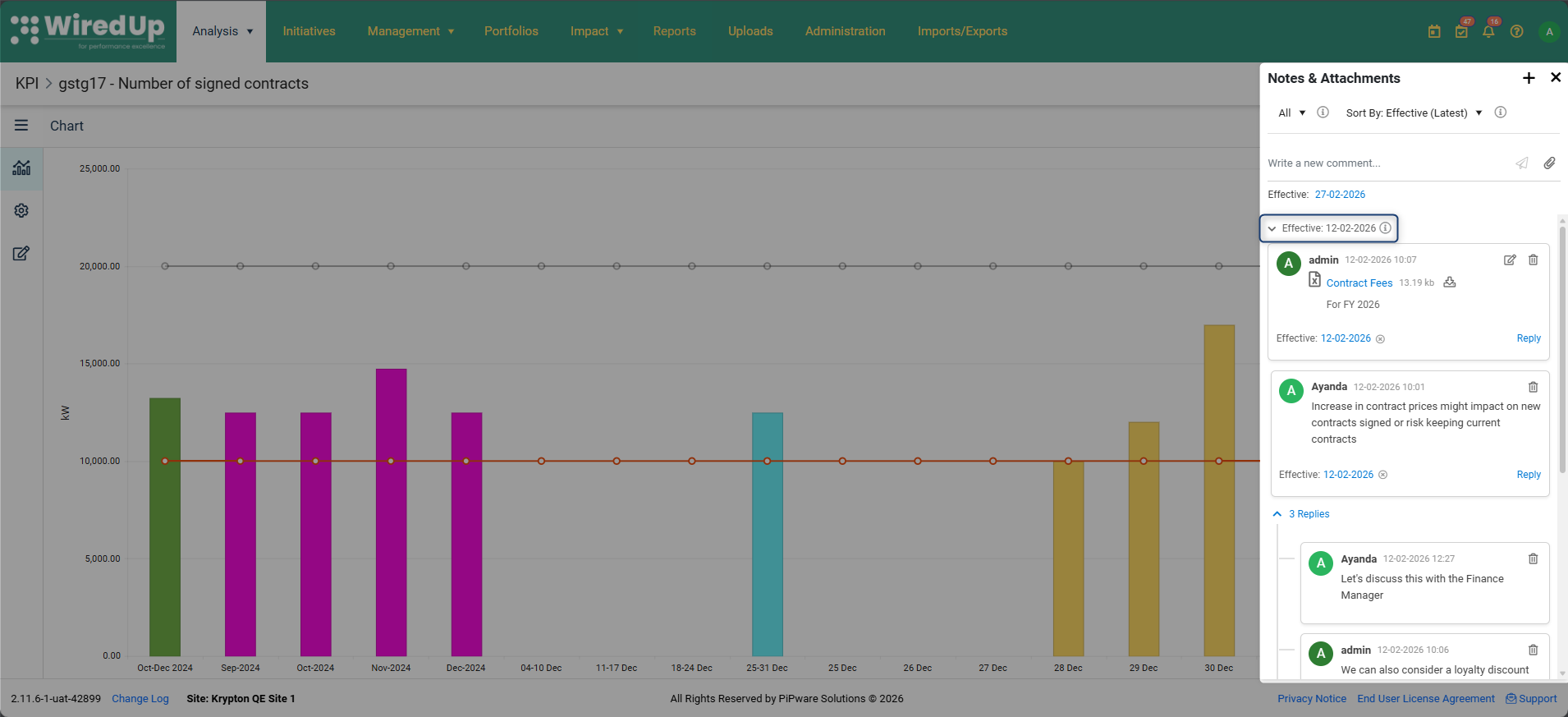
Group Headers:
- Comments that share the same Effective Date are grouped together under a dedicated header row
- Each group header displays in the format: "Effective: " (date format based on site settings)
Group Ordering:
- Groups are ordered by Effective Date from latest to oldest (most recent dates appear at the top)
- Within each group, individual comments are ordered by Created date/time from latest to oldest
Collapsible Accordion Behavior:
- Each Effective Date group functions as a collapsible accordion
- Click the chevron icon next to the group header to expand or collapse the group
- The chevron reflects the current state (pointing down when expanded, pointing right when collapsed)
Collapsed Group Display:
- When a group is collapsed, the first comment in that group remains visible
- Below the first visible comment, a count line displays the number of hidden comments
No Date Set Group:
- Comments without an Effective Date are grouped under a dedicated header: "Effective: No Date Set"
- This group appears at the bottom of the drawer after all dated groups
Dynamic Grouping Behavior:
- If the selected Effective Date does not exist as a group, a new group header is automatically created
- If the selected Effective Date already exists as a group, the comment is automatically added to that existing group
- When a comment is updated to join an existing Effective Date group:
- The drawer automatically scrolls to the relevant group
- The group expands if it was previously collapsed
Note: Grouping by Effective Date is only visible when sorting by Effective Date (Latest) or Effective Date (Oldest). When sorting by Created Date, comments are displayed in an ungrouped flat list.Replying to Comments
Users can reply to existing comments to create threaded conversations and provide additional context around KPI discussions.
Understanding Parent Comments and Replies:
- Parent Comments: Stand-alone comments or the first comment in an Effective Date group that can receive replies
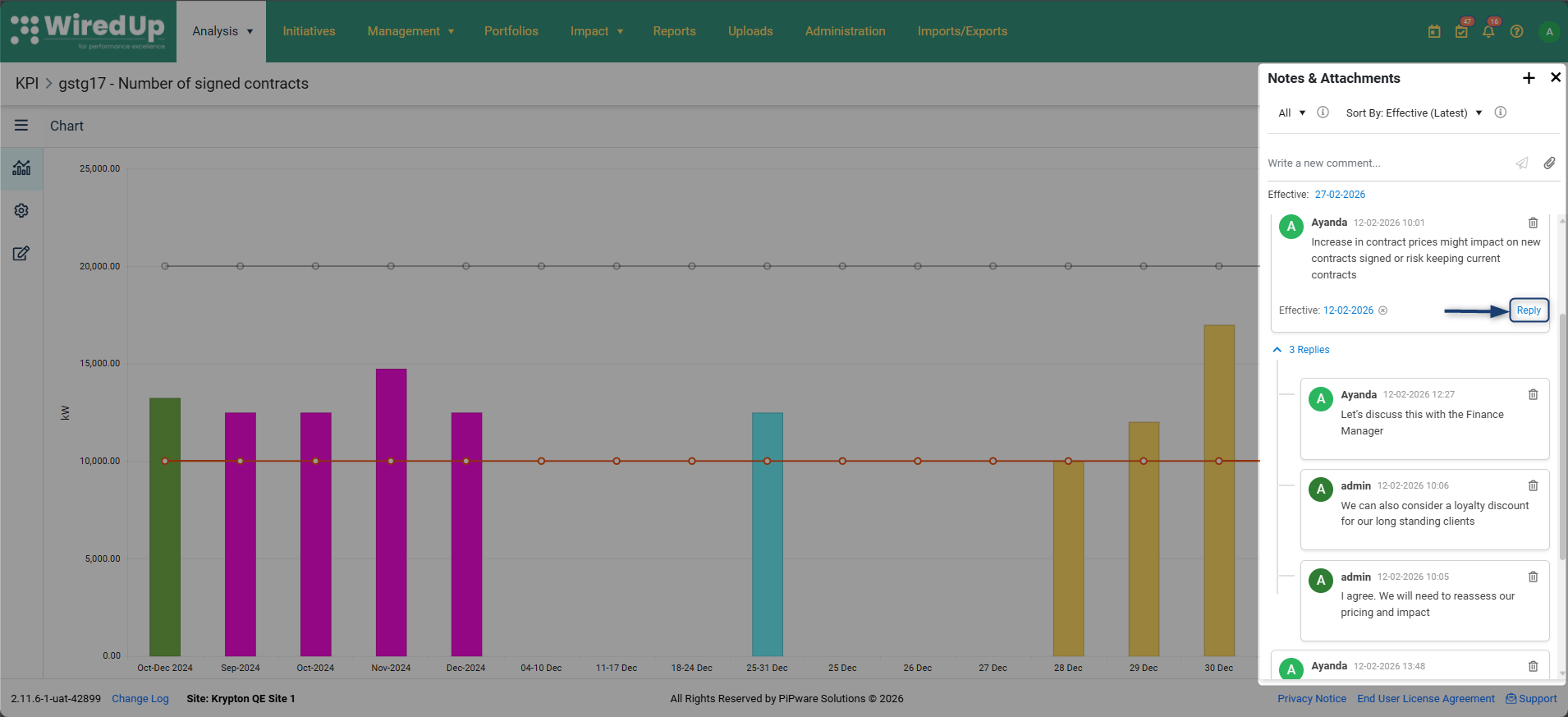
- Replies: Responses to parent comments that are visually nested and indented below the parent. They can be collapsed or expanded independently of the accordion grouping.
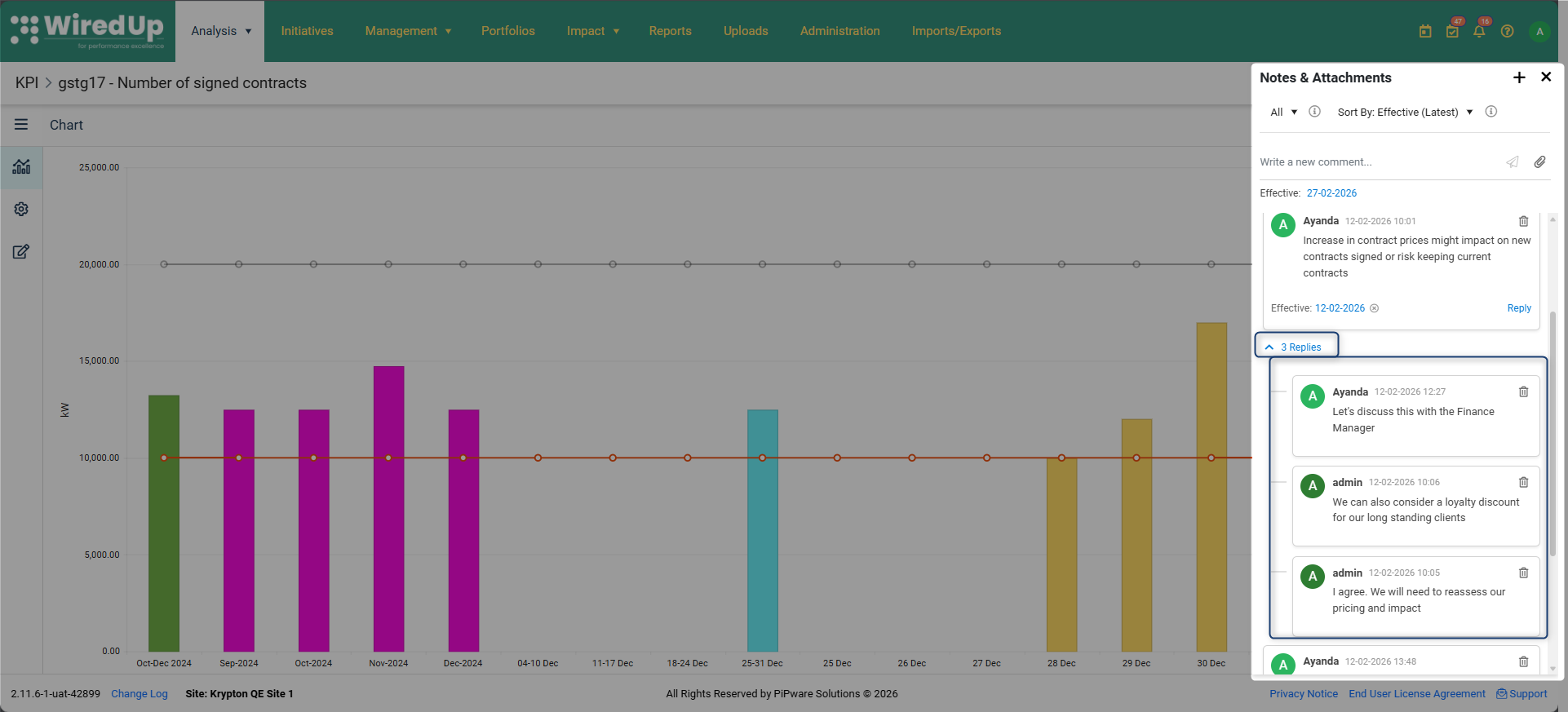
To reply to a comment: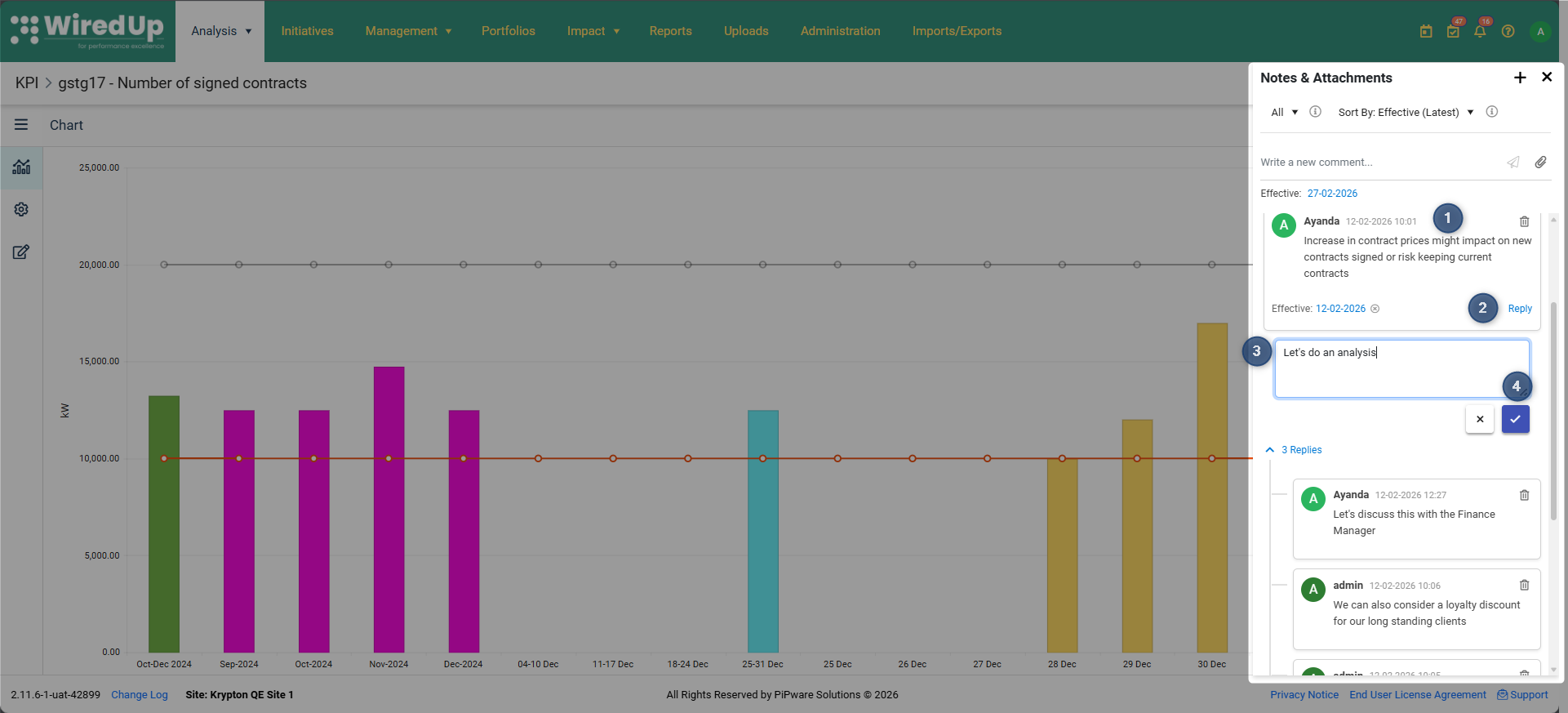
- Locate the parent comment to which a reply is needed
- Click the Reply link below the comment metadata (Effective and Created dates)
- An input field will open directly below the parent comment. Enter the reply text in the text field
- Click the check icon to add the reply
- Only the Created Date will be displayed on the reply. Effective Dates are only displayed on comments. If a comment's Effective Date is changed, all associated replies move with the parent to the new Effective Date group
Reply Display and Organization:
- Only parent comments can receive replies
- Replies are displayed nested and indented below their parent comment for visual distinction
- Replies are sorted by Created date (latest first) within their parent thread
- Each reply has its own Created date field displayed at the bottom
- Parent comments display a reply count (e.g., "3 replies" or "1 reply") to indicate the number of responses
Sorting Comments
The Sort By dropdown allows users to control how comments are displayed in the Notes & Attachments drawer, providing flexibility to view commentary either as business context or as a recent activity feed.
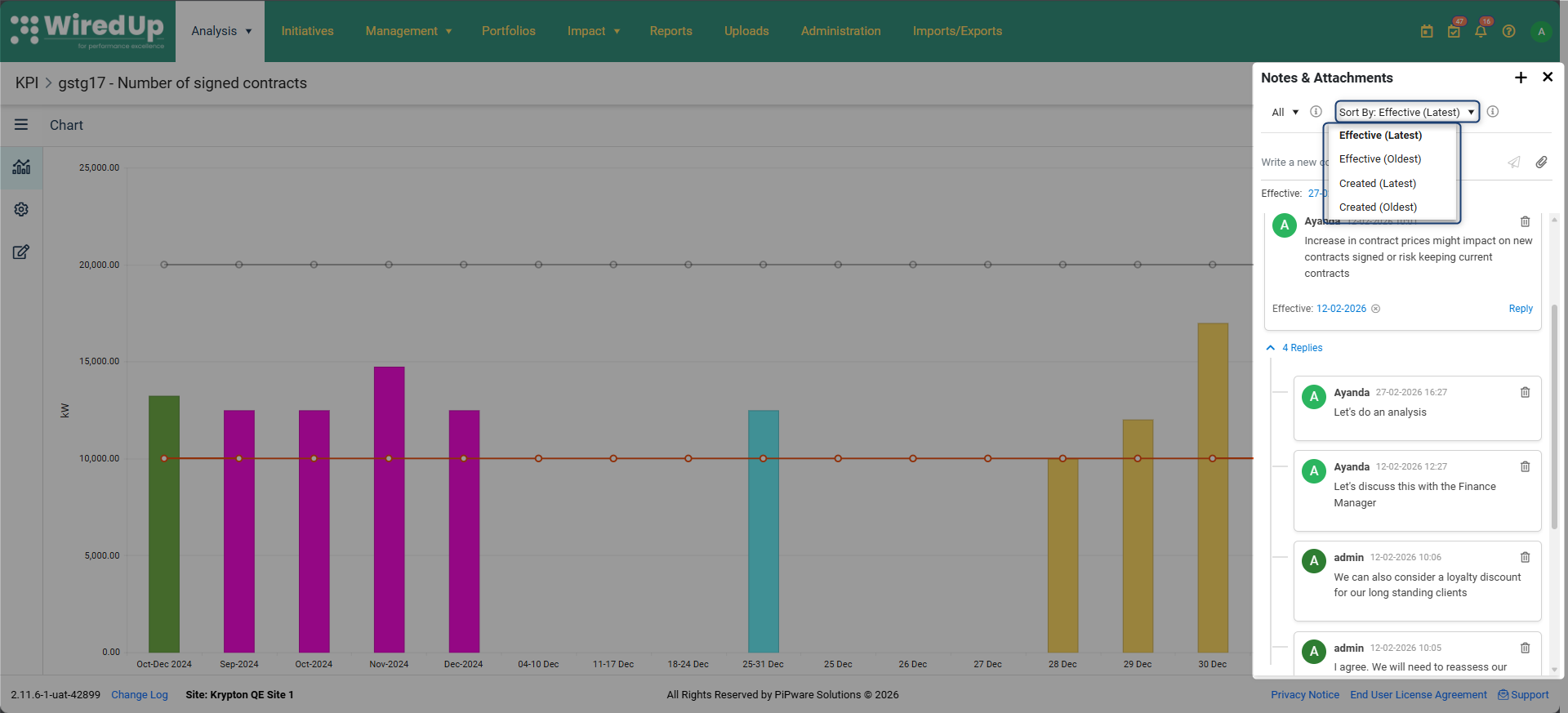
Available Sort Options:
- Effective Date (Latest) — Default option
- Displays comments ordered by Effective Date with the most recent dates at the top
- Comments are shown in Grouped view with accordion grouping by Effective Date
- Within each Effective Date group, comments are ordered by Created Date (latest → oldest)
- Effective Date (Oldest)
- Displays comments ordered by Effective Date with the oldest dates at the top
- Comments are shown in Grouped view with accordion grouping by Effective Date
- Within each Effective Date group, comments are ordered by Created Date (latest → oldest)
- Created Date (Latest)
- Displays comments ordered by Created Date with the most recent entries at the top
- Comments are shown in Ungrouped (flat list) view without Effective Date grouping
- Replies remain indented under the parent and do not appear as independent sortable items
- Created Date (Oldest)
- Displays comments ordered by Created Date with the oldest entries at the top
- Comments are shown in Ungrouped (flat list) view without Effective Date grouping
- Replies remain indented under the parent and do not appear as independent sortable items
To change the sort order:
- Locate the Sort By dropdown at the top of the Notes & Attachments panel
- Click the dropdown to view the available sort options
- Select the desired sort option
- The comments will automatically reorder based on the selected option
Recommendations:
- Business Context Review: Use Effective Date (Latest) or Effective Date (Oldest) to review comments organized by the business periods they describe, ideal for quarterly reviews or historical analysis
- Recent Activity Feed: Use Created Date (Latest) to see the most recent commentary and updates, ideal for tracking ongoing discussions and new insights
Sorting Replies
Replies within a note thread now respect the same Sort By option you have selected for the main comment list. The sort order of replies updates automatically when you change the Sort By selection.
How replies are sorted:
- Replies are always sorted by their Created Date (since replies do not have their own Effective Date)
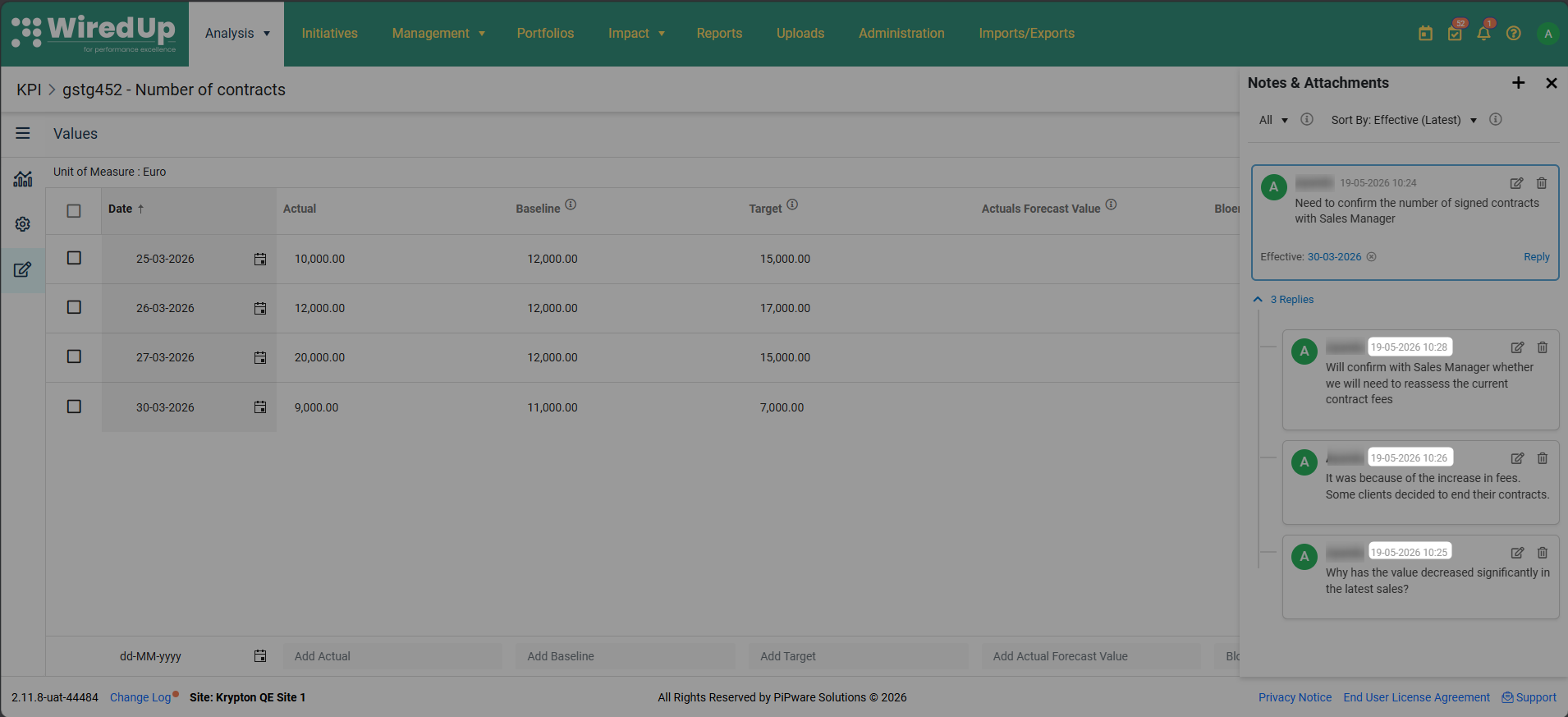
- The sort direction (newest first or oldest first) matches the active Sort By option:
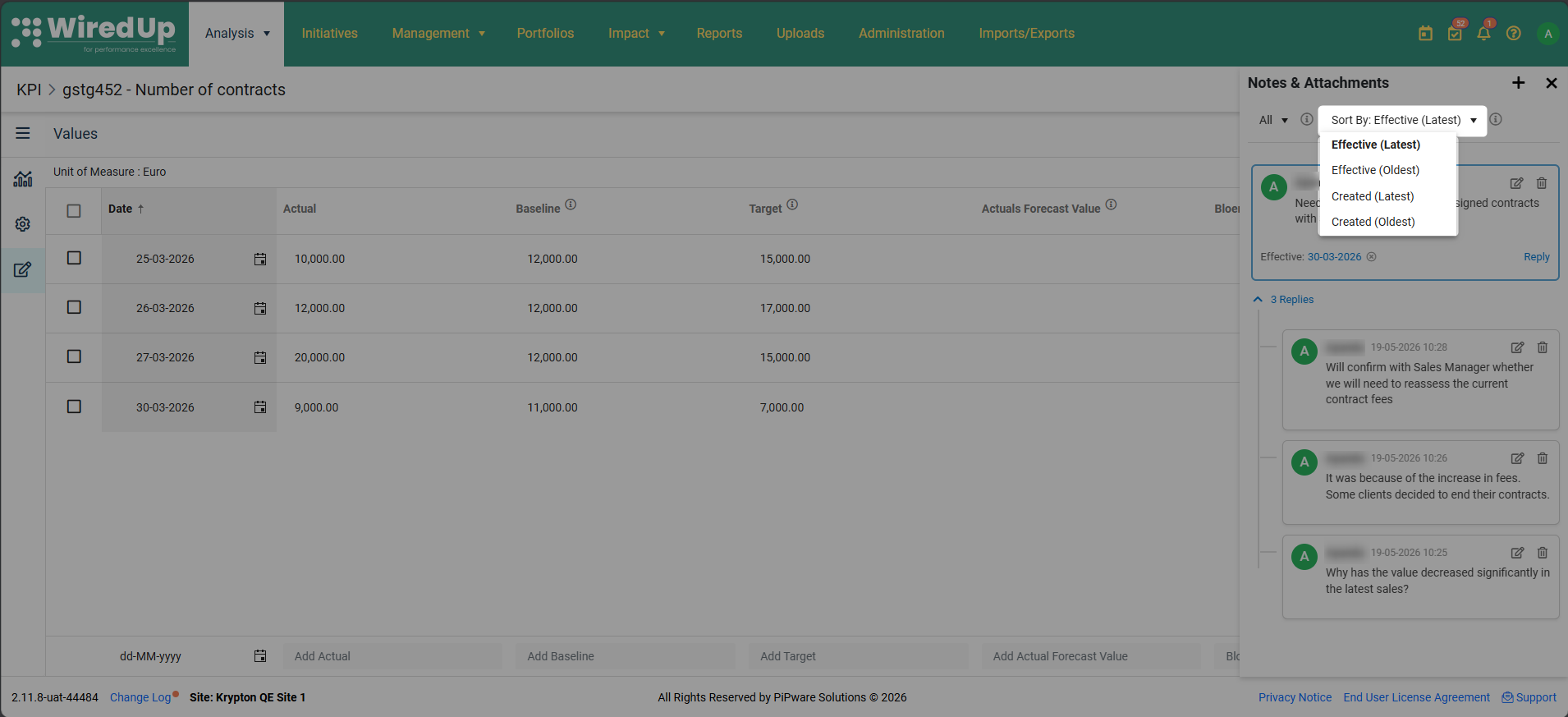
- Effective Date (Latest) or Created Date (Latest) → replies appear with the most recently created first
- Effective Date (Oldest) or Created Date (Oldest) → replies appear with the oldest created first
- When you change the Sort By selection, the reply order within all expanded note threads updates immediately—no page refresh required
- Replies remain indented under their parent comment and do not appear as independent sortable items
Example: If you select Effective (Latest) or Created (Latest) from the Sort By options, replies will show the most recently created reply first. If you select Effective (Oldest) or Created (Oldest) from the Sort By options, replies will show the oldest reply first.
Note: This sorting behavior applies to the Notes & Attachments panel wherever it appears across WiredUp (KPIs, Ideas, Portfolios, and Emissions).Adding Comments from the KPI Values Page
Users can add comments directly from the KPI Values page, creating a streamlined workflow for documenting specific data points and value entries.
Comment Icon on Value Rows:
Each row on the KPI Values page displays a Comment icon that provides quick access to the commenting functionality: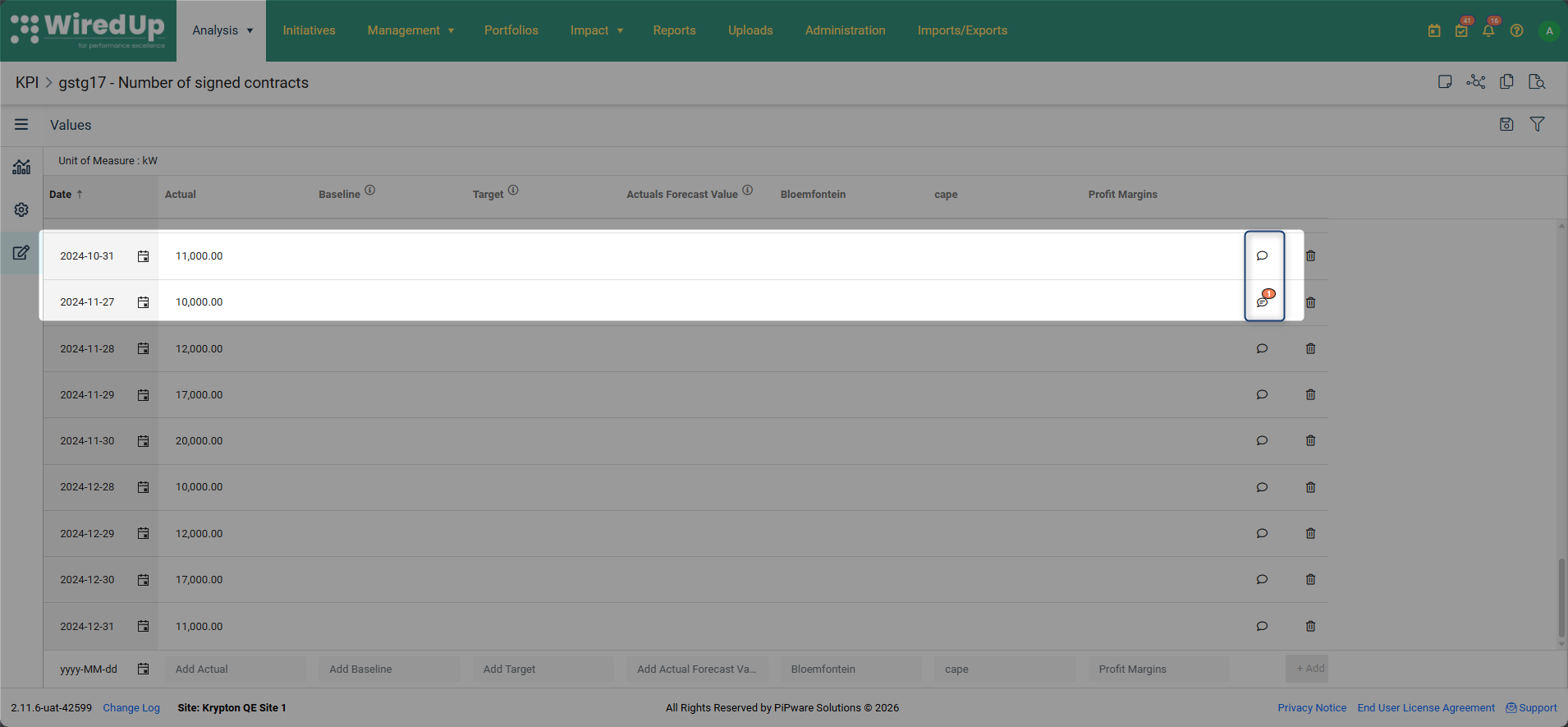
- Empty comment bubble icon: Indicates no comments exist for that value entry date
- Filled comment bubble icon with count badge: Indicates comments exist for that value entry date, with the badge showing the number of comments (e.g., a badge showing "3" means three comments are associated with that date)
To add a comment from the Values page: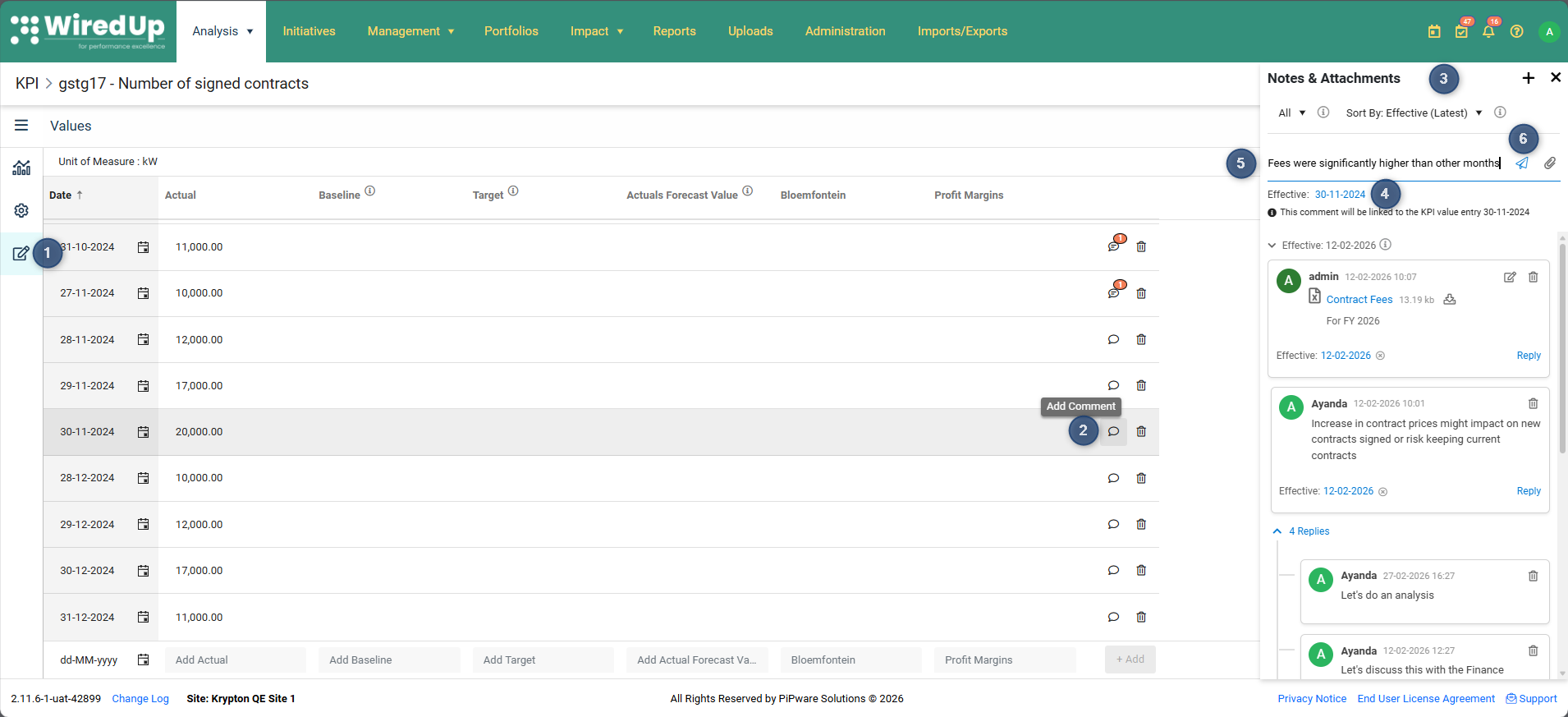
- Navigate to the KPI Values page using the three-bar menu
- Locate the value entry row for which a comment is needed
- Click the Comment icon on that row and the Notes & Attachments slide-out panel will open automatically
- The value entry date automatically becomes the Effective Date for the new comment
- Enter the comment text in the text field
- Click Post Comment icon to add the comment
When Existing Comments are accessed:
- The Notes & Attachments drawer opens automatically
- The drawer automatically scrolls to and focuses on the relevant comment group or comments based on the row's date
- If comments already exist for that date, they are displayed in the appropriate Effective Date group
- If no comments exist for that date, the add comment input field is ready for entry with the Effective Date pre-populated
Use Cases:
- Explaining variances: Add comments directly on value rows to explain unexpected results or deviations from targets
- Documenting data sources: Note where specific values came from or how they were calculated
- Providing context: Add business context for specific periods or measurements
- Flagging issues: Highlight data quality concerns or anomalies for specific entries
Viewing Latest Comments on the KPI List
The Latest Comment column provides a high-level view of recent commentary directly on the KPI List, allowing users to quickly identify which KPIs have recent commentary without opening each individual KPI.
Adding the Latest Comment Column:
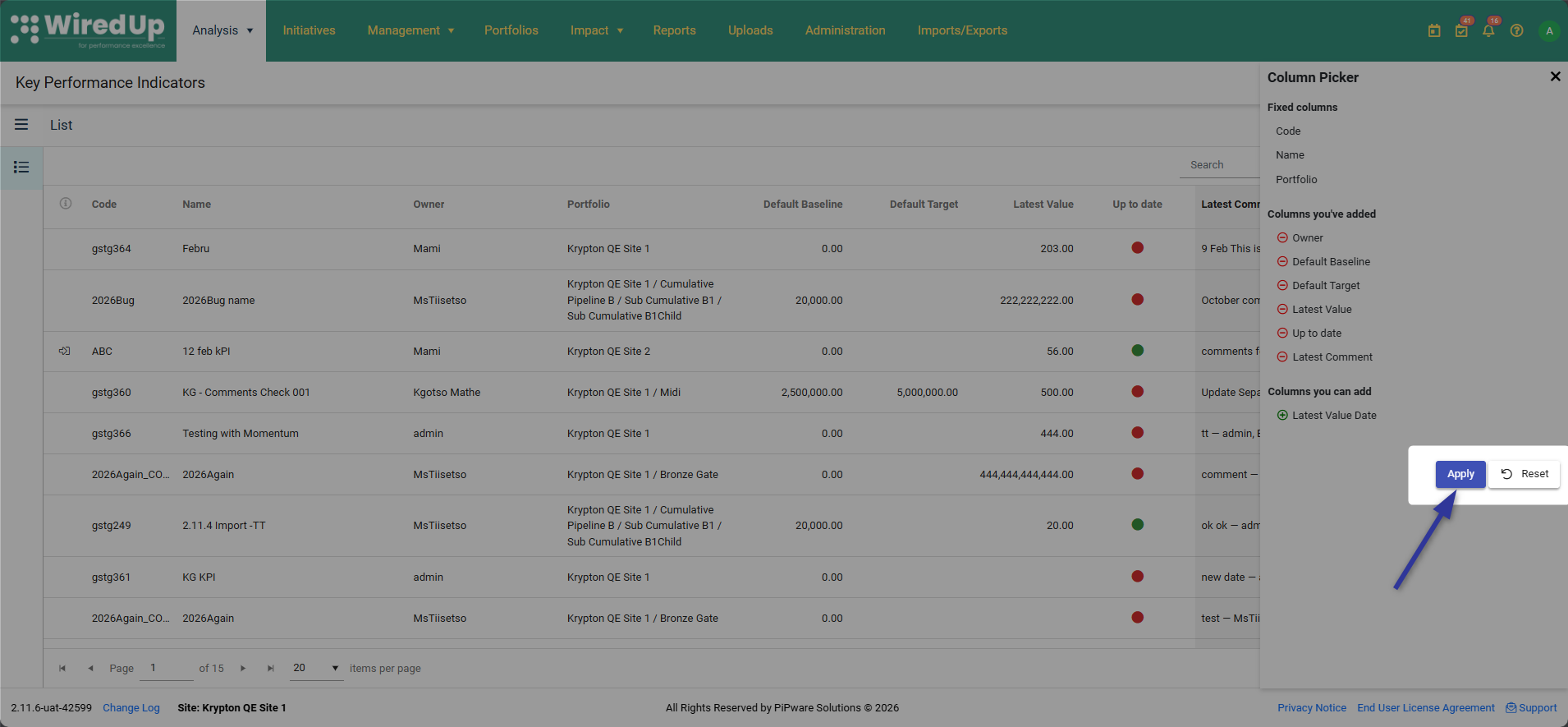
The Latest Comment field is available in the Column Picker but is not added to the KPI List by default. Users must manually add it to their view. To add the Latest Comment column:
- Navigate to Analysis > KPIs to open the KPI List
- Click the Column Picker icon in the top-right corner of the screen
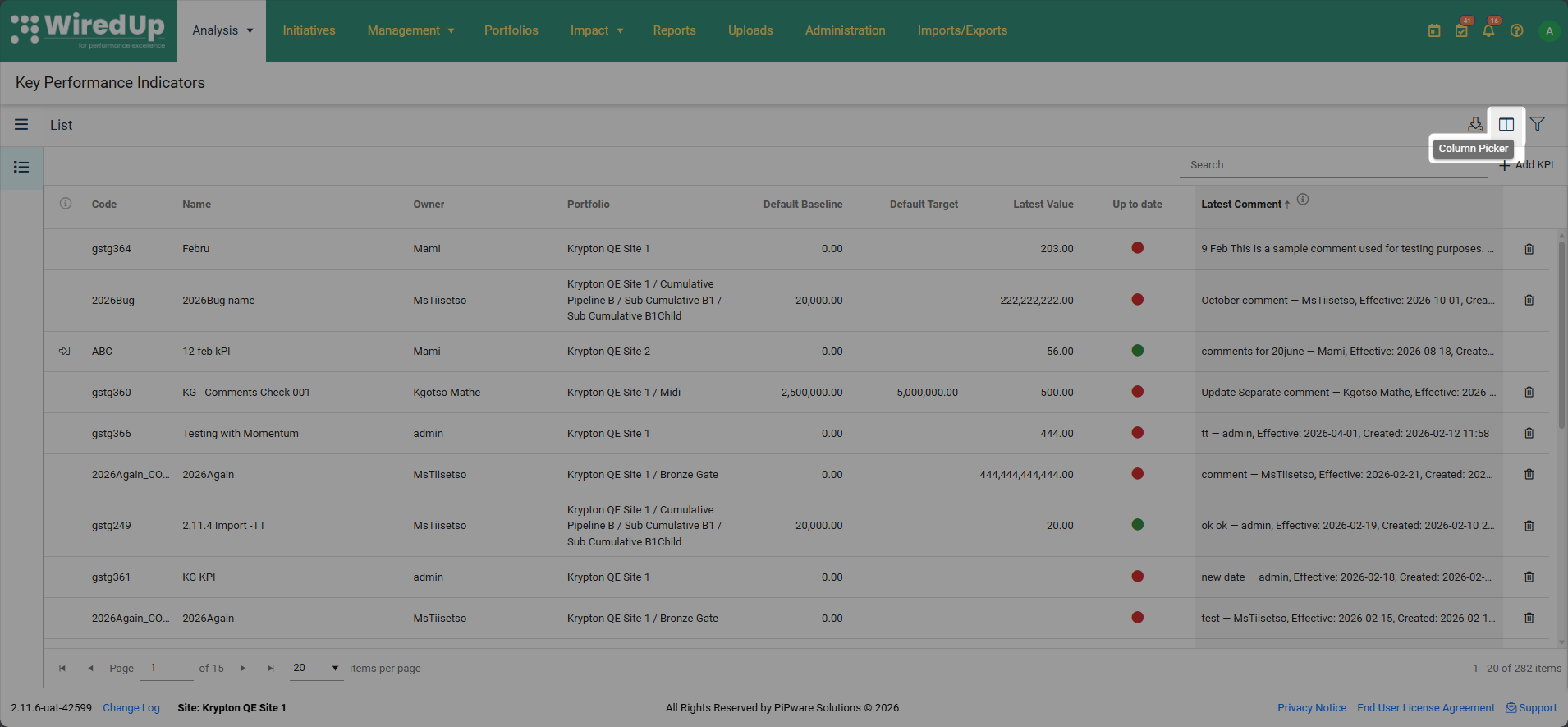
- Locate "Latest Comment" under the "Columns you can add" section
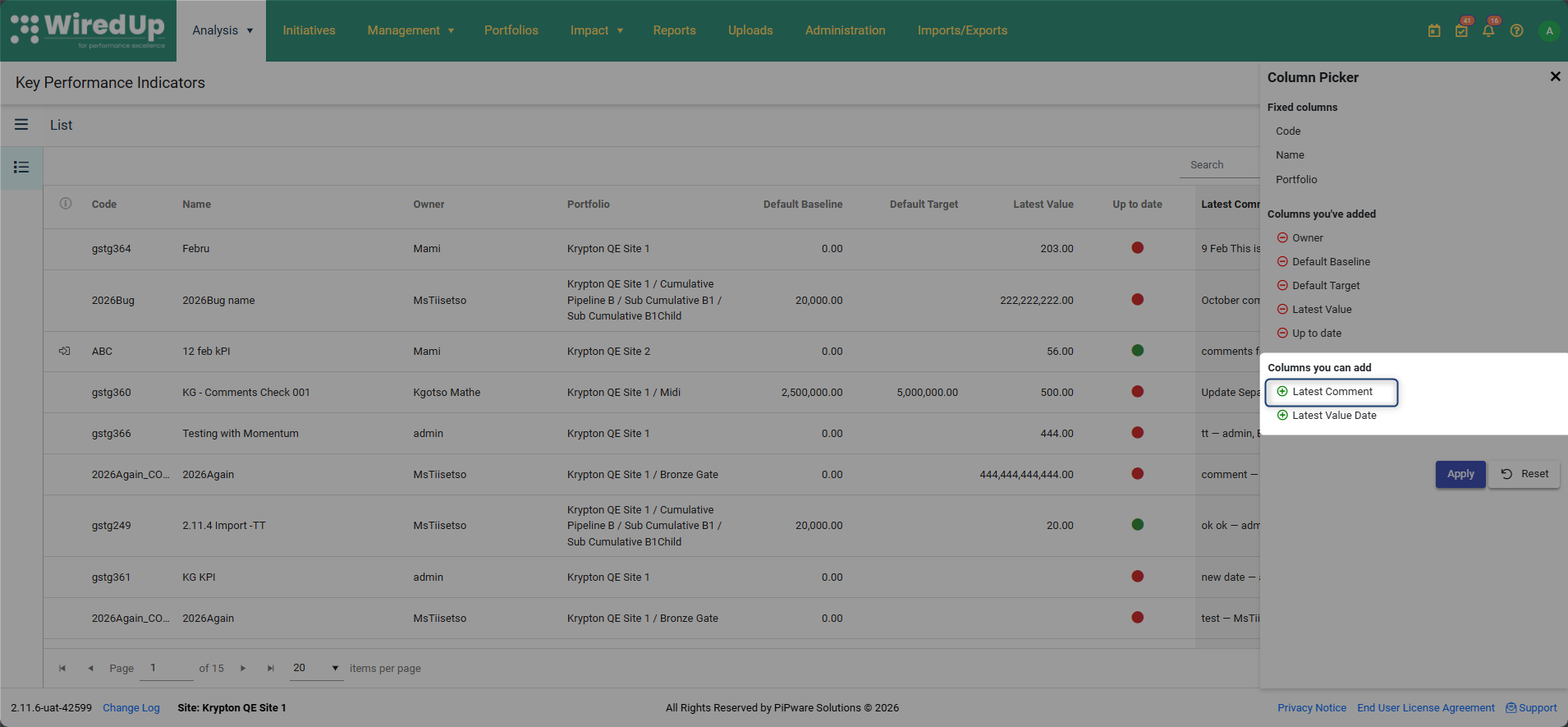
- Click the green "+" icon next to "Latest Comment" to add it to the list
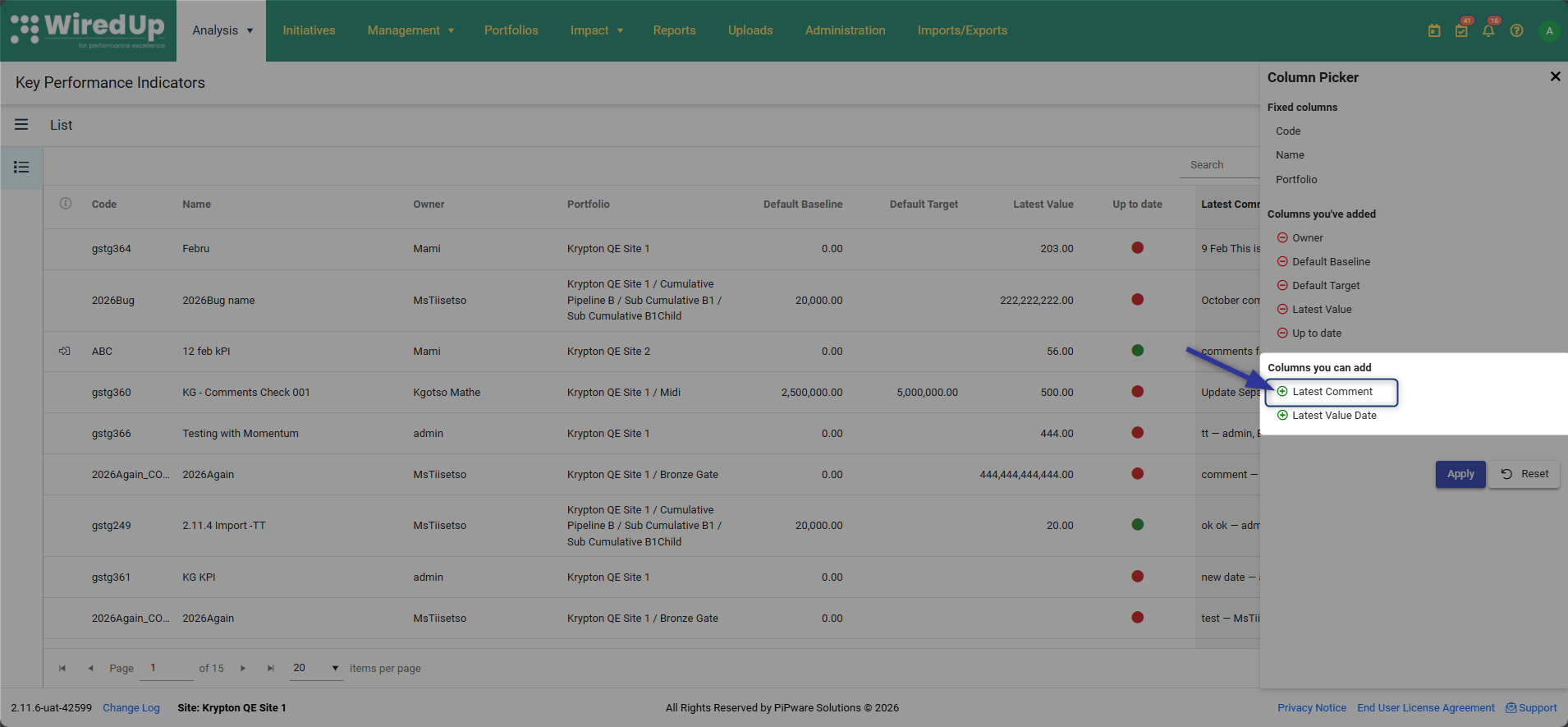
- Click Apply to save the changes and the Latest Comment column will now appear on the KPI List
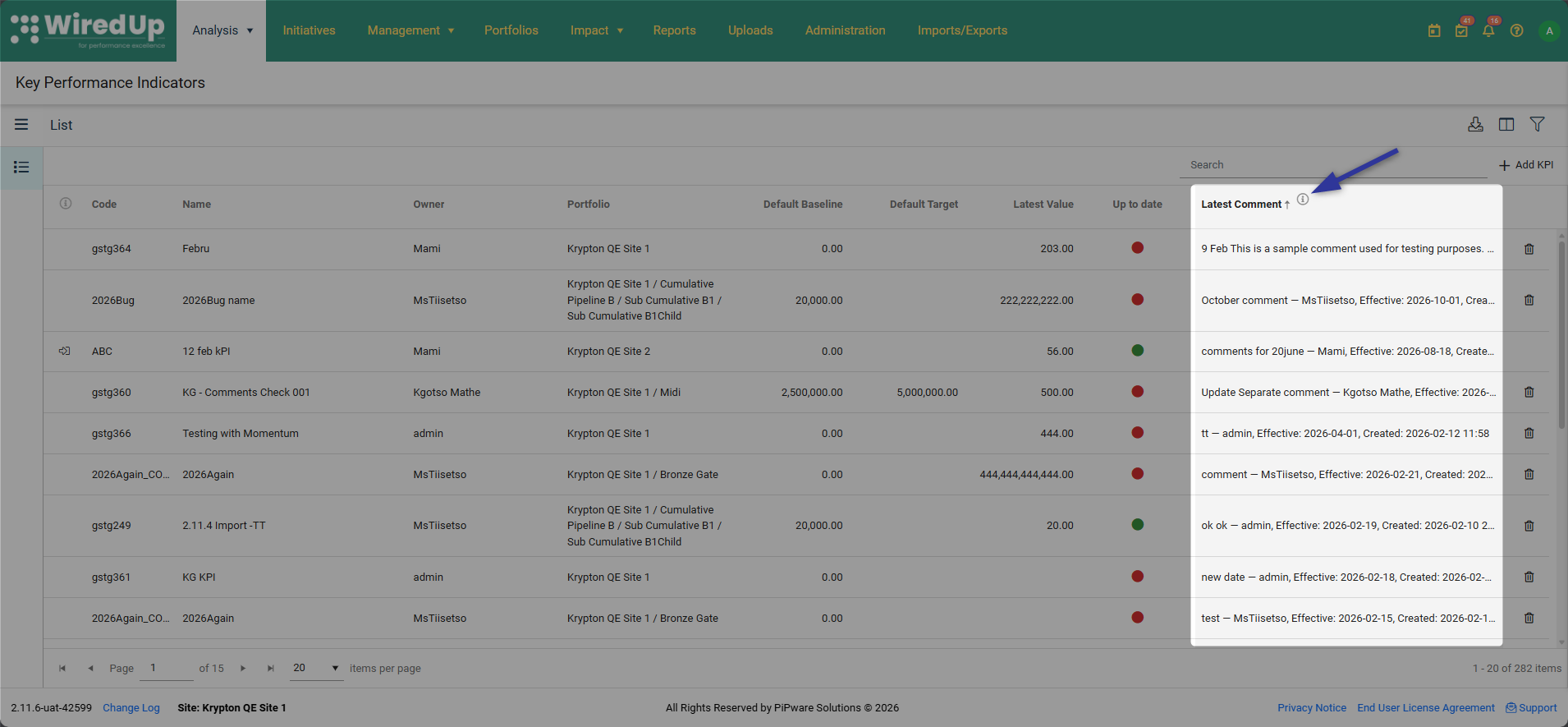
- Click on the 'i' icon in Latest Comment column header to view a tooltip
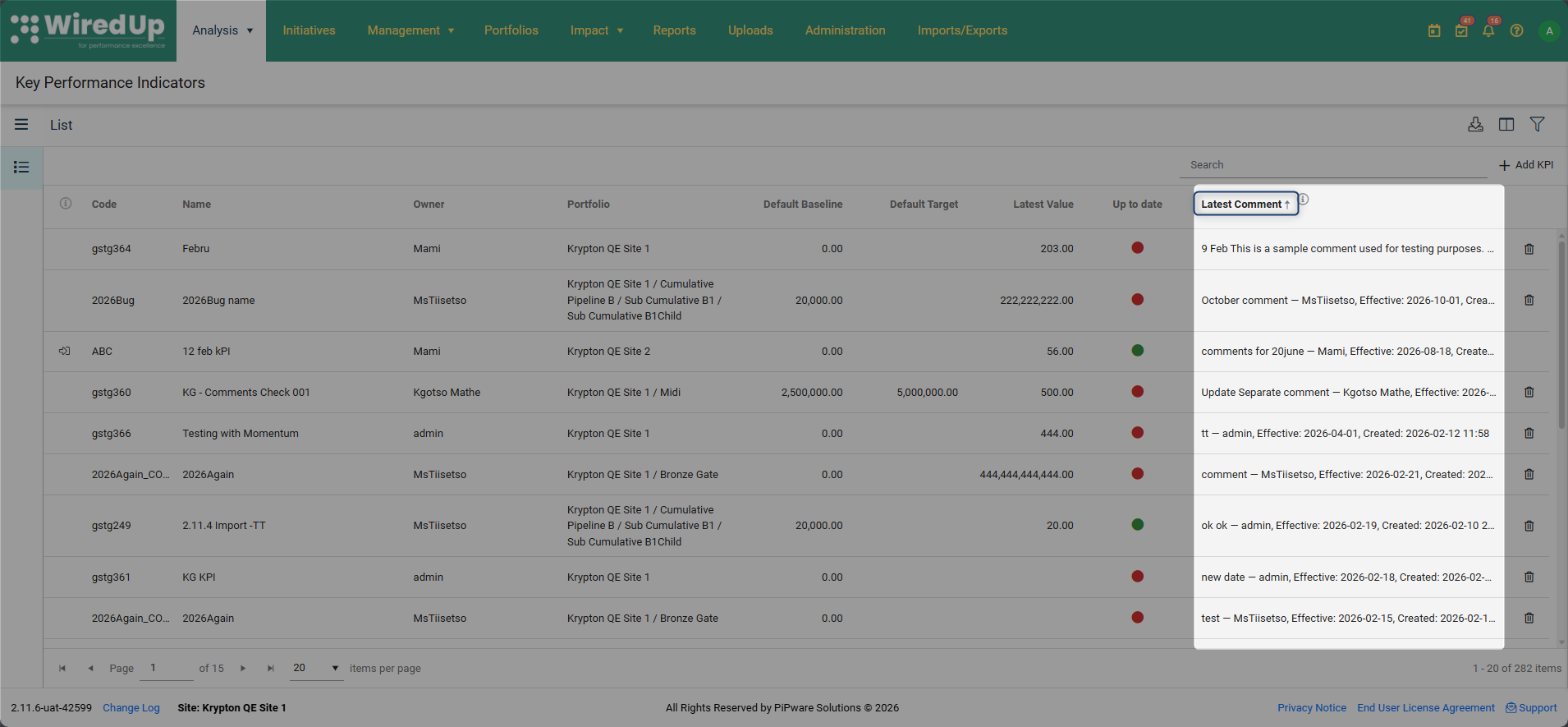
- You can also sort the Latest Comment column by Effective Date
Understanding the Latest Comment Display:
The Latest Comment column displays the following information:
- Comment text: The content of the comment (truncated if too long to fit the column width)
- Username: The name of the user who created the comment
- Effective Date: The related Effective Date of the comment
- Created date: The date and time when the comment was created
How the Latest Comment is Determined:
- The system displays the comment with the most recent Effective Date for the KPI
- If multiple comments share the same Effective Date, the system shows the one with the most recent Created date/time
- This ensures that the most relevant and timely commentary is displayed at the list level
Exporting Latest Comments:
When the Latest Comment column is added to the KPI List UI, it is automatically included in:
- PDF downloads: The Latest Comment column appears in the exported PDF with the same information displayed in the UI
- Excel downloads: The Latest Comment column appears in the exported Excel file with the full comment text, user name, and Created date
This ensures that commentary is preserved in exported reports and can be shared with stakeholders who may not have direct access to the WiredUp system.
Viewing Latest Comments in KPI Reports
The Latest Comment column is available in the KPI Actual Details Report, providing valuable context and explanations for KPI performance during specific reporting periods. This is especially important for quarterly or periodic reporting where commentary provides insights into the data.
The Latest Comment column in the KPI Actual Details Report displays: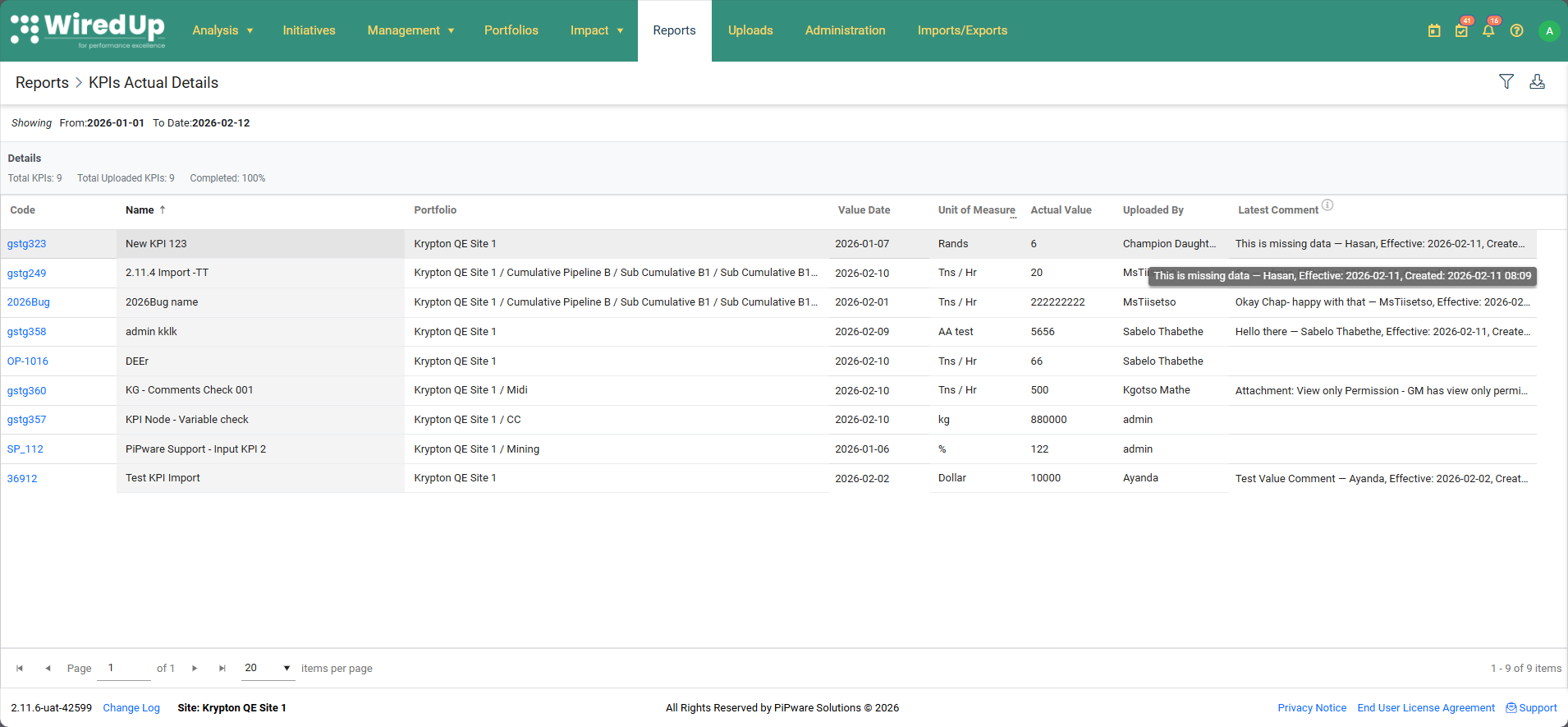
- Comment text: The content of the comment (truncated if too long to fit the column width)
- User name: The name of the user who created the comment
- Effective date: The business date the comment applies to
- Created date: The date and time when the comment was created
- Hover over the Latest Comment column header to view the tooltip
The Latest Comment Column can be sorted by clicking the column header to sort comments by effective date (descending or ascending)How the Latest Comment is Determined in Reports:
- The system displays the comment with the most recent Effective Date that falls within the report's From/To date range
- If multiple comments have the same Effective Date within the range, the system shows the one with the most recent Created date/time
- Only comments with Effective Dates that fall within the selected reporting period are considered. This ensures that the commentary is relevant to the specific time period being analyzed
Excel Download with All Comments:
When downloading the KPI Actual Details Report to Excel, the file includes two sheets to provide comprehensive commentary information:
- Sheet 1: KPI Data with Latest Comment (gives the user the flexibility to view summary information with the latest comment)
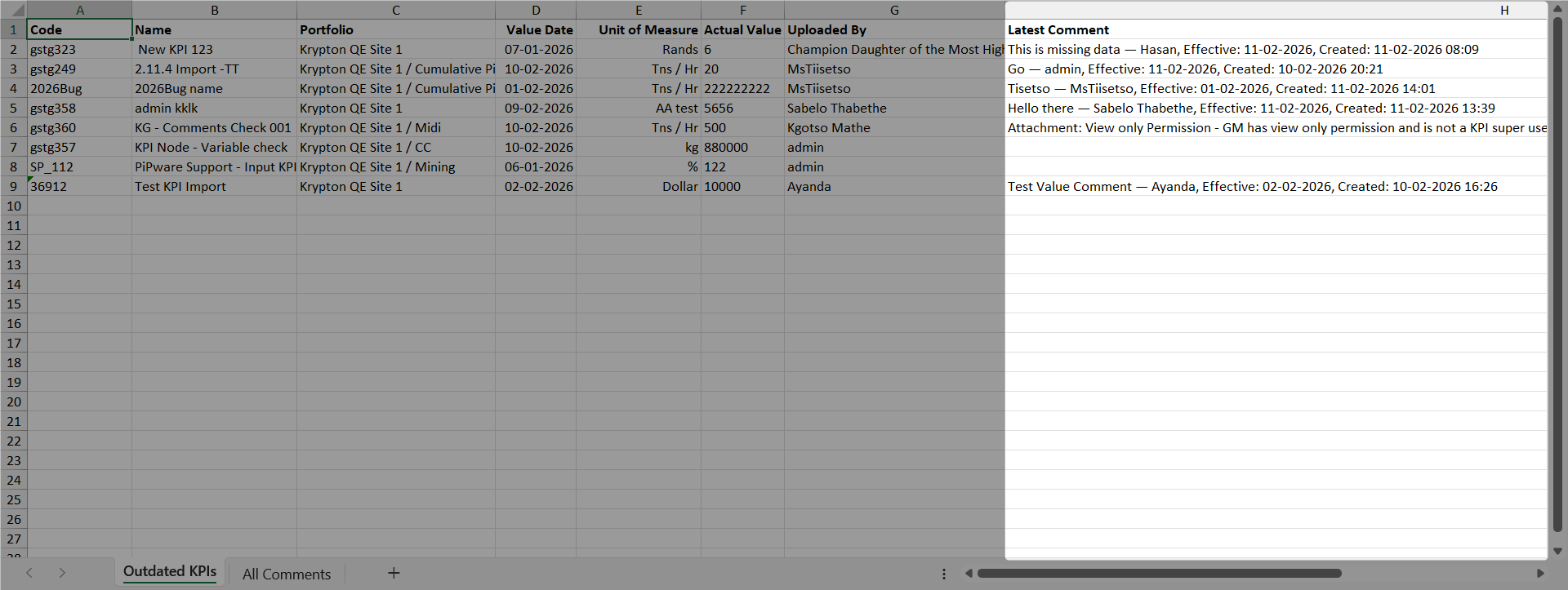
- Contains all KPI data displayed in the report UI
- Includes the Latest Comment column with the same information shown on screen
- Provides a summary view with one row per KPI
- Sheet 2: All Comments (analyze all commentary in detail)
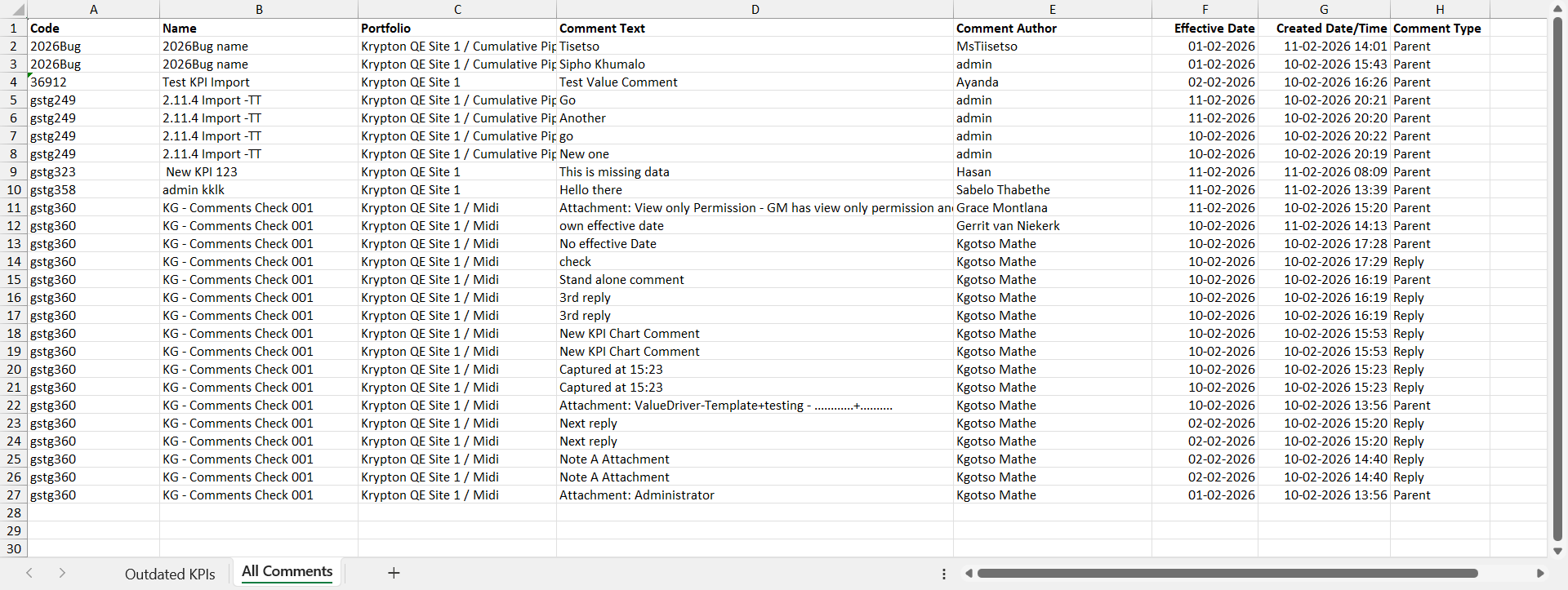
- Contains all comments for KPIs within the report's date range
- Displays one row per comment for detailed analysis
- Includes the following columns:
- KPI Code
- KPI Name
- Portfolio/Org Structure
- Comment Text (full text, not truncated)
- Comment Author
- Effective Date
- Created Date
- Comment Type
Use Cases for Report Commentary:
- Quarterly Business Reviews: Include commentary to explain performance trends and variances during the quarter
- Executive Reporting: Provide context for KPI results without requiring stakeholders to access the system
- Historical Analysis: Review past commentary to understand decision-making and performance factors
- Audit Trail: Maintain a record of explanations and justifications for specific periods
Exporting Comments via API
The KPI Bulk Data Export API supports exporting KPI comments, allowing users to include period-based commentary in external reporting systems and integrate KPI insights with other business intelligence tools.
Including Comments in API Response:
To include KPI comments in the API response, add the IncludeComments query parameter:
Query Parameters:
- IncludeComments: true or false (default: false)
- When true, the API response includes KPI comments filtered by Effective Date
- When false or omitted, the kpiComments property is not included in the response
- FromDate:Start date for filtering comments by Effective Date (inclusive)
- Format: yyyy-MM-dd
- Only comments with Effective Dates on or after this date are included
- ToDate: End date for filtering comments by Effective Date (inclusive)
- Format: yyyy-MM-dd
- Only comments with Effective Dates on or before this date are included
When IncludeComments=true, the API response includes a new top-level collection called kpiComments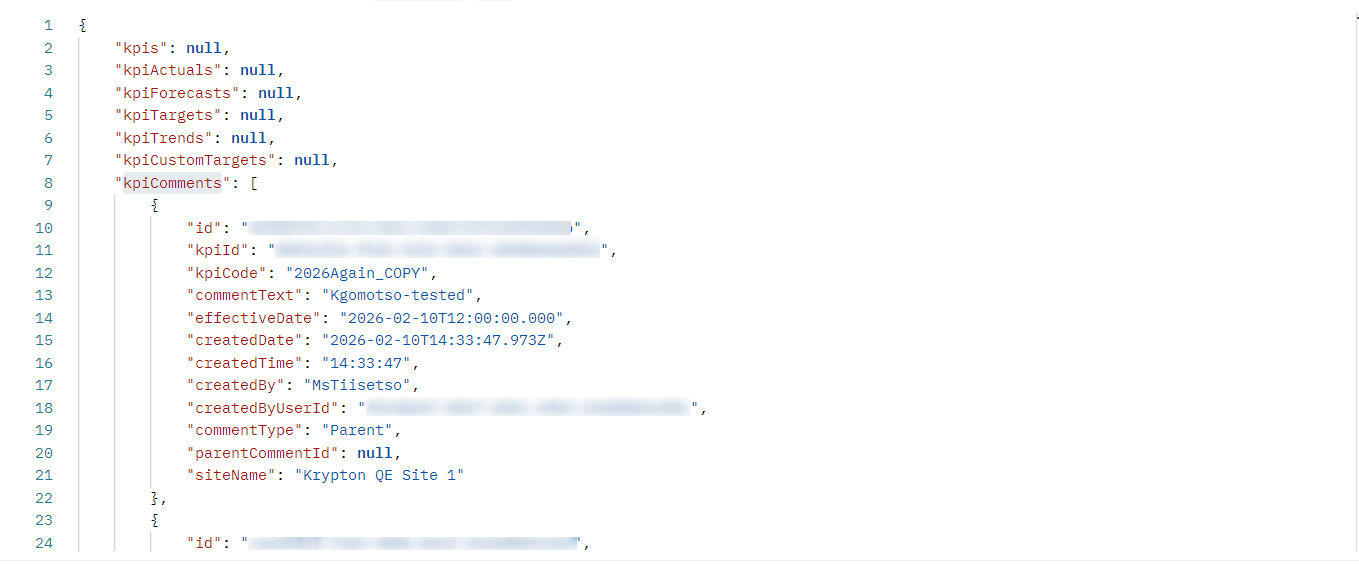
Comments without an Effective Date are not included in the API responsePermissions and Scoping:
- The API respects existing KPI scoping and filtering rules
- Users can only access comments for KPIs they have permission to view
- Comments are subject to the same access control as the KPI records themselves
- Confidential KPIs and their associated comments are only accessible to authorized users
Comment Limit:
- A reasonable limit is enforced on the number of comments returned per request to ensure API performance
- If the number of comments exceeds the limit, the API returns the most recent comments based on Effective Date and Created Date
- Users should implement date range filtering to retrieve all comments for large datasets
Use Cases for API Export:
- External Reporting Systems: Integrate KPI commentary into business intelligence dashboards and reports
- Data Warehousing: Export comments to data warehouses for historical analysis and trend identification
- Automated Reporting: Include period-based commentary in automated quarterly or monthly reports
- Third-Party Integrations: Share KPI insights with external stakeholders through integrated systems