
In This Article
Accessing the Portfolio Module
Overview
The Portfolio module is the central hub for managing and configuring your organization's portfolio structure and site-specific settings. This feature provides PMO users with comprehensive tools to organize, monitor, and configure portfolios, sites, and their associated elements.
Note: The Portfolio module is only available for users with PMO permissions.When you navigate to the Portfolio module, the Portfolio Management screen opens by default, displaying your portfolio hierarchy and detailed information for managing your portfolios and sites.
From the Portfolio module, you can:
- View and navigate the complete portfolio hierarchy structure
- Access and manage individual portfolio or site details
- Configure site-specific settings and information
- Add notes and attachments for documentation and collaboration
- Access risk registers, portfolio structures, and site configurations
- Monitor and manage portfolio-level information across your organization
The Portfolio module serves as the foundation for organizing your transformation initiatives, ensuring proper governance, and maintaining visibility across all levels of your portfolio structure.
Accessing the Portfolio Module
To access the Portfolio module: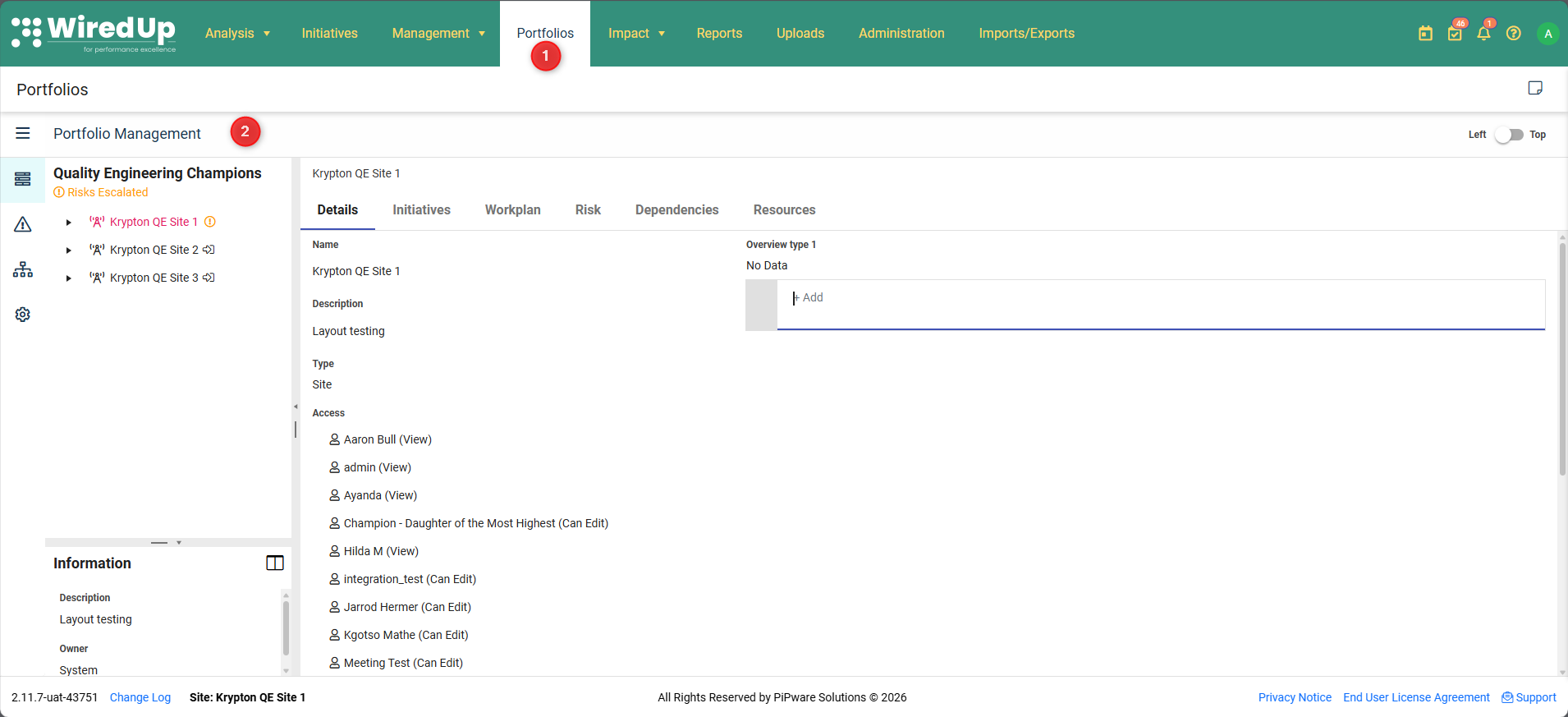
- Click Portfolios from the main navigation ribbon at the top of the screen
- The Portfolio Management screen opens by default, displaying your portfolio hierarchy
The default view shows the portfolio structure in the left panel and detailed information for the selected portfolio or site in the main content area.
Portfolio Management Screen
The Portfolio Management screen is the default view when accessing the Portfolio module. It displays your organization's portfolio structure in a hierarchical tree view on the left panel, with detailed information for the selected portfolio or site in the main content area.
For detailed information about the Portfolio Management screen, refer to the Portfolio Management article.Available Tabs
When you select a portfolio or site from the hierarchy, the main content area displays information organized into the following tabs:
- Details: View and edit core information about the portfolio or site, including name, description, type, and access permissions
- Initiatives: View all initiatives associated with the portfolio or site
- Workplan: Access the portfolio or site workplan and timeline
- Risk: View and manage risks at the portfolio level
- Dependencies: Track dependencies between initiatives and portfolios
- Resources: Manage resource allocation and capacity planning
For detailed information on the portfolio tabs, refer to the Portfolio Management Hierarchy Views Notes & Attachments
The Notes & Attachments feature allows you to add commentary and supporting documentation to portfolios and sites, similar to the KPI Commentary functionality.
To access Notes & Attachments:
- Click the Notes & Attachments icon (note/comment bubble) in the top-right corner of the screen
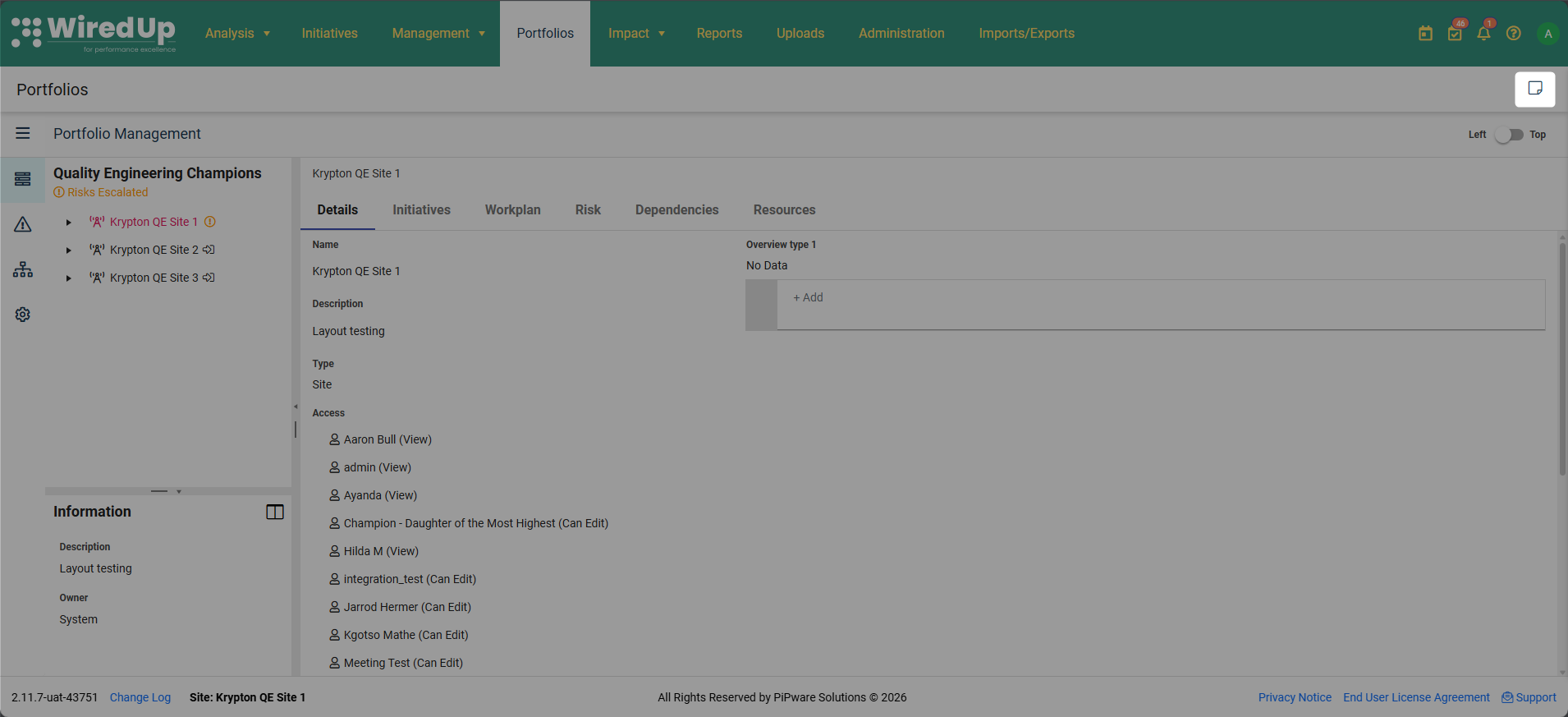
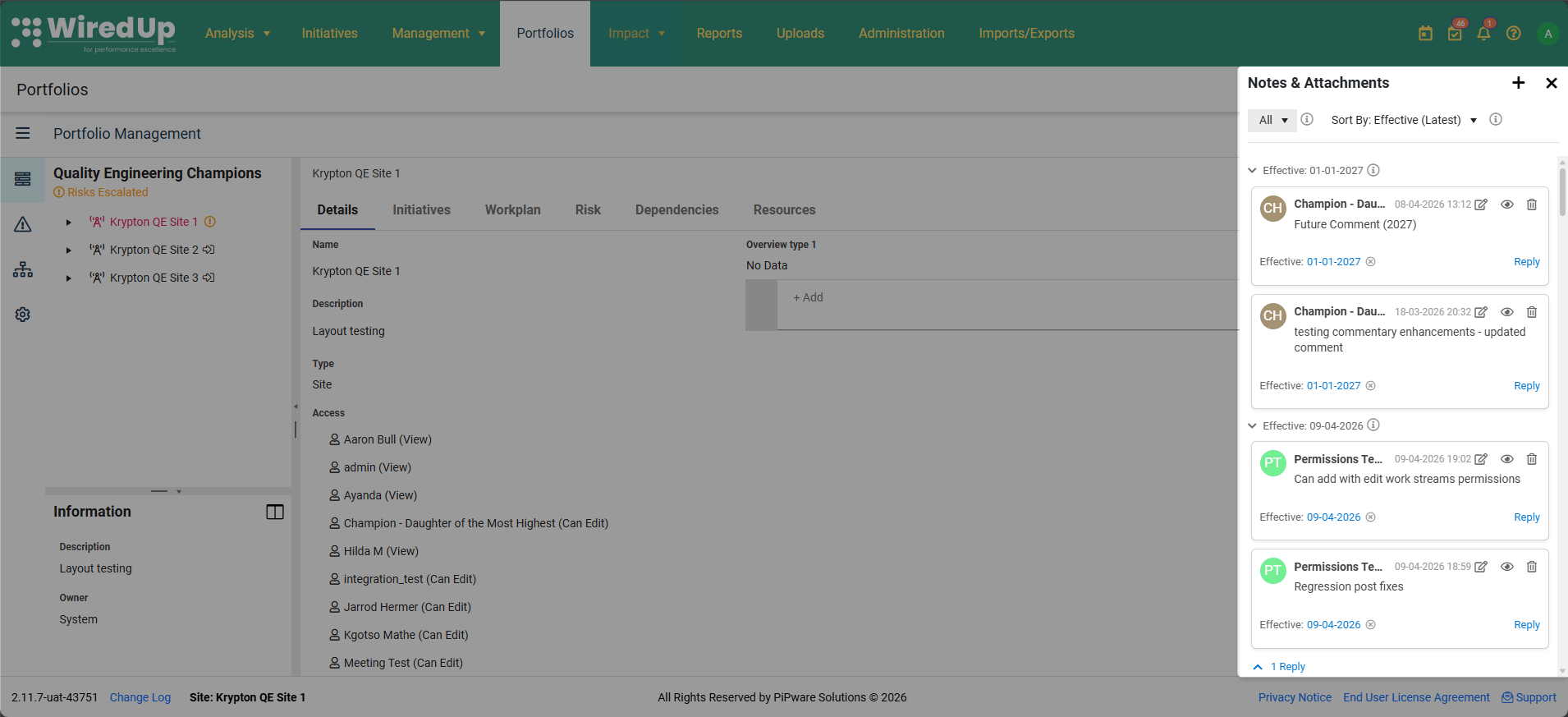
- The Notes & Attachments panel slides out from the right side
To add a comment: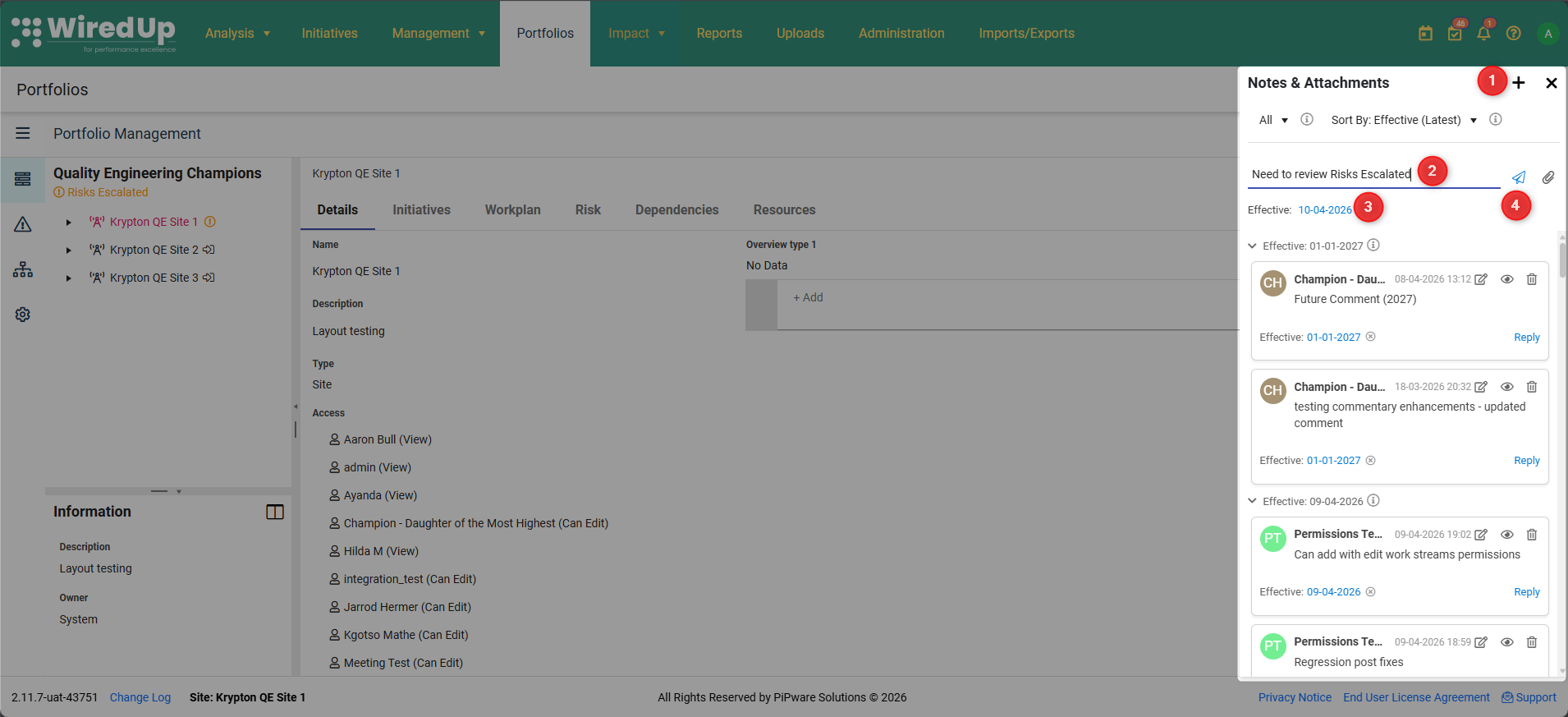
- Click the + icon at the top of the Notes & Attachments panel and select Comment
- Enter your comment text
- Set an Effective Date if needed (to associate the comment with a specific time period)
- Click Post Comment
To add an attachment: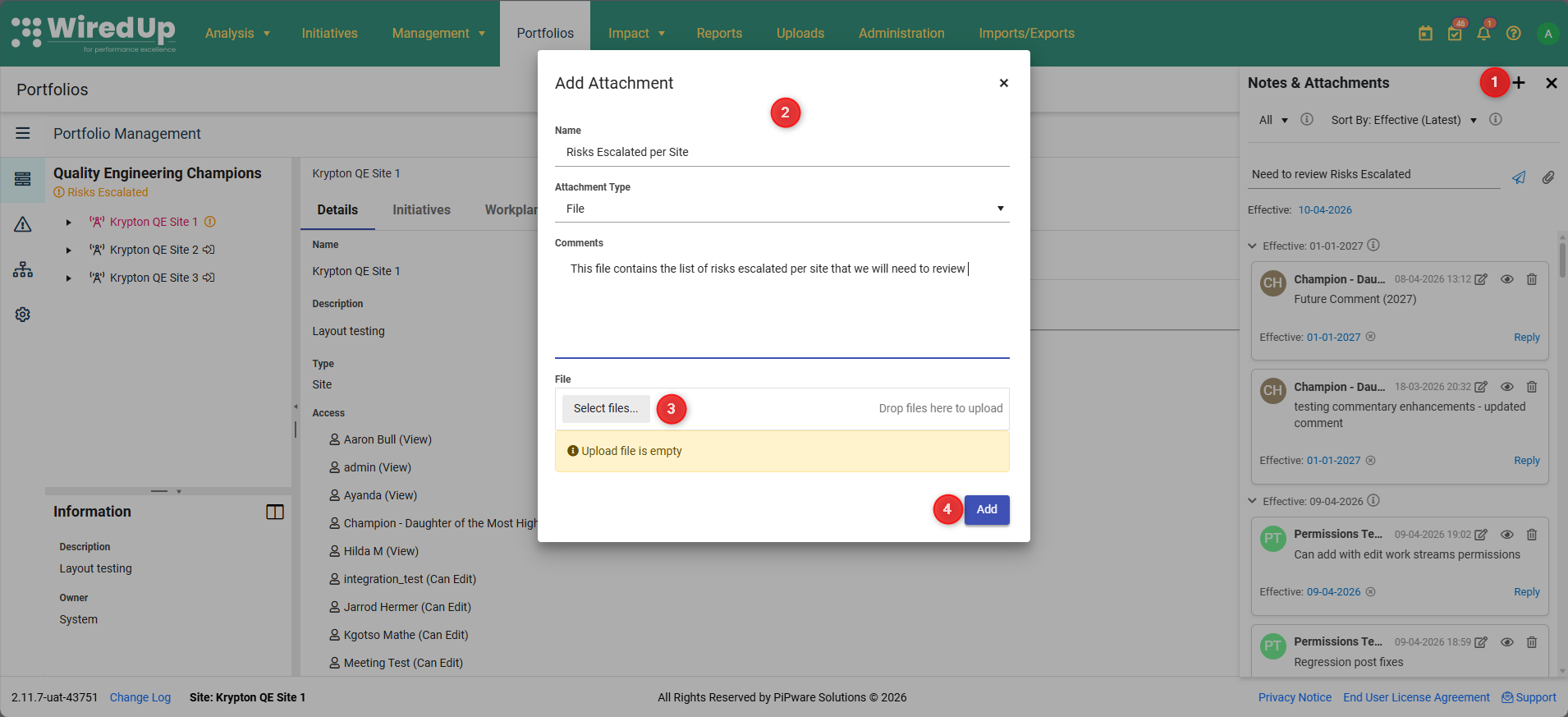
- Click the + icon at the top of the Notes & Attachments panel and select Attachment
- Enter the attachment details:
- Name: Name of the attachment
- Attachment Type: Select File or URL
- Comment: Optional context for the attachment
- Upload the file or enter the URL
- Click Add
Viewing and managing notes and attachments:
- Comments are displayed in chronological order with timestamps
- Filter by All, Comments, or Attachments using the dropdown at the top
- Sort by Effective Date or Created Date
- Each comment shows:
- User initials in a colored badge
- Username and timestamp
- Comment text
- Effective date (if set)
- Reply to comments to create threaded conversations
- Edit or delete your own comments using the icons on each comment
For detailed information on this feature, see KPI Commentary FeatureUse cases:
- Document portfolio-level decisions and strategic direction
- Attach business cases, approval documents, or strategic plans
- Provide context for portfolio changes or restructuring
- Create an audit trail of portfolio governance activities
- Share important updates with portfolio stakeholders
Left Navigation Menu
The left navigation menu provides quick access to key portfolio management functions. Click on any menu item in the left navigation to change the main content area view: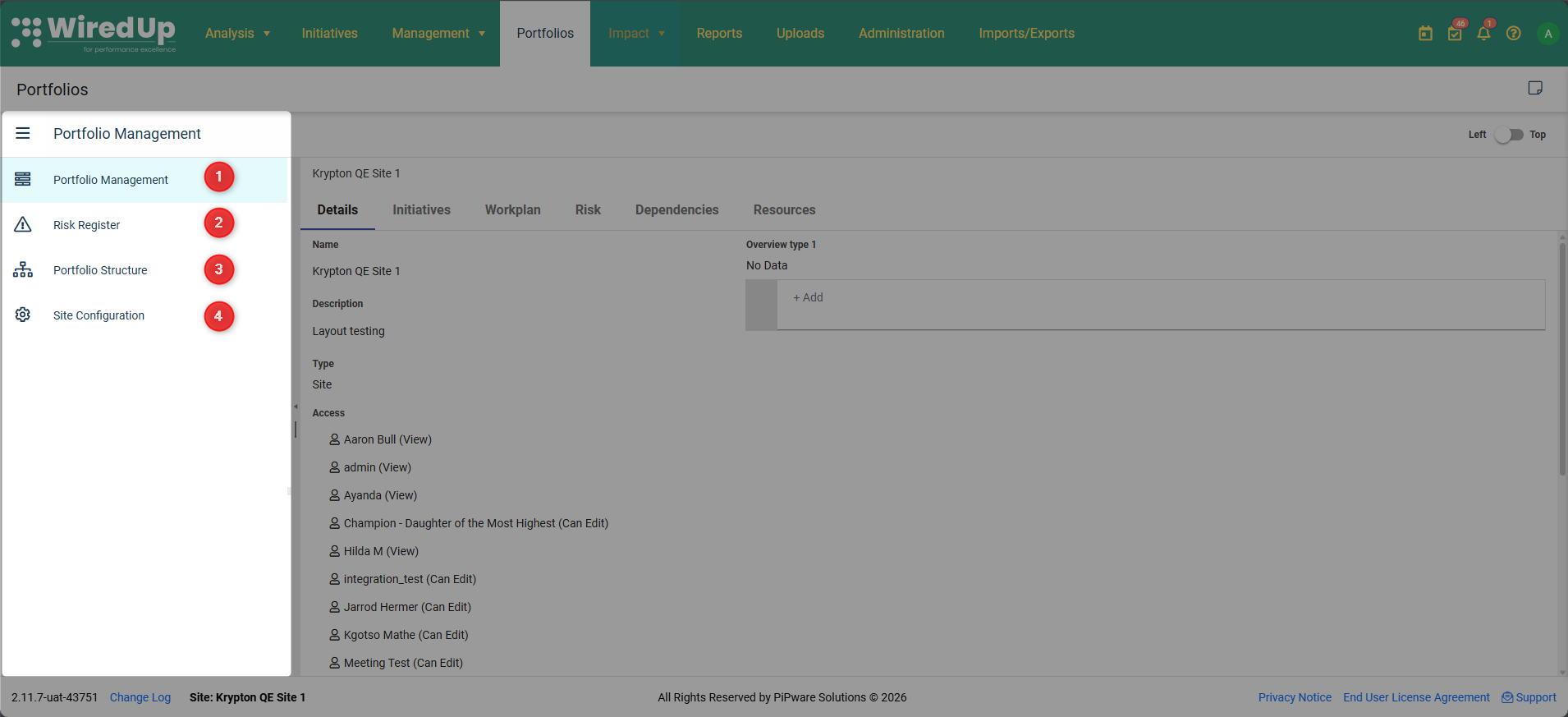
- Portfolio Management: The main view showing the portfolio hierarchy and details (default view). This is where you can view and manage your portfolio structure, access portfolio and site details, and navigate through your organizational hierarchy.
- Risk Register: Access the portfolio-level risk register to view all risks across the portfolio, add and manage portfolio-level risks, monitor risk status and mitigation plans, and track risk ownership and accountability.
- Portfolio Structure: Configure and manage the portfolio organizational structure. This is where you can add new portfolios or sites, modify the hierarchy, reorganize portfolio elements, and set up parent-child relationships.
- Site Configuration: Access site-specific configuration settings to configure site-level parameters, set up site-specific workflows, manage site permissions and access, and customize site settings and preferences.
Layout Options
The Portfolio Management screen offers flexible layout options to suit your working preferences:
To change the layout:
- Click the layout toggle icon in the top-right corner of the screen
- Select your preferred layout:
- Left: Navigation panel on the left, content on the right (default)
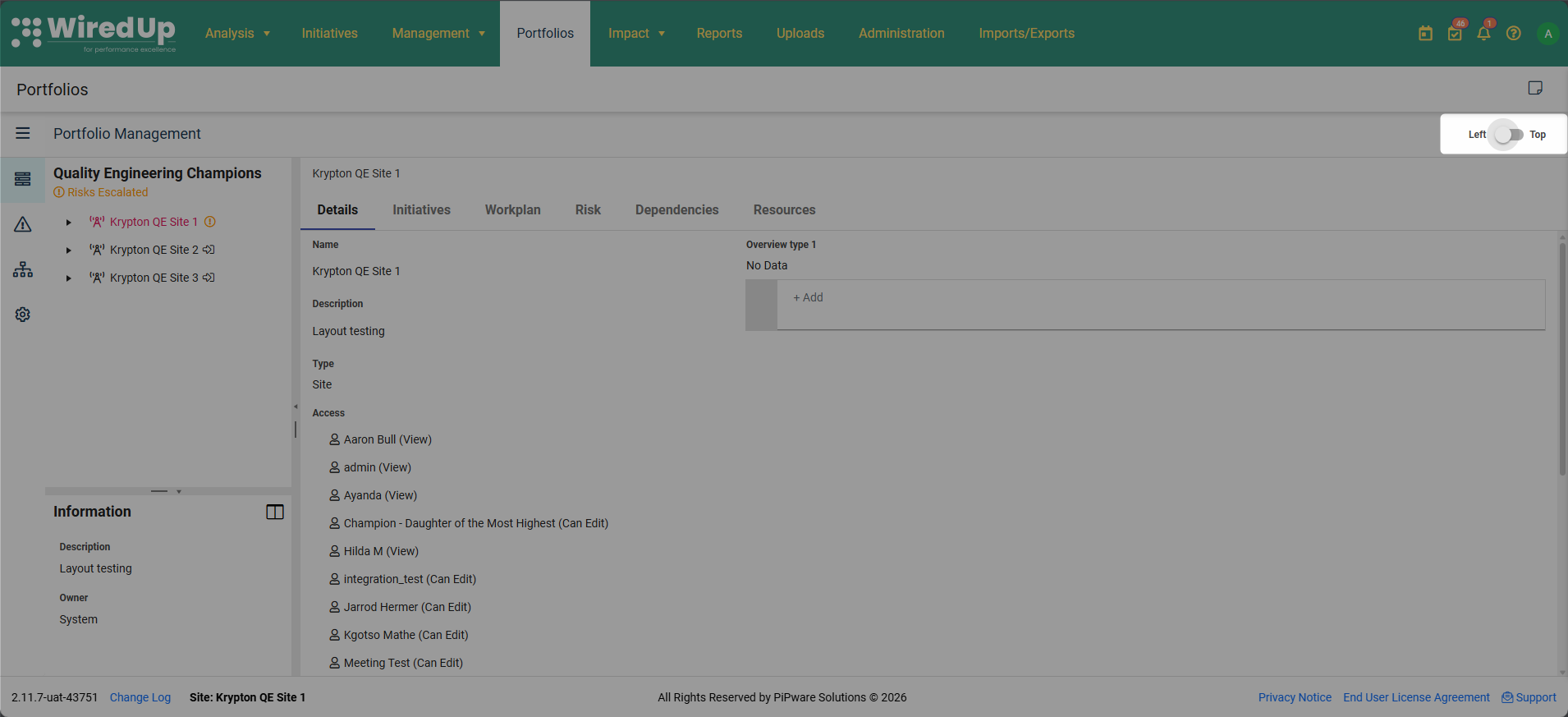
- Top: Navigation panel at the top, content below
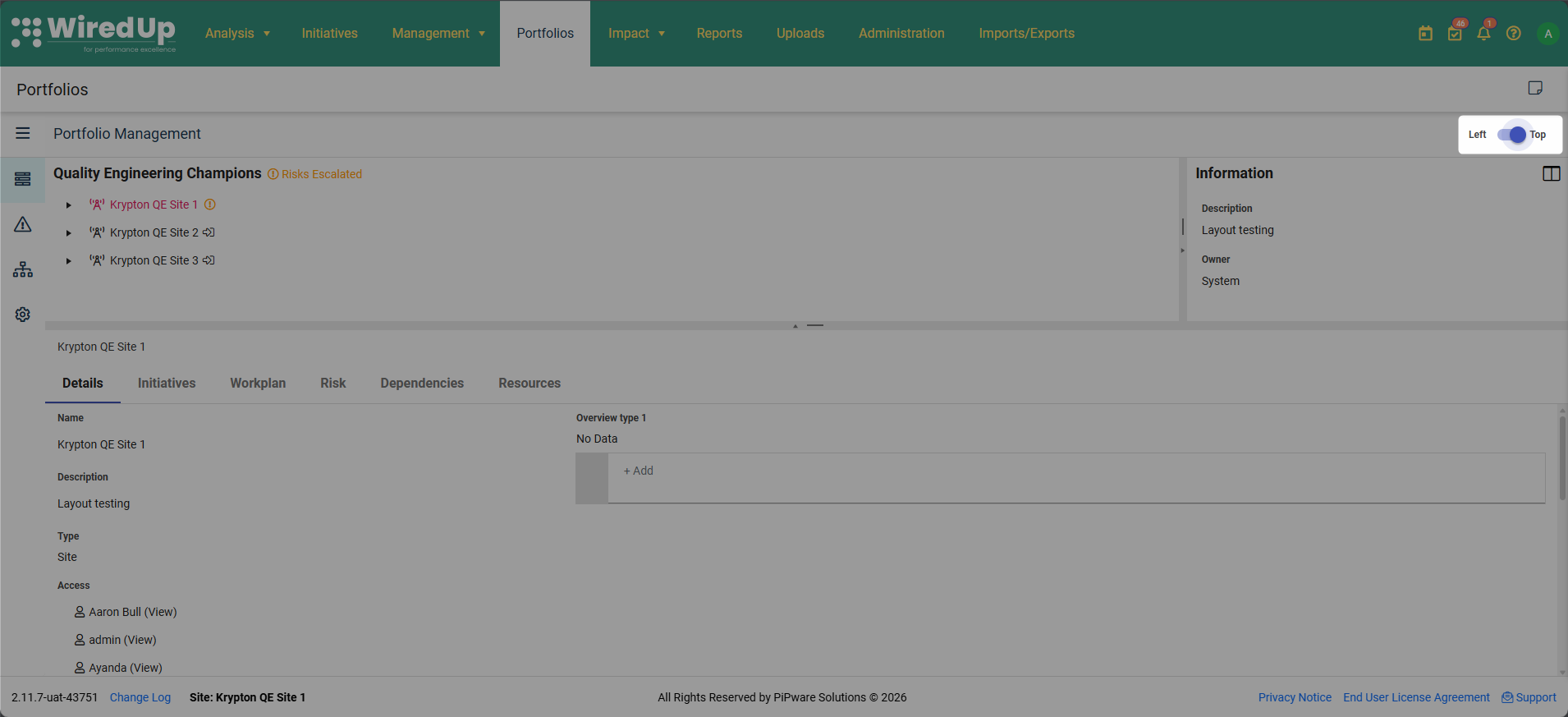
- Left: Navigation panel on the left, content on the right (default)
The layout preference is saved for your user session.
Use Cases
Portfolio governance and oversight:
- Monitor the complete portfolio structure across your organization
- Track access and permissions at the portfolio level
- Document strategic decisions and governance activities
Site management:
- Configure individual site settings and parameters
- Manage site-specific access and permissions
- Track site-level information and documentation
Collaboration and documentation:
- Use Notes & Attachments to document portfolio changes
- Share important updates with portfolio stakeholders
- Maintain an audit trail of portfolio-level decisions
Risk management:
- Access the Risk Register to monitor portfolio-level risks
- Track risk mitigation across multiple sites
- Ensure proper risk governance and oversight
Organizational structure management:
- Use Portfolio Structure to organize sites and sub-portfolios
- Restructure portfolios as your organization evolves
- Maintain clear hierarchies and reporting relationships
Permissions
Access to the Portfolio module is restricted to users with PMO permissions. Specific capabilities may vary based on your role:
- View Access: View portfolio hierarchy, details, and information
- Edit Access: Modify portfolio details, add notes and attachments, configure settings
- Admin Access: Full access to all portfolio management functions, including structure changes and site configuration
Users without PMO permissions will not see the Portfolios tab in the main navigation.