
Overview
Bottom-up target adjustments enable users to define specific targets within an organisational hierarchy level and timeframe. This adds granularity to Top-down targets and improves the accuracy of the overall target set. After setting Top-down targets, target values are auto-populated across each hierarchy level and month. Users can drill down into each level and edit as required. This approach allows for precise adjustments at any organizational level, ensuring that targets reflect the reality of each department or unit while maintaining alignment with overall organizational goals.
Accessing Bottom-up Targets
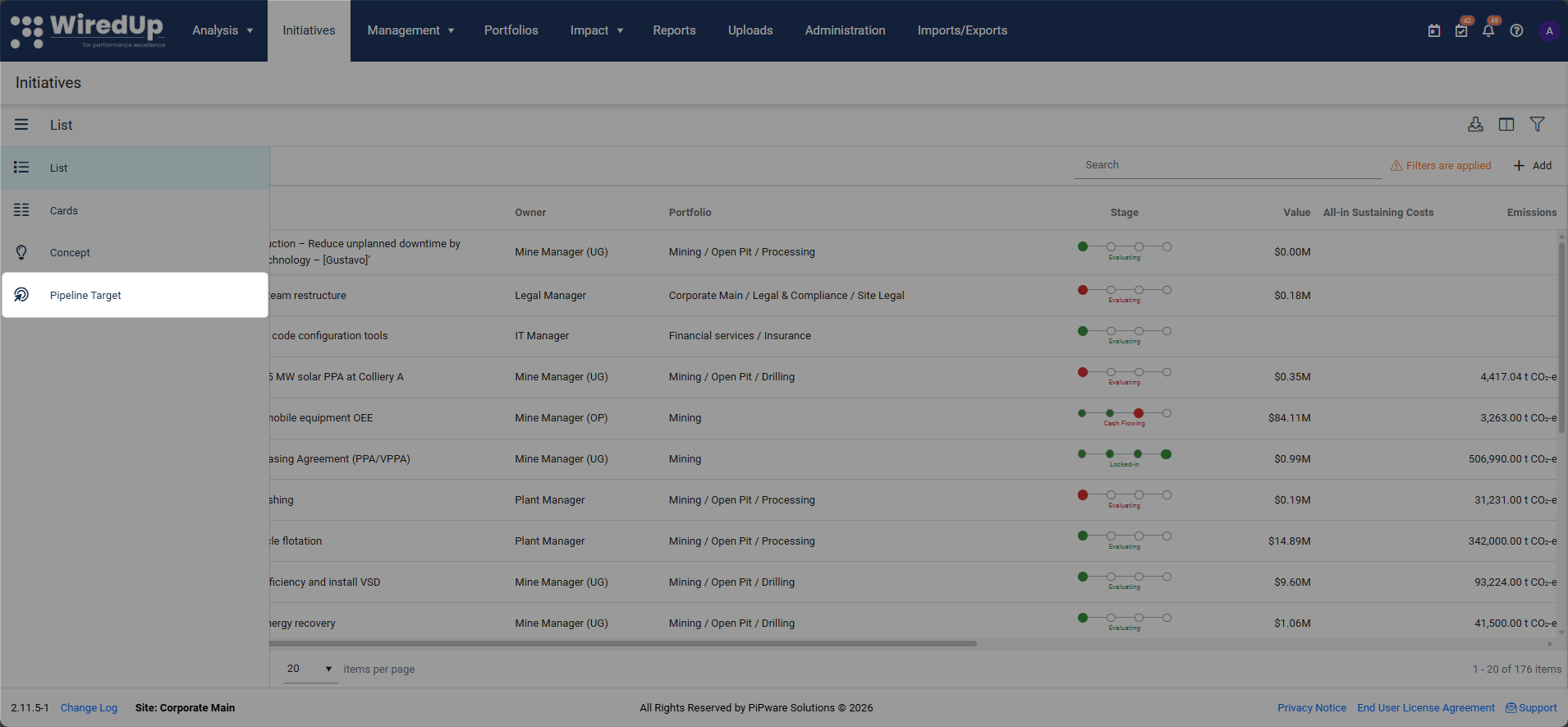
- Navigate to Initiatives and click the three-bar button on the left
- Select Pipeline Targets
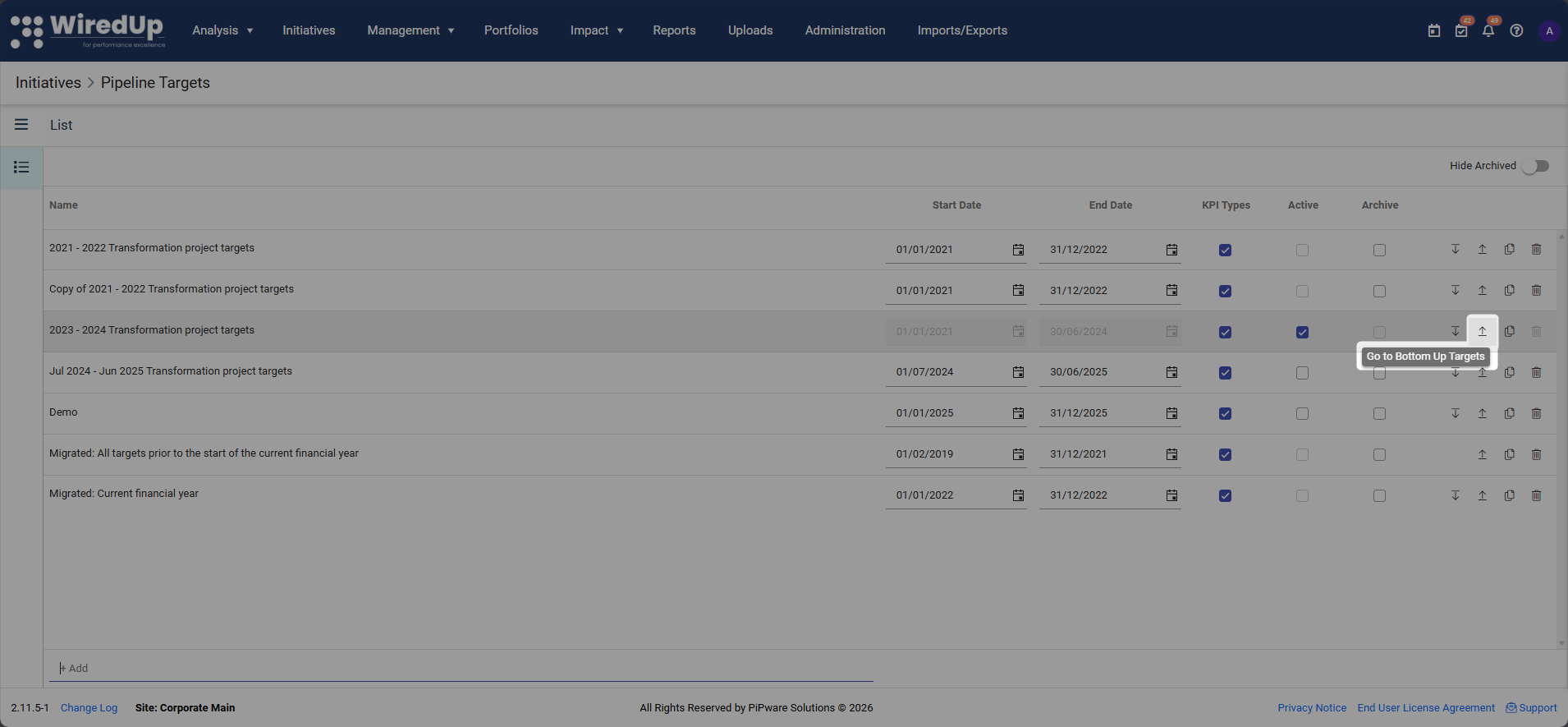
- On the pipeline targets page, locate and click the Bottom-up icon for the desired pipeline target to access the Bottom-up target setting detail page
For more information on how to set up pipeline targets, please see this article: Setting Pipeline TargetsConfiguring Bottom-up targets
On the Bottom-up targets page that will appear, you can now navigate to the desired hierarchical level previously configured and set your targets. For instructions on how to set up your organisational hierarchy, see How to set up your organisational structure.
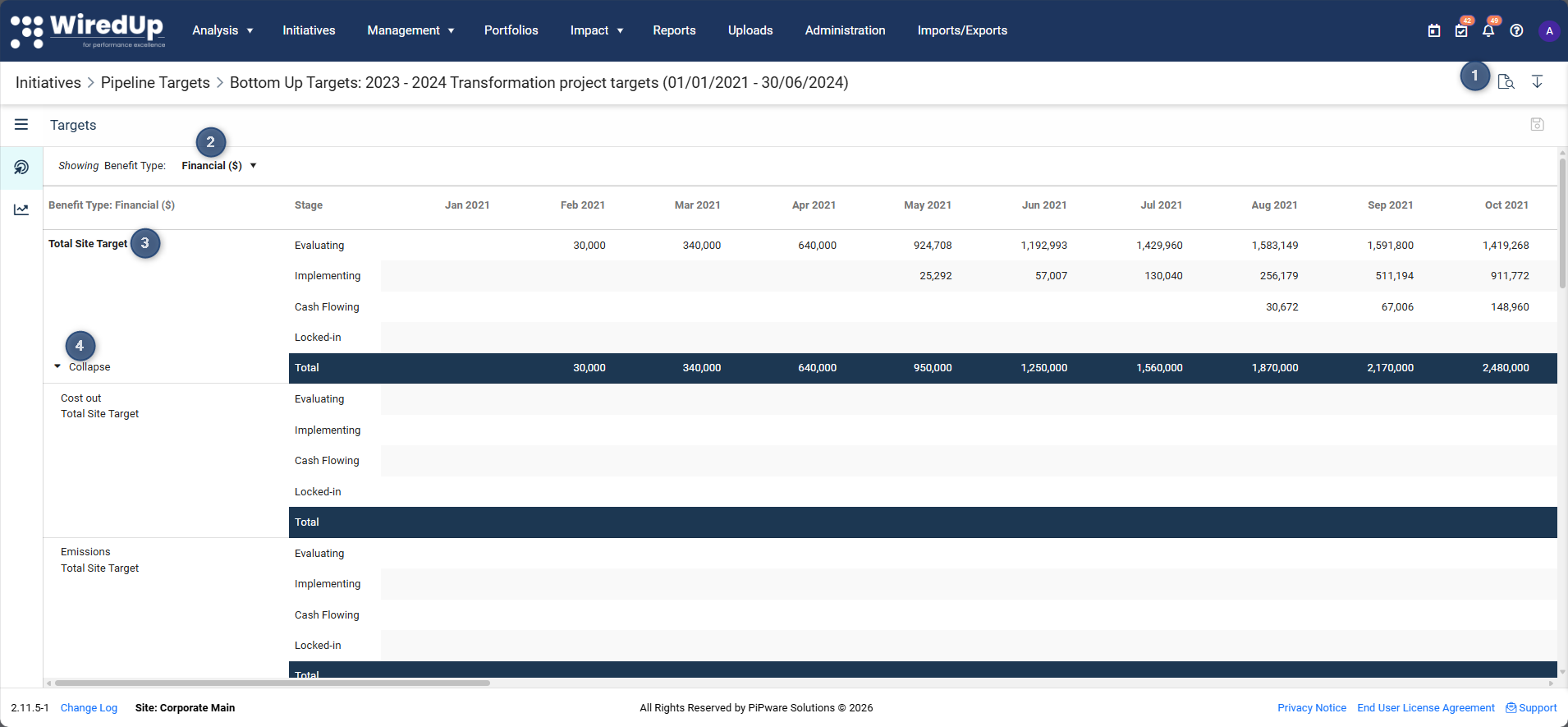
- Select these icons to view the pipeline targets audit log as well as to navigate to top-down targets
- Select this drop-down to switch between financial benefit type or non-financial benefit type
- View the aggregated, view-only total site target values. The target values entered at a granular level are aggregated to display the total site target values.
- Select this icon to Collapse or Expand the options for entering the bottom-up targets
Adding or Editing Bottom-Up Target Values
Users require the Edit Targets user access permission in order to be able to edit pipeline targets.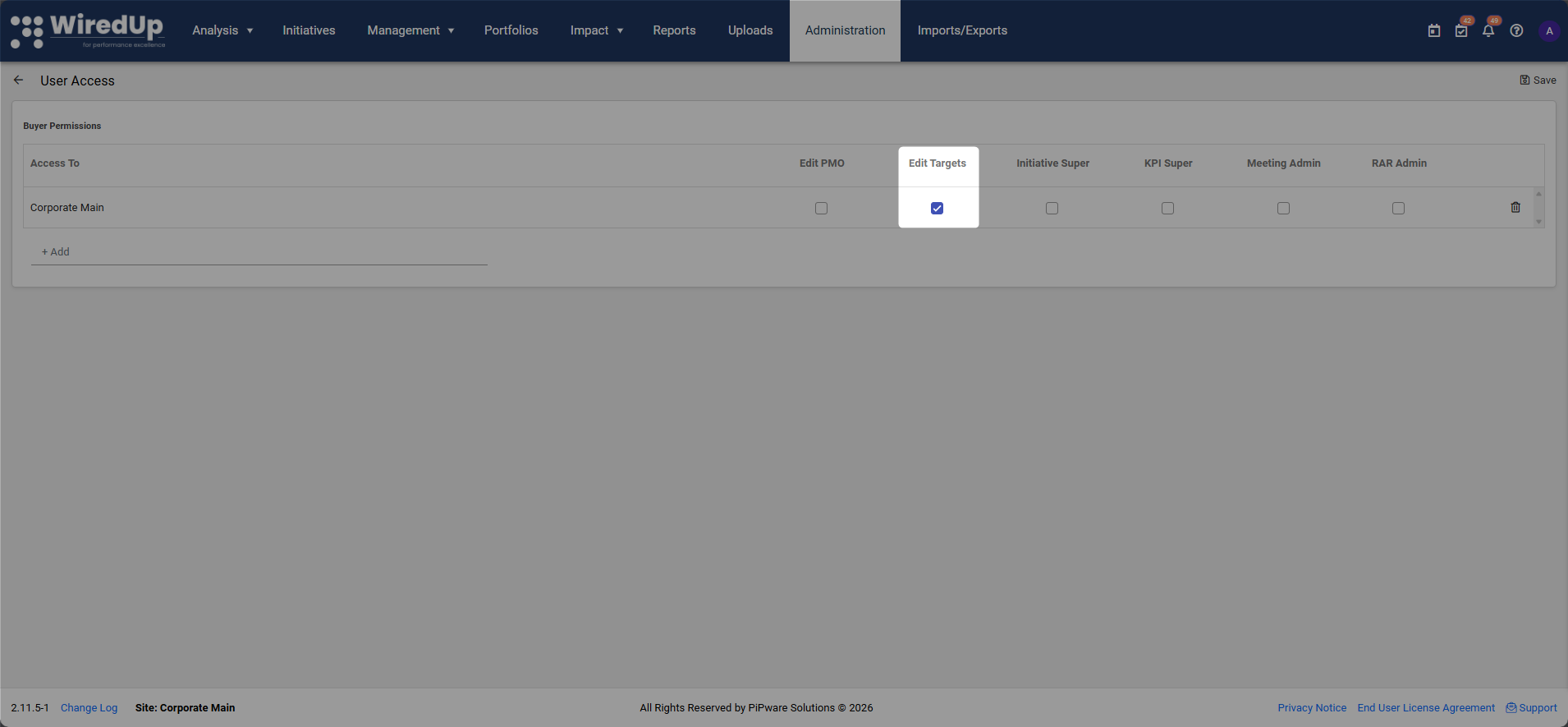
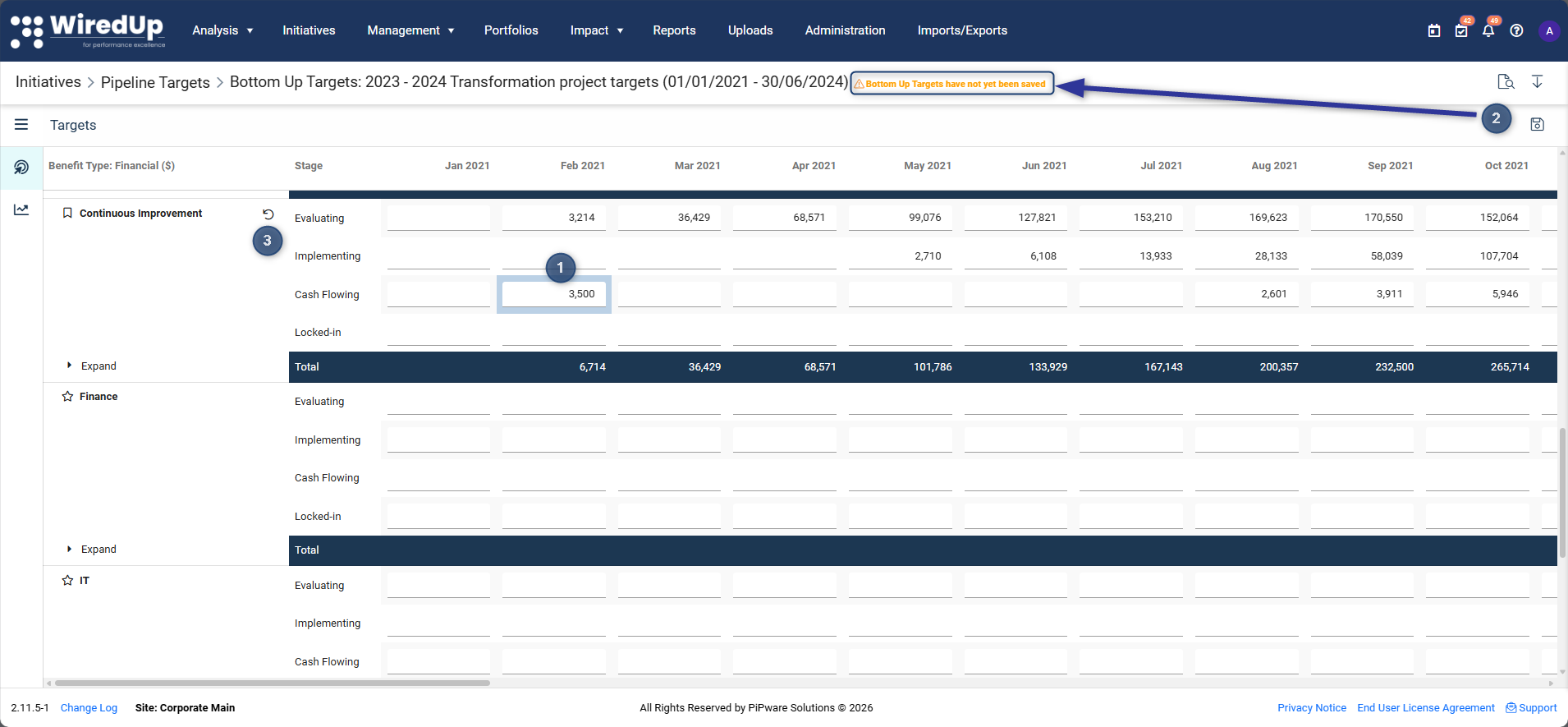
- Edit target values at the desired level and month by clicking in the field and typing in the new value. The cell will highlight blue to indicate it was manually adjusted.
- Once the values have been added, click on the save icon to save the changes. If the updated changes have not been saved, a warning message will be displayed to inform you about the unsaved changes
- Click on the reset icon to revert any unsaved changes made. Note that this action cannot be reversed
- To delete the target value, click on the cell and remove the value manually from the table. Note that:
- if a Top-down value exists for this month, this value will appear
- to remove the Top-down target completely, capture a zero value in the cell
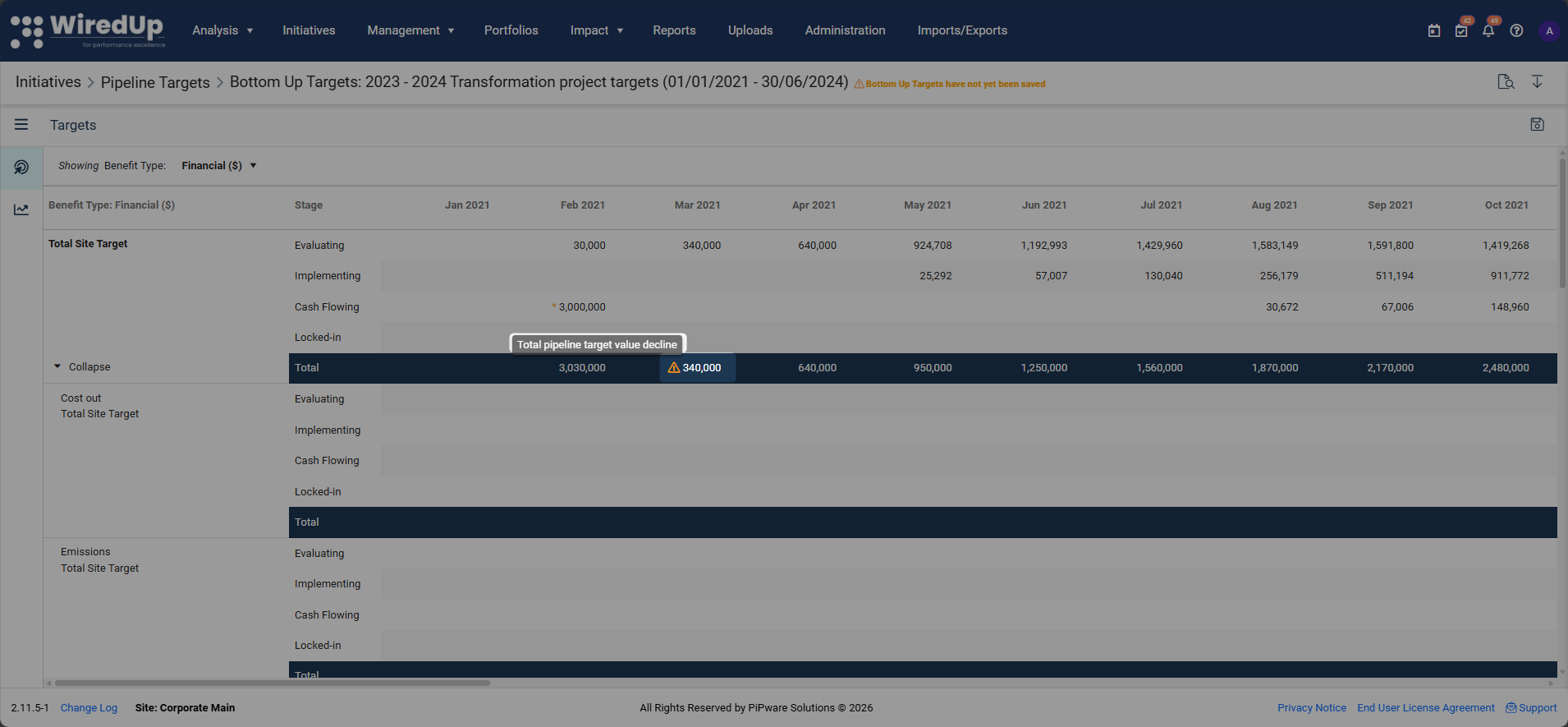
A warning sign is displayed on the total row when a decline in the pipeline is detected.
How Bottom-up Targets Affect Other Features
- Top-down targets are displayed on all reports by default
- If there is a Bottom-up value for a specific month, the adjusted target will be displayed instead
Reports That Reference Targets:
Recommendations
- Save your changes frequently to avoid losing work—changes are not auto-saved
- Review warnings carefully before saving—they indicate potential issues with your target progression
- Ensure all KPI Types have targets configured to avoid warnings at the Total Site level
- Use the Expand/Collapse feature to focus on specific departments and reduce visual clutter
- When removing adjustments, verify that the Top-down value that reappears is correct
- Review Bottom-up adjustments regularly to ensure they remain aligned with organizational changes
- Use the Reset button cautiously—it will remove all changes at that level without confirmation
- Ensure cumulative values follow a logical progression to avoid decline warnings
- Consider the impact on downstream reports before making significant target adjustments