
In This Article
Configuring Top-down pipeline targets
Overview
Top-down target setting allows users to set pipeline targets without first developing a bottom-up view for each organisational level. It also allows for more flexible target setting and iteration, using the top-down approach as a base, and then adding detail using bottom-up target setting later. It further simplifies target setting more generally, by removing the need to specify separate targets for Pipeline, Run Rate and Cash benefits. Instead, only a single set of targets is required and the rest are calculated.
A total site level target can be defined at the top level and then broken down using the hierarchy defined for the site. Targets can be set at the desired level in each hierarchy node, removing the need to have the same granularity across all levels - these can be updated as the picture becomes clearer.
By defining the lag and ramp-up times associated with each stage in the process, WiredUp will automatically calculate the monthly targets for the specified period and provide a set of S-curves.
Note: that leakage is not considered in the target calculation - at the target level it is assumed that 100% of the benefit is delivered without losses.Configuring Top-down pipeline targets
Top-down targets are created by setting target values at the applicable level of granularity and estimating the number of weeks of lag and ramp-up for each stage in the pipeline. WiredUp then automatically calculates targets across the timeframe specified - the result is a set of S-curves that show the target, per area, per month or week.
To access Top-down targets:
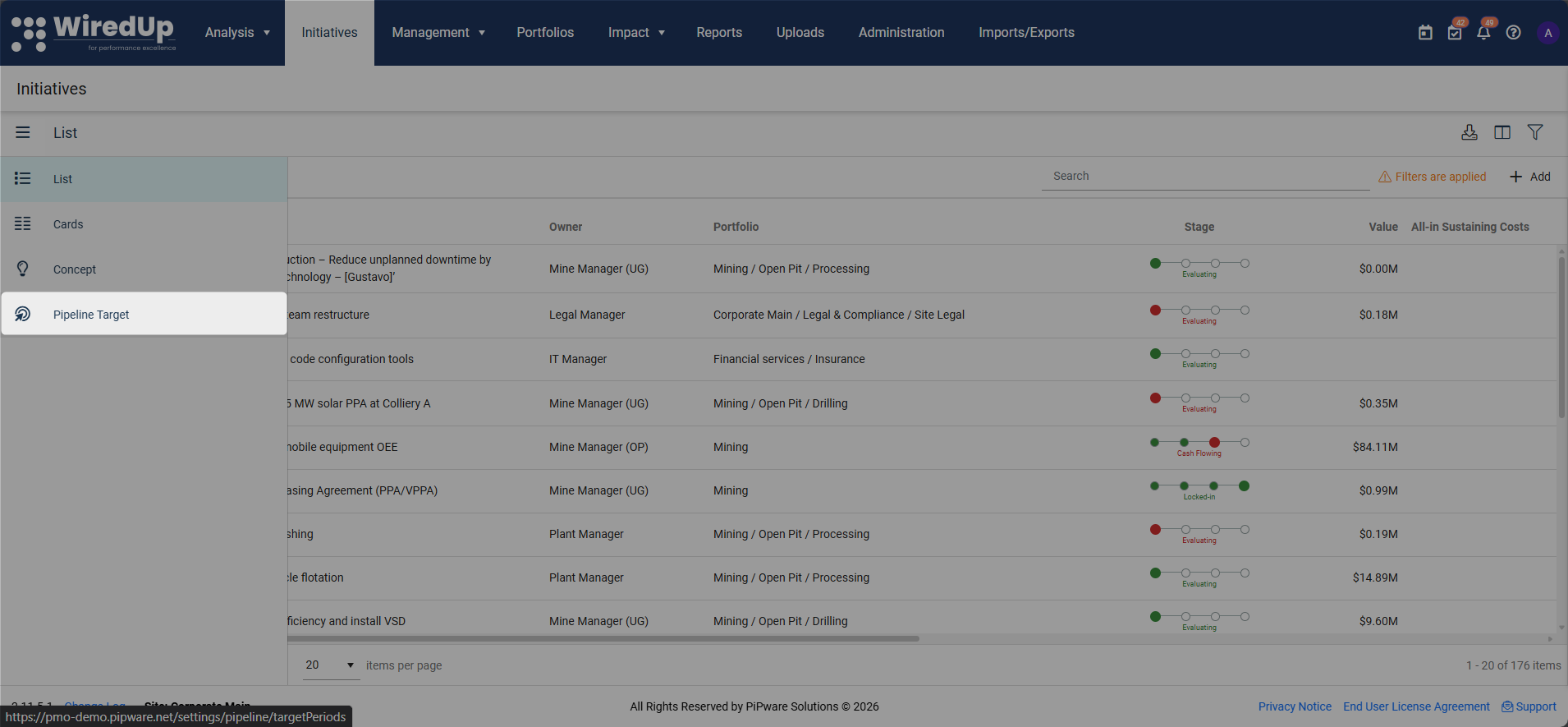
- Navigate to Initiatives, click on the three-bar button on the left and then on Pipeline Targets.
- On the pipeline targets page, select the Top-down icon to drill down.
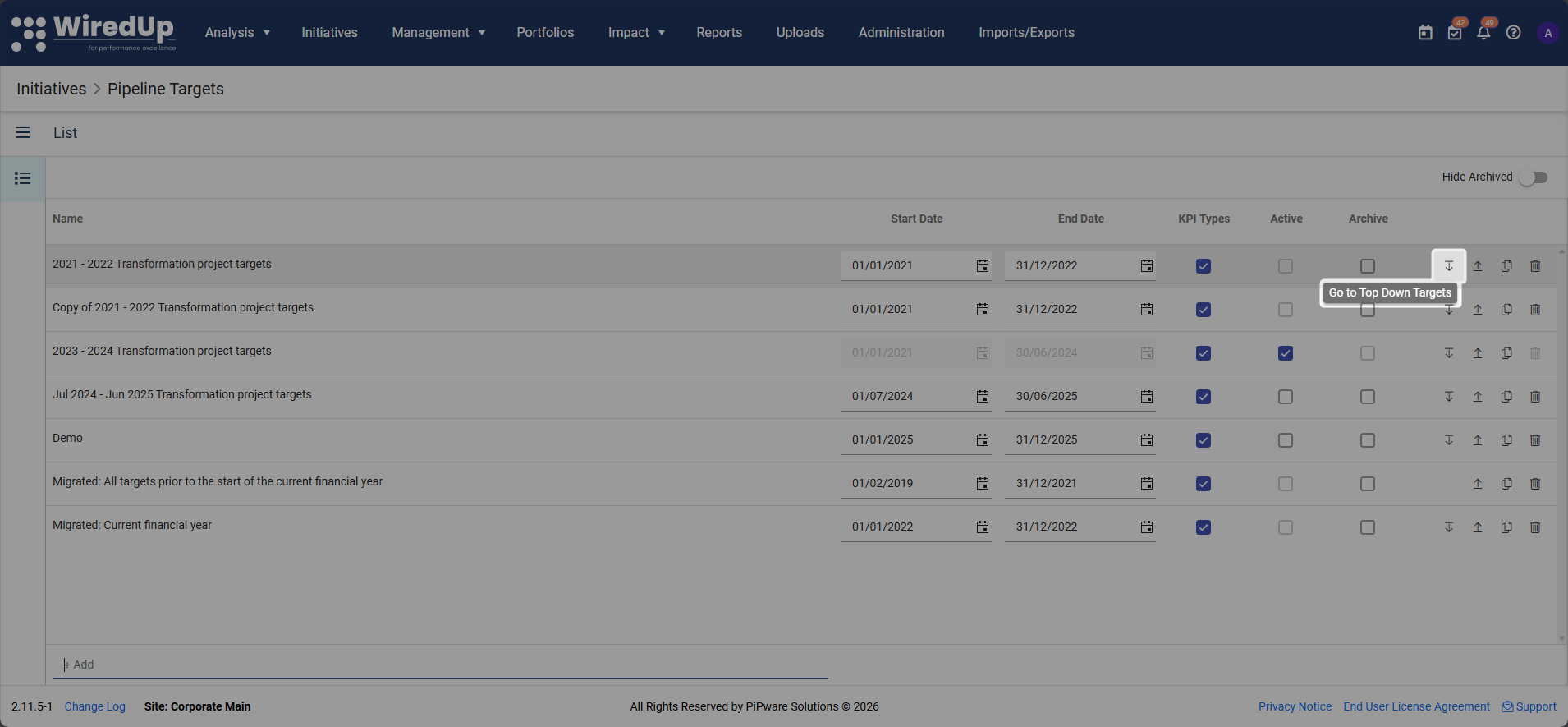
Note: For detailed instructions on creating a pipeline target configuration, refer to Setting pipeline targets.On the Top-down targets page that will appear, you can now navigate to the desired hierarchical level previously configured and set your targets. For instructions on how to set up your organisational hierarchy, see How to set up your organisational structure.
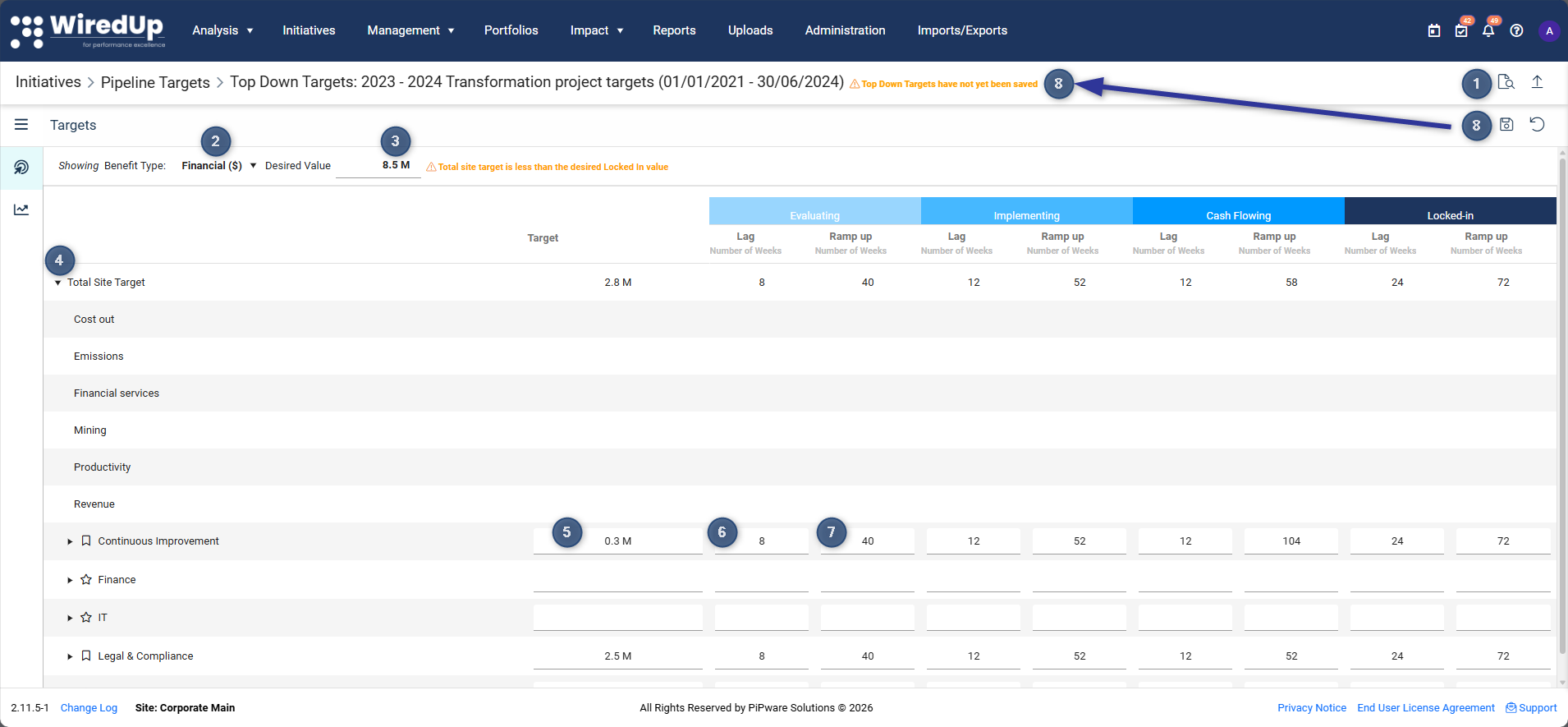
- Use these icons to view the audit log or navigate to the bottom-up targets
- Select whether to set top-down target for financial benefit types or non-financial benefit types
- Enter the desired total site target value. This value is used for comparison with the total site value obtained from the target table
- Open the drop-down menu which allows drill down to different departments and by KPI type
- Enter the total target value for that department (in millions) or drill down to enter at a more granular level
- Enter the Lag value for that target value. The Lag affects the time delay between consecutive stages starting to deliver benefits (See S-Curve below)
- Enter the Ramp-up value for that target value. Ramp-up defines the time it takes for all ideas to move through that stage (0-100%) (See S-Curve below)
- Use these icons to Save your changes. If the updated values have not been saved, a warning message is displayed to inform you of the unsaved changes. You can also use the reset button to revert back to the previously saved values.
After updating the top-down targets, any bottom-up values set will not be adjusted.Note: All aggregated Total Site Target values are read-only and will reflect in real time without having to save/update.S-Curve
Navigate to the Chart option to see the S-Curve generated from the target data that you have entered in the previous step.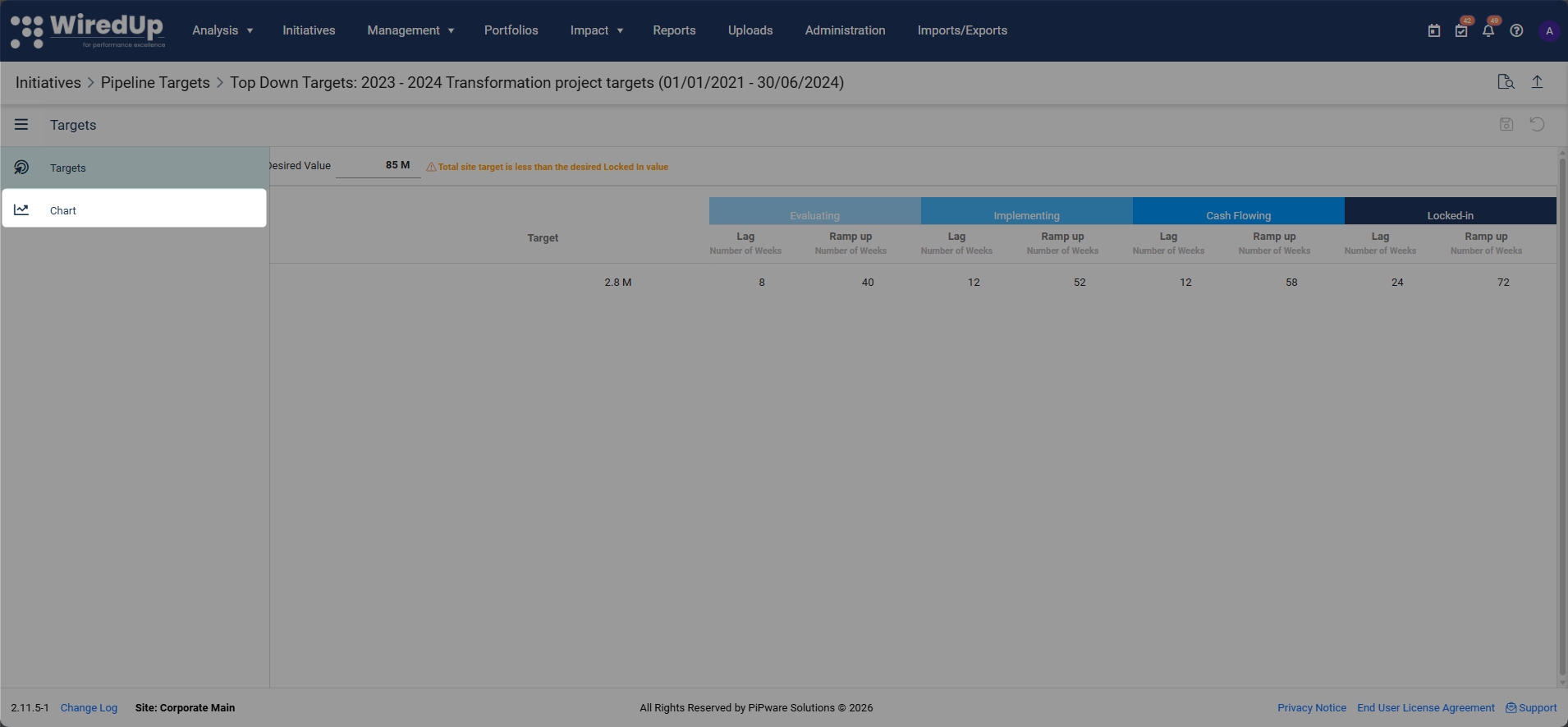
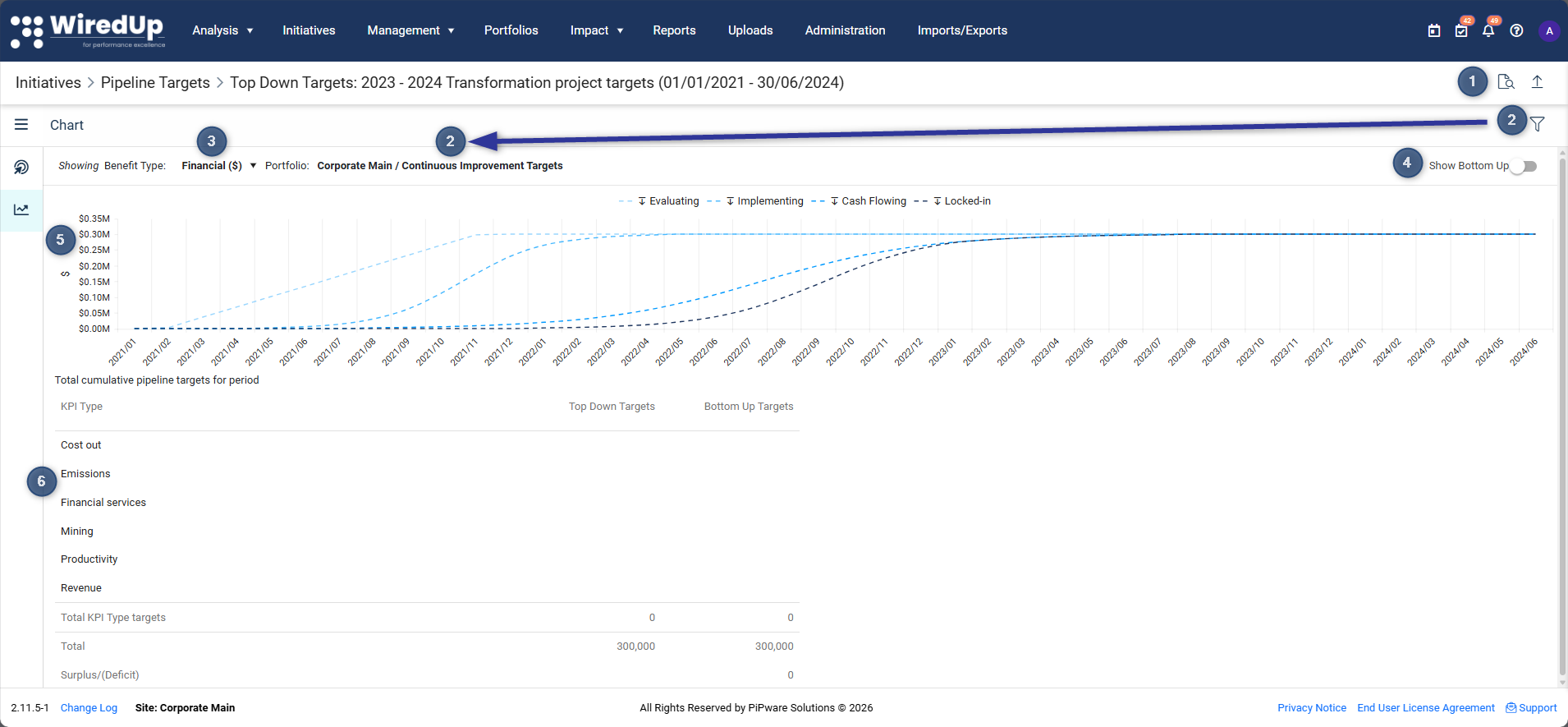
- Use these icons to view the audit log or navigate to the bottom-up targets
- Filter to view the chart for a specific portfolio level. The portfolio selected will be displayed above the chart
- Select the drop-down to choose whether to view financial benefit types or non-financial benefit types
- Switch the toggle on if you would like to view bottom-up targets on the chart as well
- The top-down target values captured from targets will be displayed on the S-curve chart. You can hover on the chart lines to view the variance between the top-down and bottom-up target values.
- The values displayed on the chart will be displayed on the summary table.
Recommendations
- Use realistic lag and ramp-up values based on your organization's historical performance
- Review the S-curve chart after setting targets to ensure the progression aligns with your expectations
- Set targets at different granularities across hierarchy levels based on the level of detail available
- Use the audit log to track changes to targets over time and maintain accountability
- Toggle between top-down and bottom-up views on the S-curve to identify variances and alignment gaps
- Consider starting with financial benefit types before moving to non-financial targets
- Use top-down targets as a starting point, then refine with bottom-up targets as more detailed information becomes available
- Compare total site target values with aggregated departmental targets to ensure consistency
- Use the reset function carefully—it will revert to previously saved values and undo unsaved changes
Next Steps
Now that you have configured the pipeline targets top-down, the next step is to adjust the bottom-up target (if required).