
In this Article
Using Additional Help Features
Overview
The Help feature in WiredUp provides comprehensive support and guidance directly within the application through an extensive library of help articles and resources. It offers organized documentation covering all WiredUp features, frequently asked questions, guided tours, and direct support ticket submission to help you navigate and use WiredUp effectively. The Help pane is context-aware, automatically displaying information relevant to the page you're currently viewing.
To access the additional help functionalities, your administrator must enable the Support Widget and Help Tours options in your user profile settings.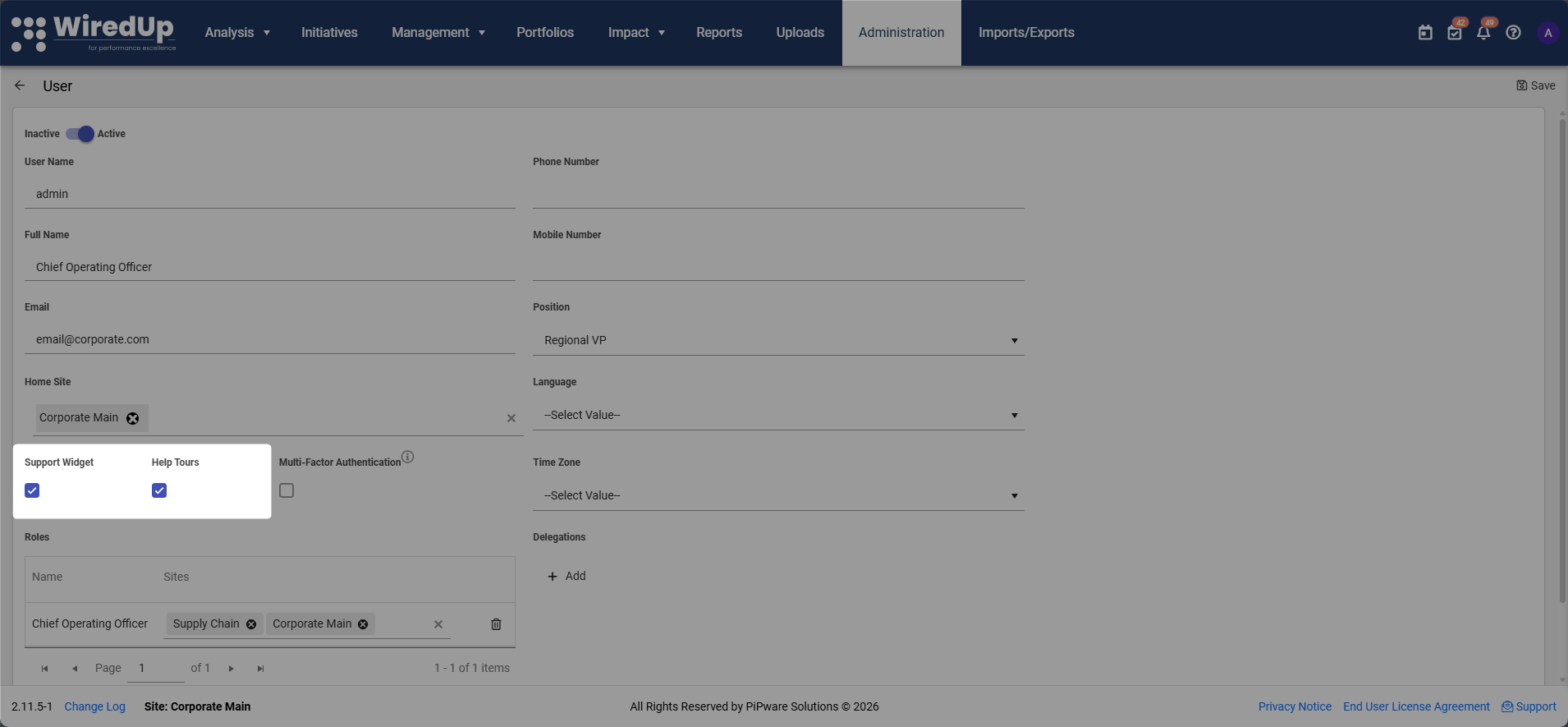
Accessing the Help Pane
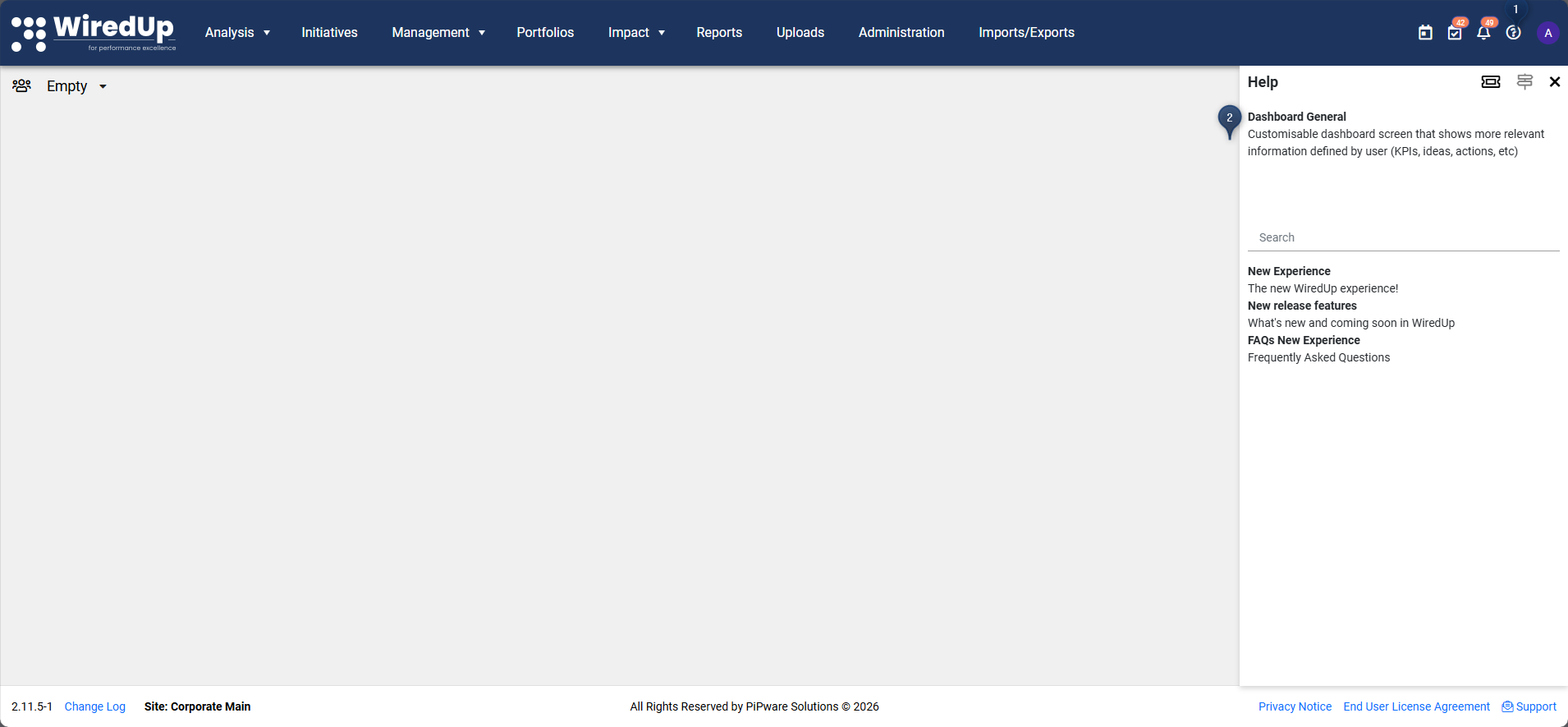
- Locate and click the question mark (?) icon in the main menu toolbar on the top-right of your screen to open the Help pane
- The pane will automatically display information about your current page
Browsing Resource Articles
The Help pane also provides organized folders containing comprehensive help guide documentation:
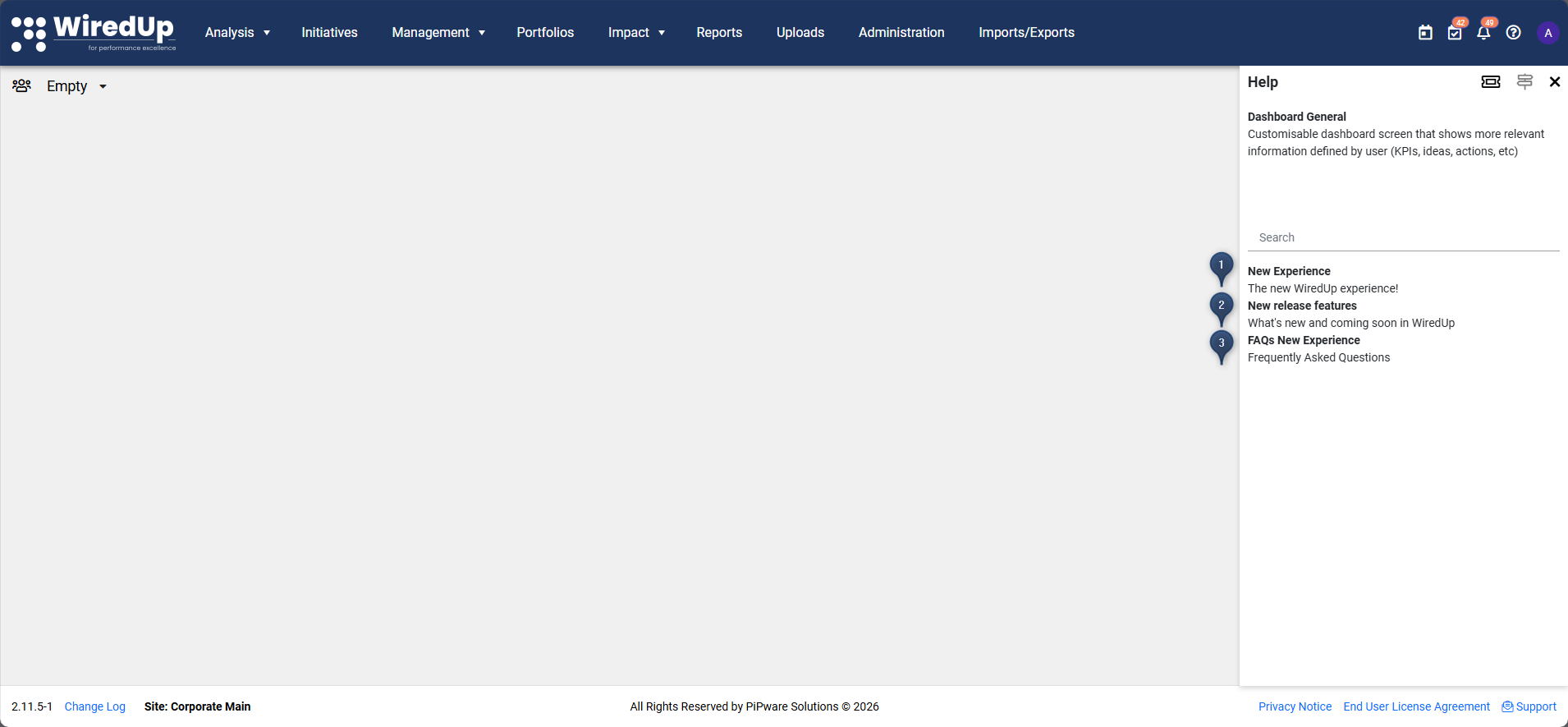
- New Experience: The new WiredUp experience articles and guides
- New release features: What's new and coming soon in WiredUp - change logs and documentation for different versions
- FAQs New Experience: Frequently Asked Questions about the new WiredUp experience
To browse resource articles:
- Use the Search bar at the top of the Help pane to search for relevant articles
- Click on any folder to expand and view its articles
- Click on any article to view its full content
Using Additional Help Features
The Help pane provides several additional tools to assist you:
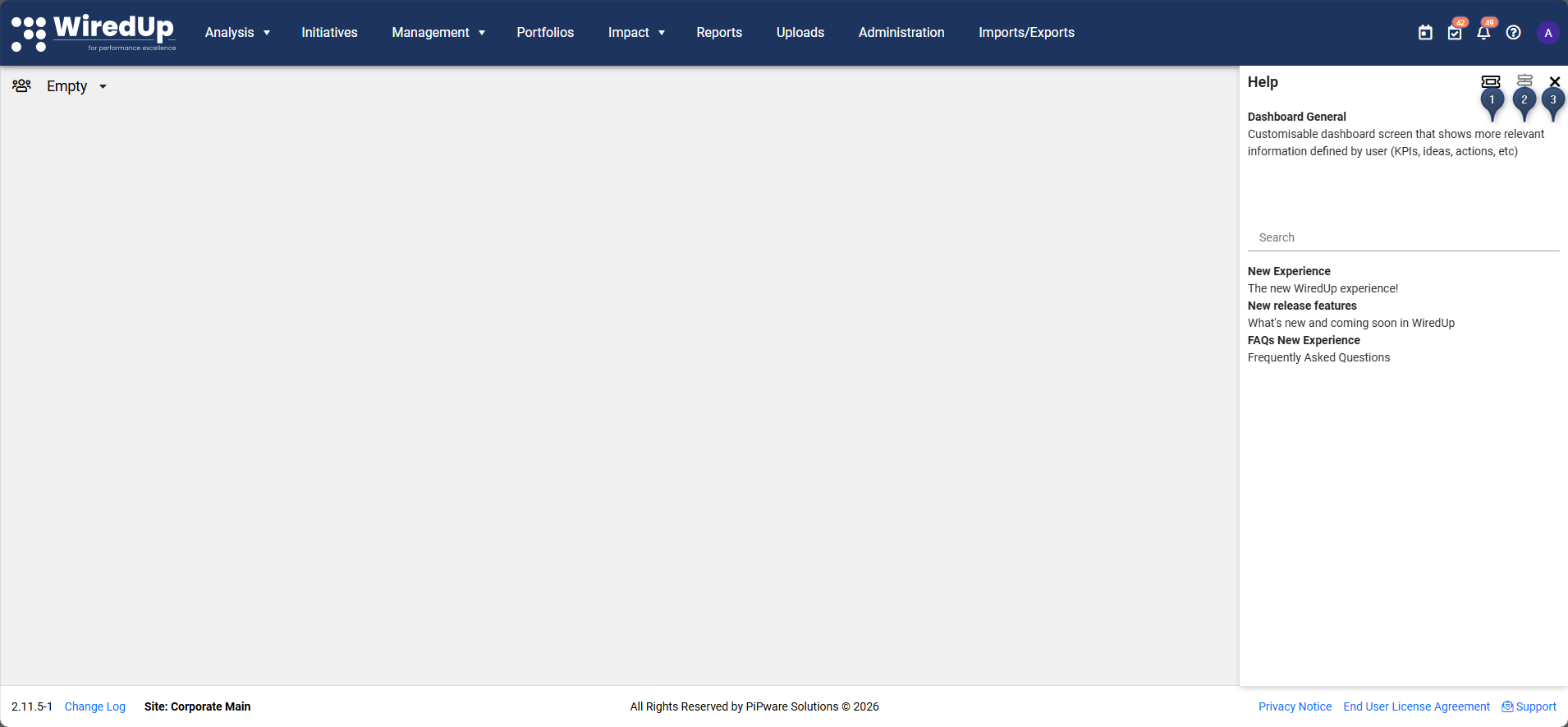
1. Support Widget
- Click the Support widget option to open the ticket submission pop-out
- Use this to contact the WiredUp support team directly
- Submit questions, report issues, or request assistance
2. Start Tour (Coming Soon)
- Click Start Tour to launch a guided walkthrough of the current page
- Follow the interactive tour to learn about page features and functionality
- Tours are tailored to the specific page you're viewing
3. Close Help Pane
- Click the X button at the top right to exit the Help pane when finished
Recommendations
- Use the search function to quickly locate specific help articles
- Check the New release features folder regularly to stay informed about system updates and upcoming features
- Use the Support Widget to submit tickets for issues that aren't resolved through help articles
- Use the Help pane whenever you encounter unfamiliar features or need guidance