
In This Article
Viewing All Available Dashboards
Adding Dashboards to Favorites
Managing Dashboard Access and Privacy
Overview
Dashboards are your central hub for viewing key information in WiredUp. Upon logging in, you will land on your default dashboard if one has been selected. If no default dashboard has been selected, the dashboard screen will appear empty with the option to add a dashboard to your screen. Dashboards use customizable widgets to display both user-specific and general information, which can be filtered by organizational structure, date, and other metadata. You can access multiple dashboards, favorite the ones you use most, create personal dashboards for private use, or share public dashboards with your team. Dashboard owners have full control to customize layouts, add widgets, and manage access permissions.
Accessing Dashboards
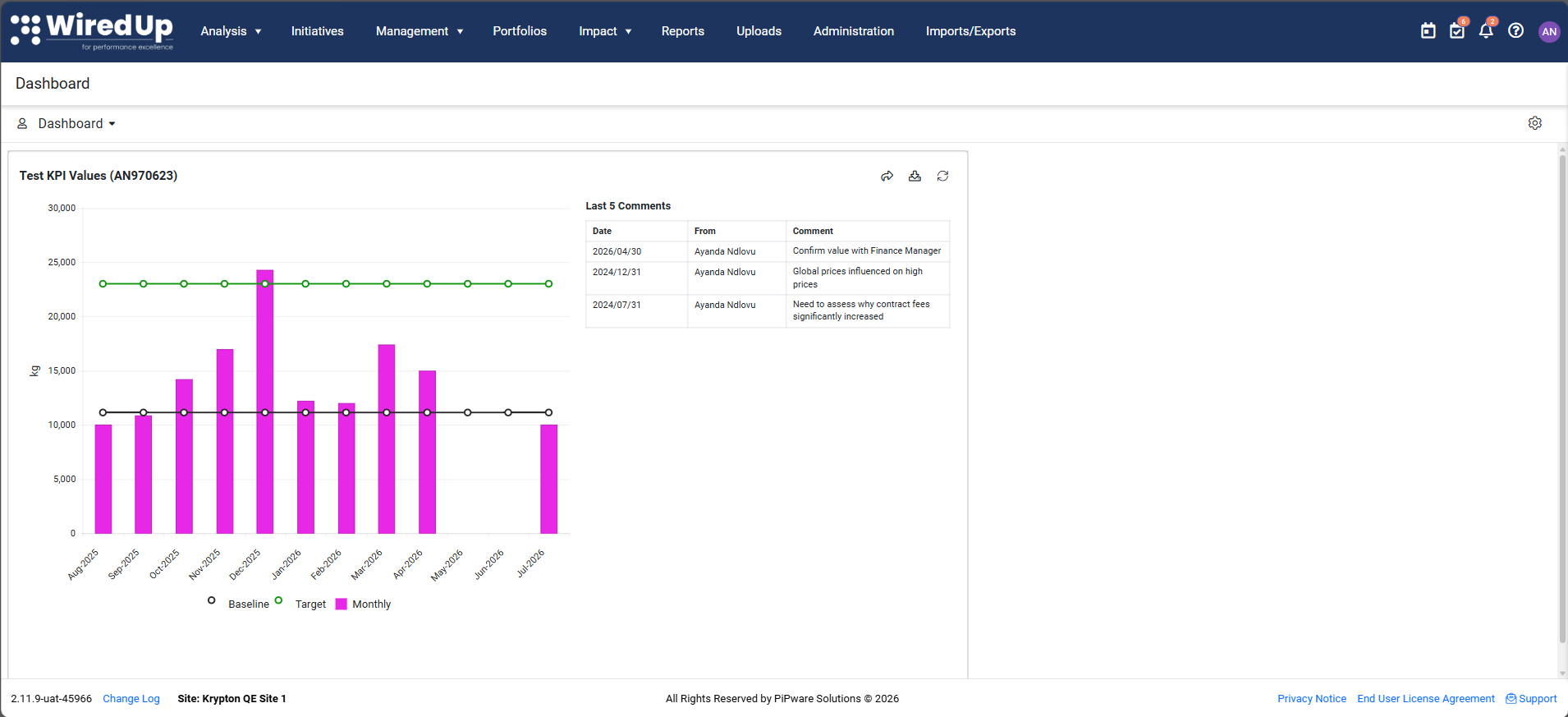
- Upon logging in to WiredUp, you will automatically land on your default dashboard or the dashboard marked as favorite (if one has been selected)
- If no default dashboard has been selected, the dashboard screen will appear empty with the option to add a dashboard
- You can also click on the company logo to return to your default dashboard at any time
Viewing All Available Dashboards
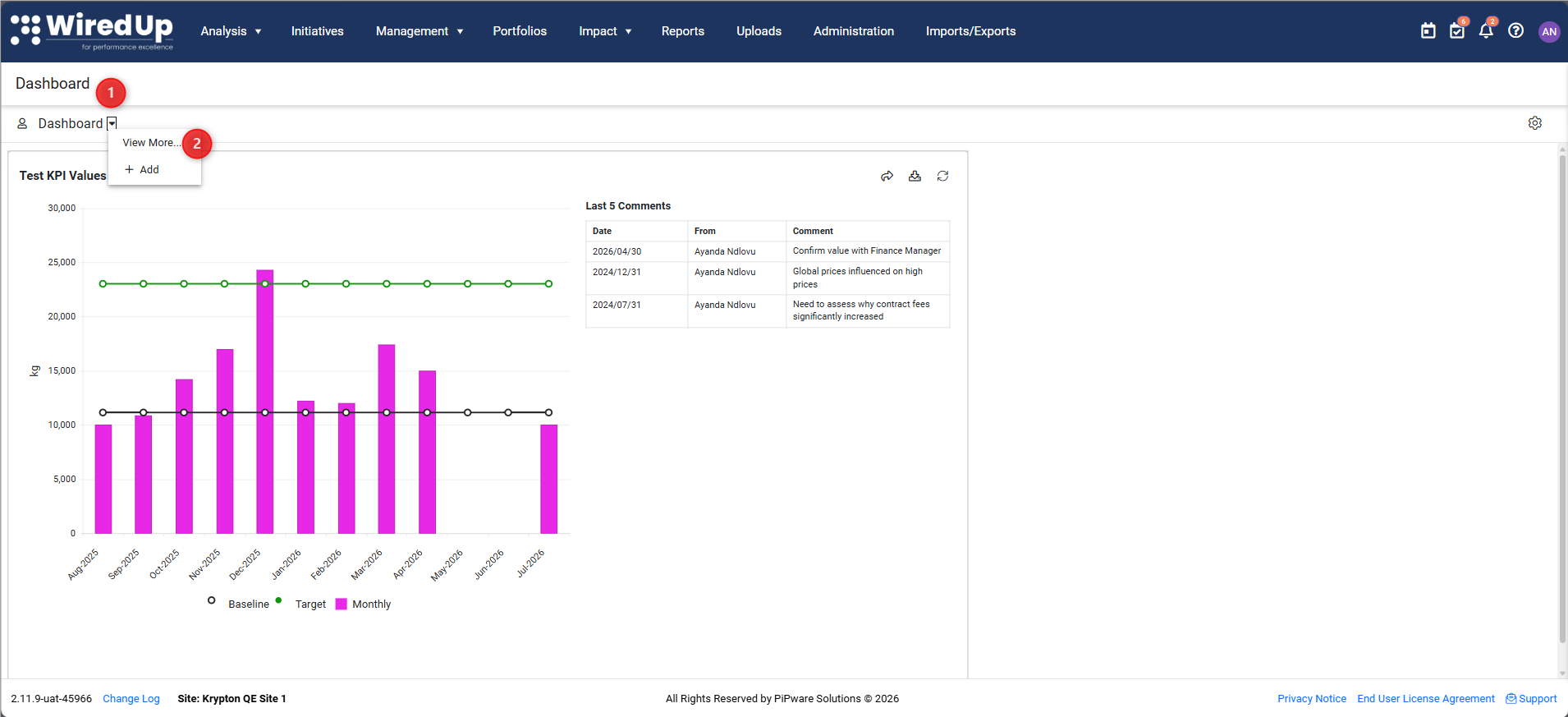
- Locate the dashboard selector at the top of the screen and click the drop-down arrow next to the current dashboard name
- Click on View More in the dashboard selector dropdown. A screen will open displaying all available dashboards. You can add/create a new dashboard by clicking on the +Add option or view help articles related dashboards.
- Select from the list of accessible dashboards and the selected dashboard will load immediately. The display shows two columns:
- Name: The dashboard name
- Owner: The person who created/owns the dashboard
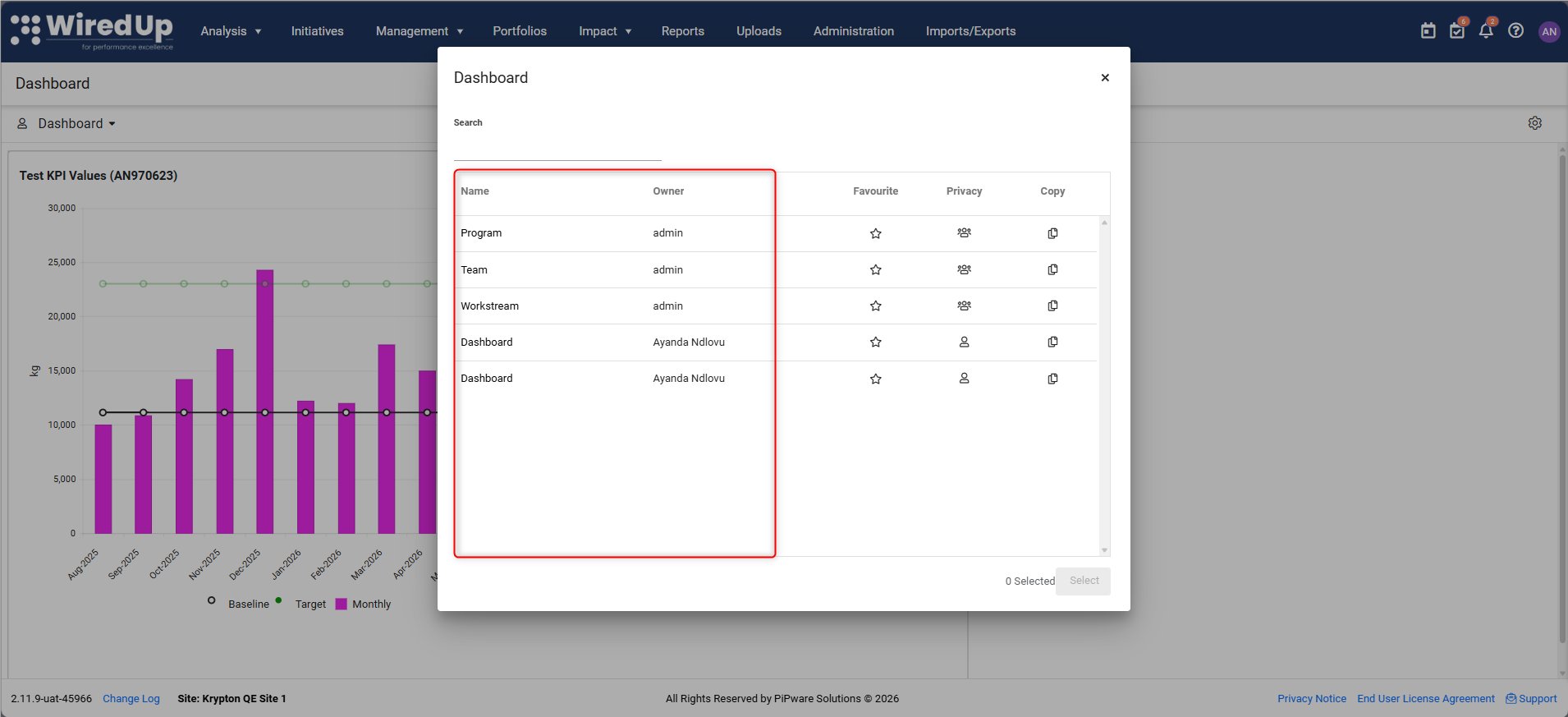
Note: The dashboards displayed are those that have public access or have been assigned access to youAdding Dashboards to Favorites
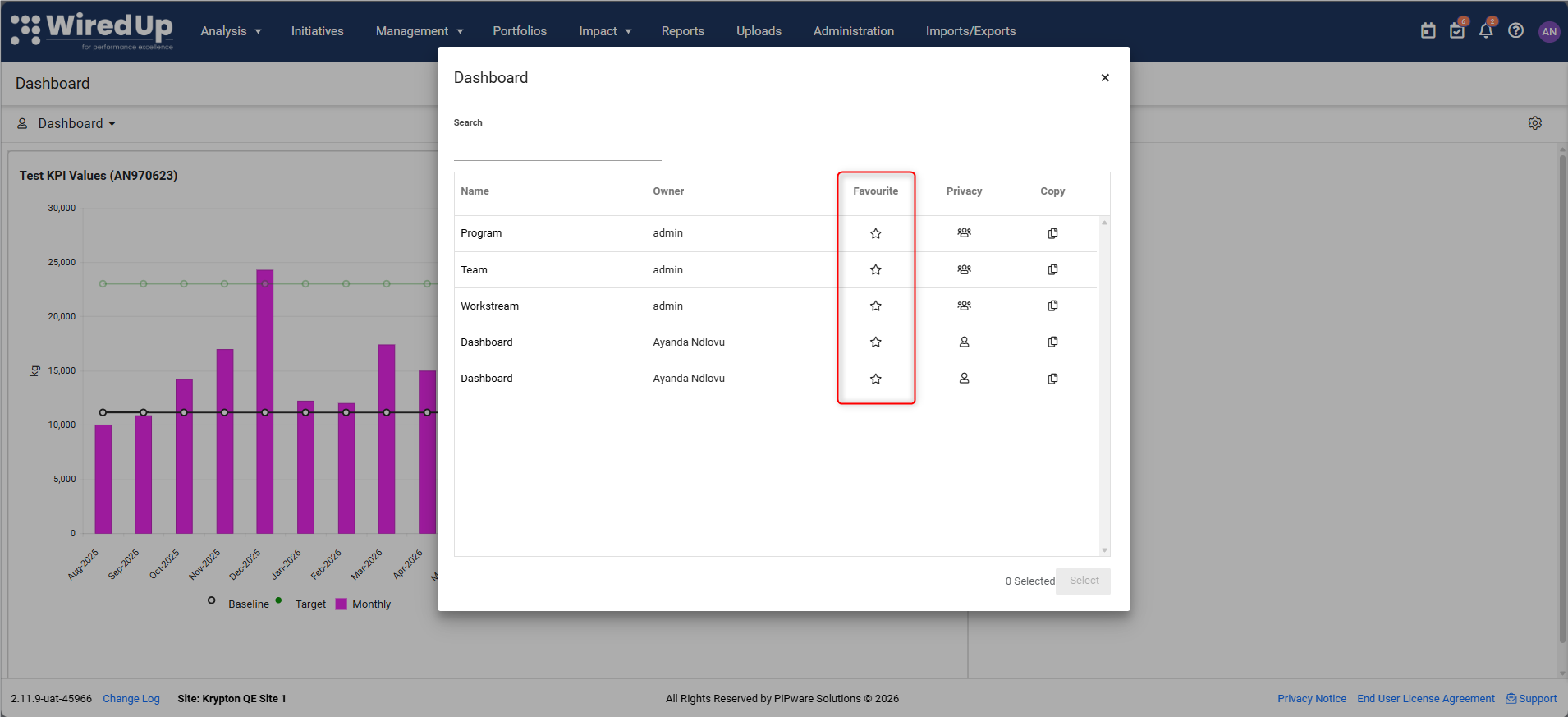
- In the dashboard list view, locate the Favorite column
- Click the star icon next to the dashboard you want to favorite
- Favorited dashboards appear in your drop-down dashboard selector for easy access
- If you favorite only one dashboard, it becomes your default landing page
Copying a Dashboard
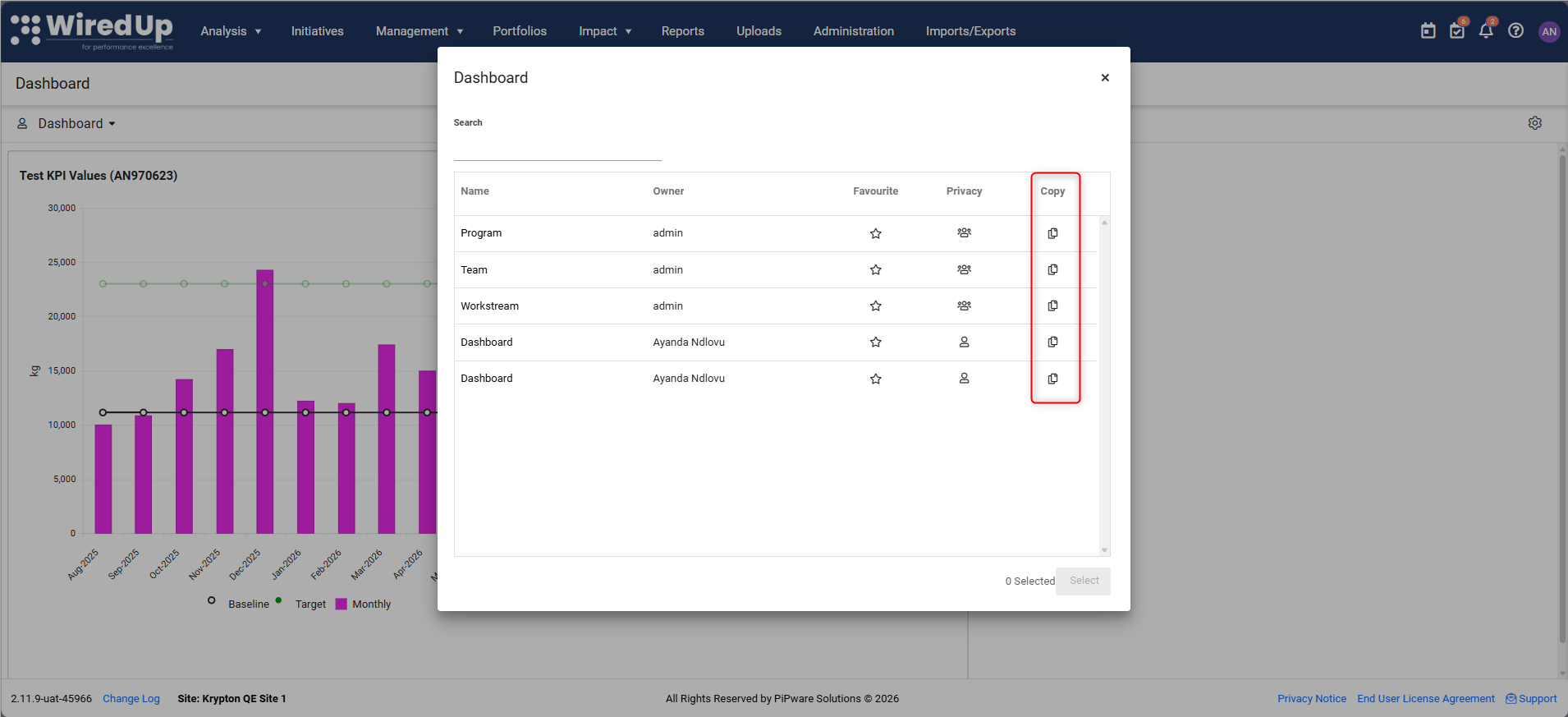
- In the dashboard list, locate the Copy column
- Click the copy icon for the dashboard you want to duplicate
- You become the owner of the copied dashboard
- As the owner, you can now edit and customize the copied dashboard
Managing Dashboard Access and Privacy
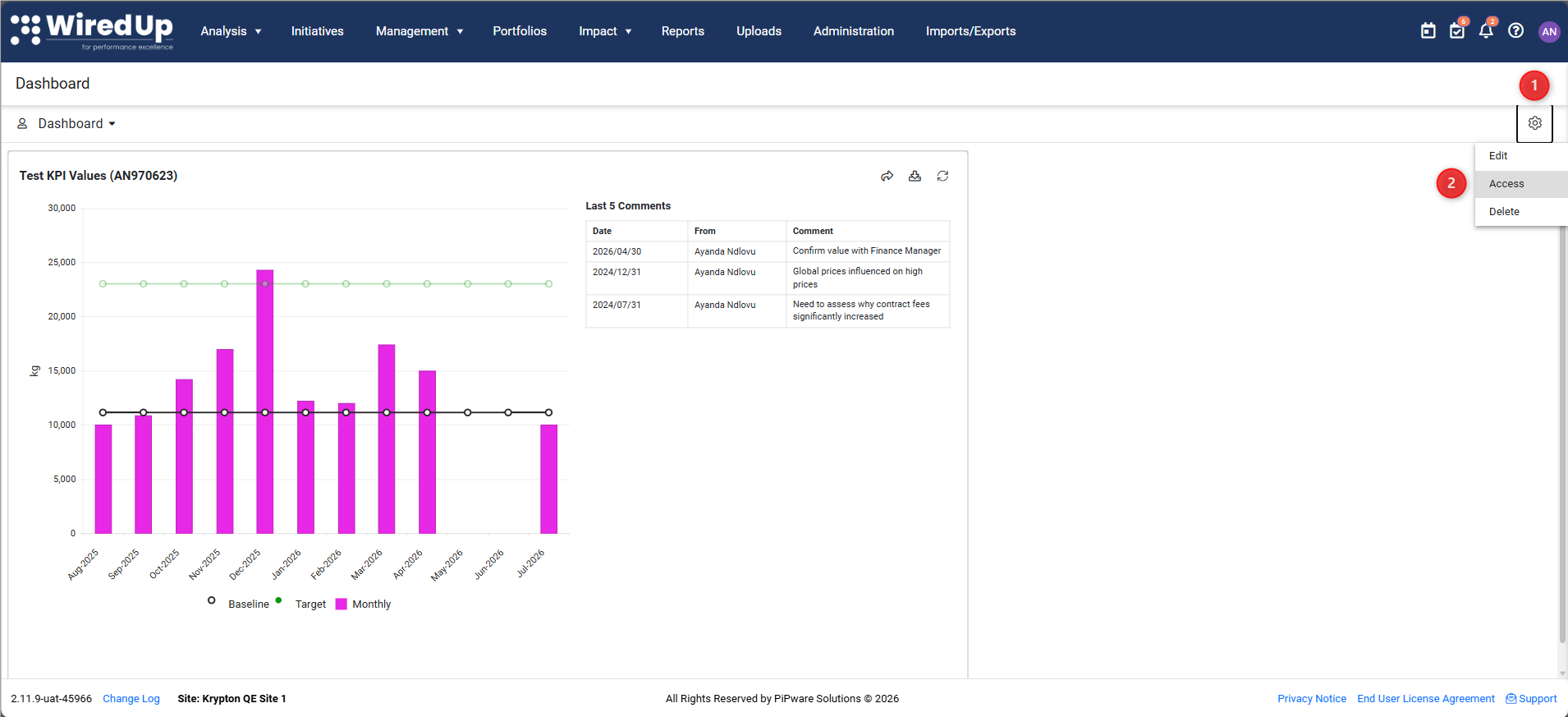
- From the dashboard screen, select the Config icon located at the top of the screen
- Select the Access option displayed from the options list
- Select whether to set the access of the dashboard to Public or Private
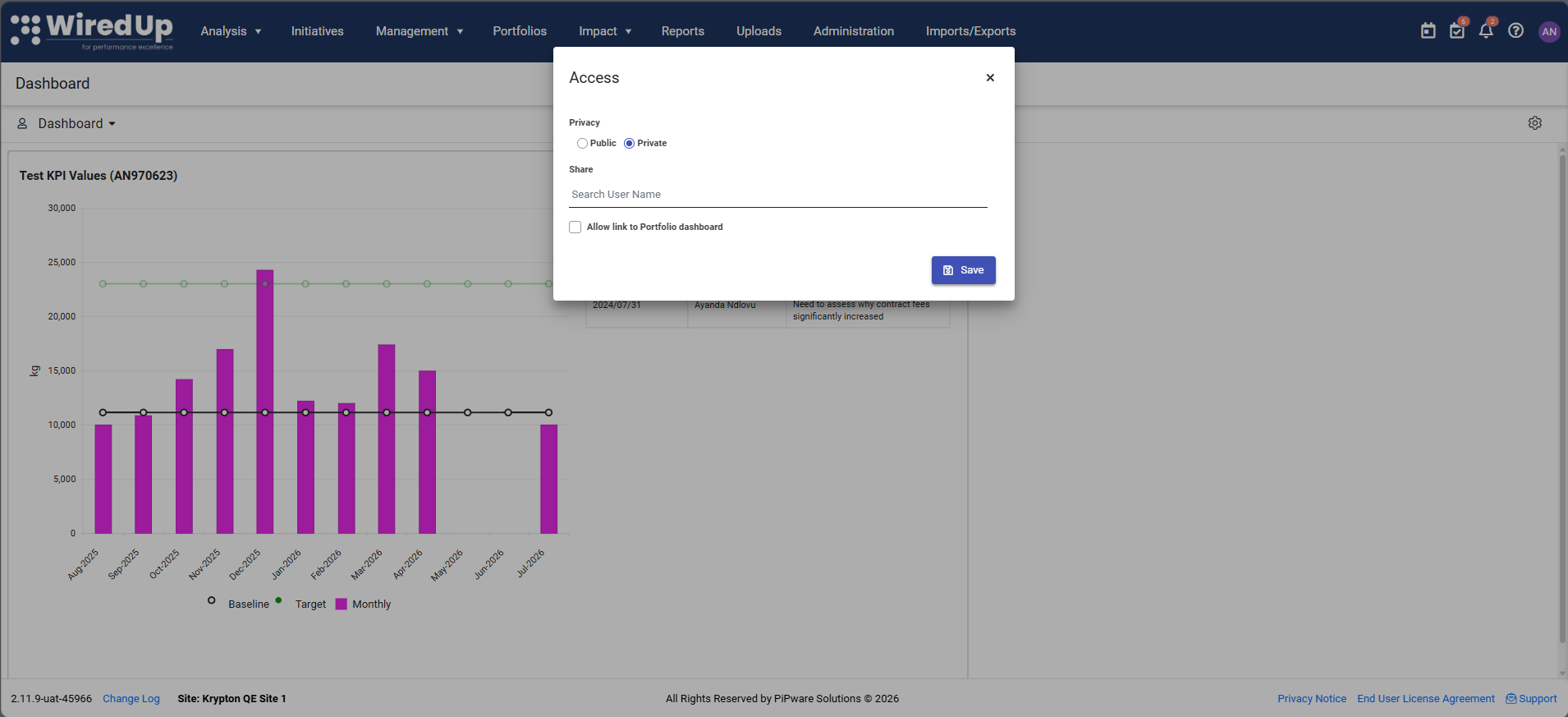
Public Dashboards
- Accessible by all users
- Can be shared across teams and departments
- Useful for displaying general organizational information
Private Dashboards
- Only accessible to the user who created the dashboard
- Ideal for private, customized views of your work
- Cannot be viewed by other users unless access to other users is specified
Editing a Dashboard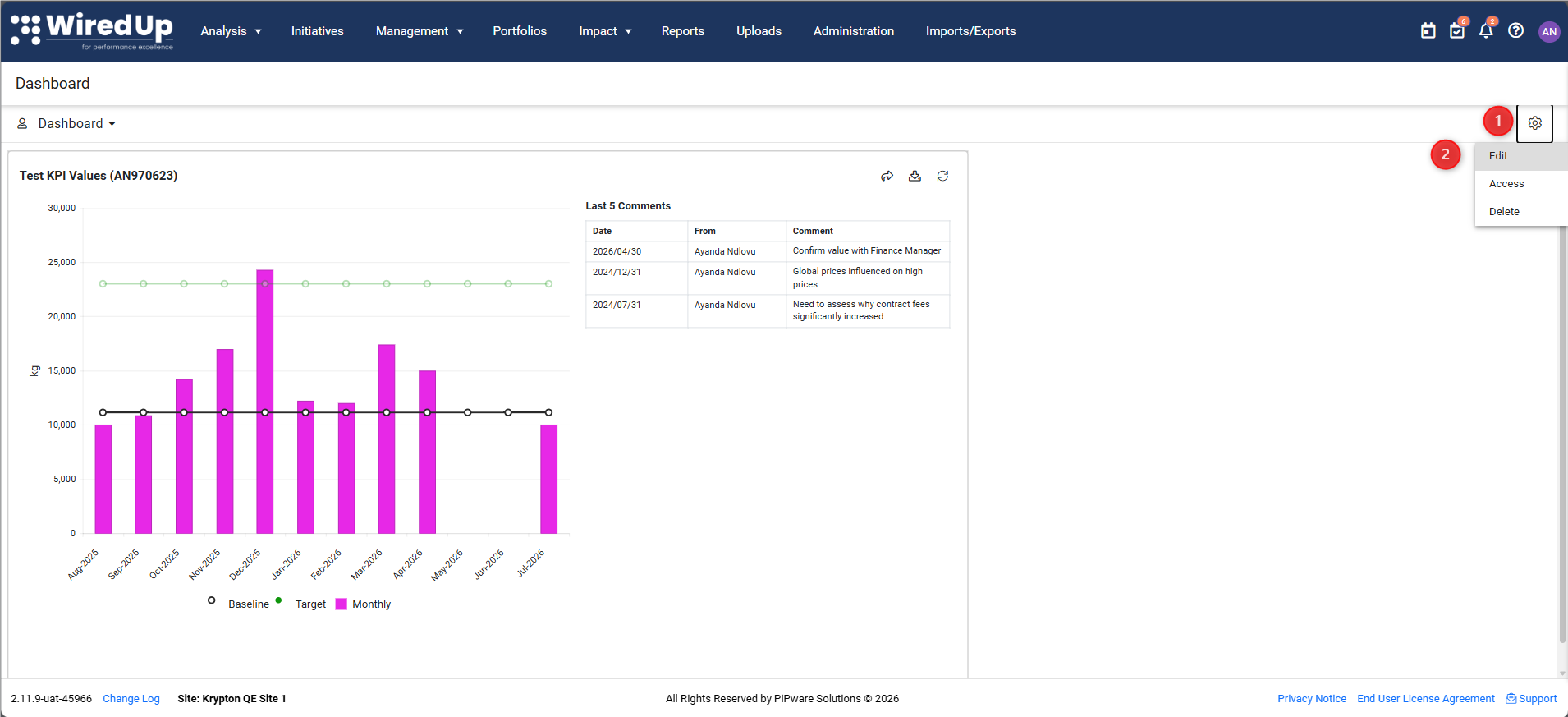
Note: You must be the dashboard owner to edit.
- Click the Config icon on the top right of the screen
- Select Edit from the menu
- The page view will change to a snap-to-grid layout
- Widgets become available for selection and addition
For more information on editing a dashboard, please see the following article: Edit a Dashboard Widget : WiredUp
Deleting a Dashboard
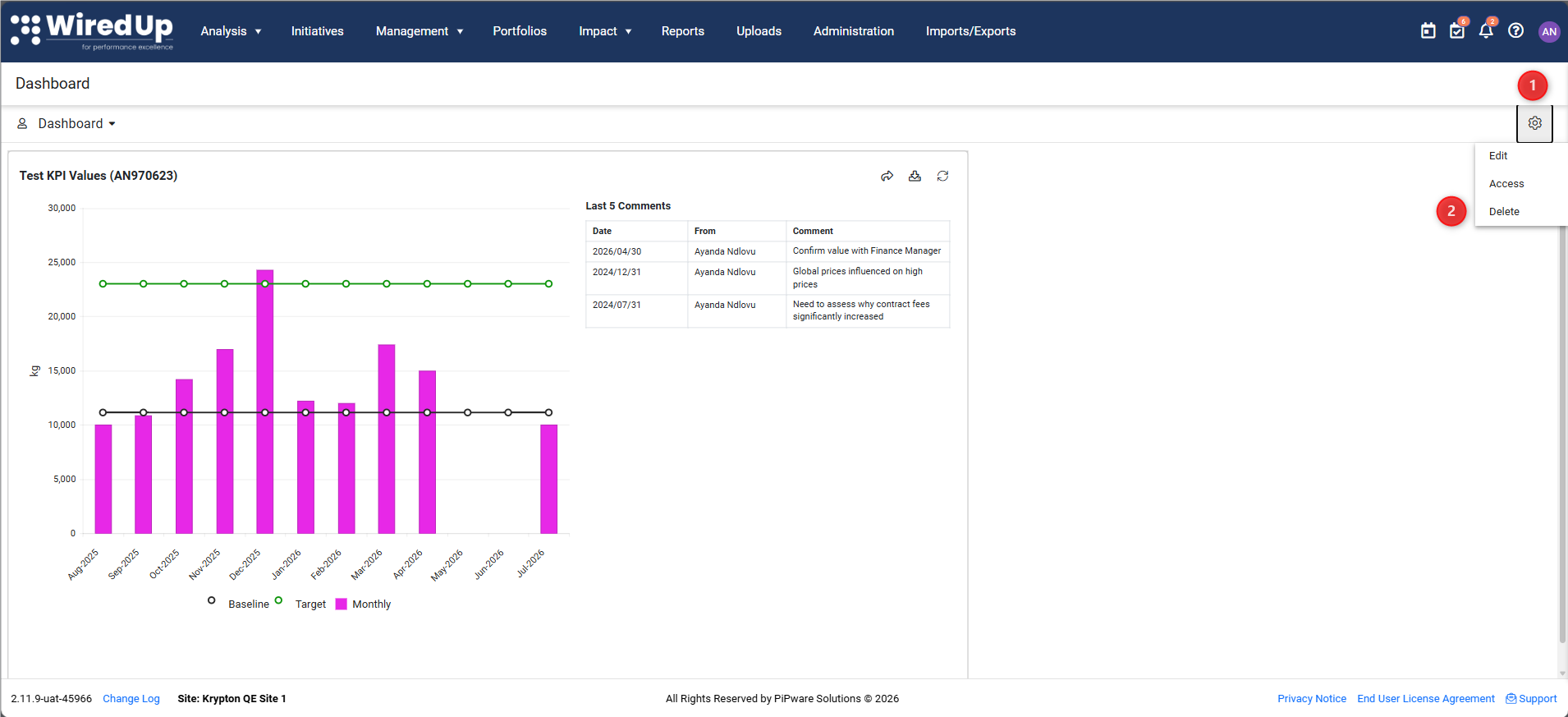
- Click on the Config icon
- Locate the Delete option to permanently delete the dashboard
Recommendations
- Favorite your most-used dashboards for quick access from the dropdown selector
- Create personal dashboards for private, customized views of your work
- Copy existing dashboards as templates when creating new ones to save time
- Save your changes frequently when editing dashboards to avoid losing work
- Use descriptive names for dashboards to make them easy to identify
- Leverage filters on widgets to display relevant information for your role
- Set appropriate access permissions to protect sensitive information
- Review and update your dashboards regularly to ensure they remain relevant
- Consider creating role-specific public dashboards for different teams
- Use the snap-to-grid layout to create organized, professional-looking dashboards