
In This Article
- 1. VDT Views
- 2. Period Selector
- 3. Edit Mode
- 4. Status Colors
- 5. Options Menu
- 6. Node Types
- 7. Node Legend
- 8. Zoom In and Out
How does a Variable VDT Node work?
- VDT Views
- Variable Node vs KPI node
- KPI Value Calculation Method on Variable Node
- Importing a Variable Node
No Impact on Benefit for Variable Nodes:
Tracking Non-Financial Benefits
Using Variable Baseline and Target Values for KPI Nodes
Referencing Non-Financial Benefit Nodes
- Adding a VDT to the Library
- Importing from Library
- Importing from Template
- Importing a Linked VDT from the VDT Library
Overview
An Idea or Initiative VDT (Value Driver Tree) is a hierarchical structure used to model and calculate the benefit contribution of an idea or initiative at the end of its implementation. The VDT breaks down complex benefits into measurable components, allowing organizations to track how individual KPIs and metrics contribute to the overall value delivered by the initiative.
The Idea VDT enables users to:
- Model benefit calculations by connecting KPIs and defining relationships between metrics
- Track performance across multiple dimensions (Baseline, Variance, and Benefit views)
- Analyze contributions from different nodes to understand which factors drive the most value
- Validate benefit delivery by comparing actual performance against targets and baselines
- Support decision-making with clear visibility into how initiatives generate value
VDTs provide a structured approach to benefit realization, ensuring that all value drivers are identified, measured, and monitored throughout the initiative lifecycle.
Enabling the Idea VDT
The Initiative VDT is enabled when you selects VDT on the Idea Overview page.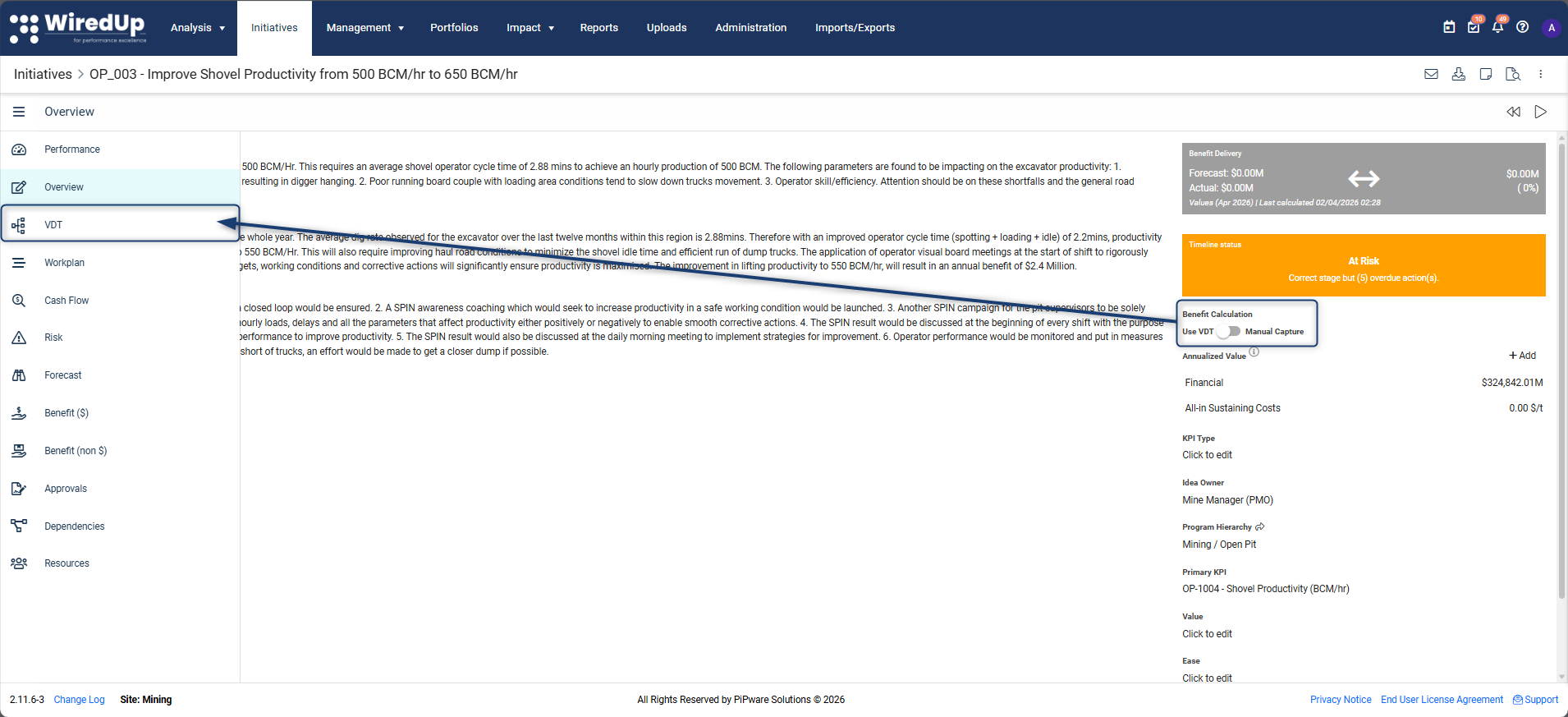
Important: If the initiative is using Manual Capture for benefit tracking, the Idea VDT will not be available and will not appear on the initiative menu. The VDT option is only accessible when VDT Capture is selected as the benefit capture method.VDT Screen
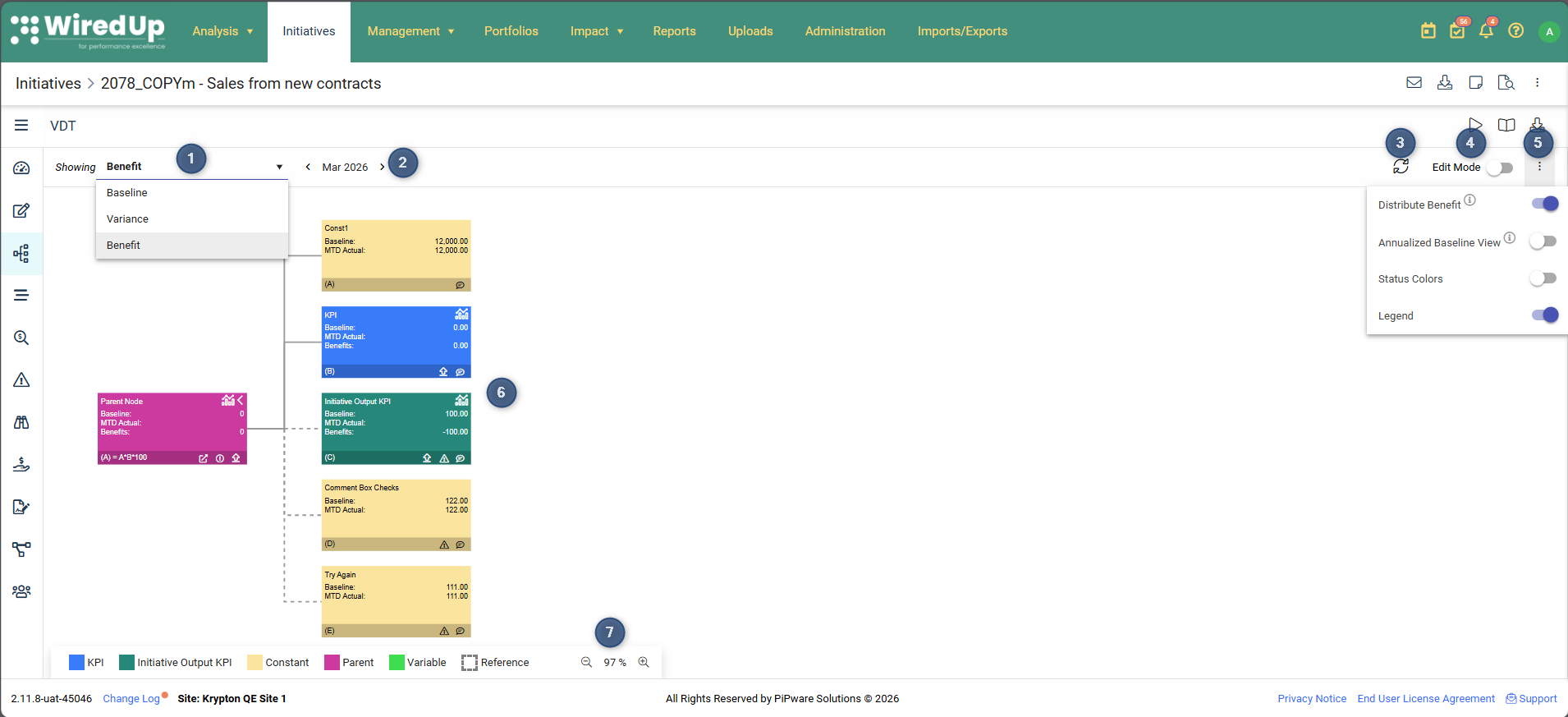
1. VDT Views
The VDT Screen allows the user to select between 3 different views:
- Baseline - Starting point used for comparison in measuring VDT data
- Variance - Measure of how much the values differ from the mean or average
- Benefit - Display the benefit made from each VDT node
2. Period Selector
The VDT includes a period selector that allows you to switch to a different time period by clicking on the arrows of the period selector. This enables you to view VDT performance across different months, quarters, or years depending on your configuration. The period selector is displayed only on the Variance and Benefit view
3. Refresh
The content bar now in included a Refresh icon. You can click the icon at any time to manually trigger an immediate recalculation of the VDT
4. Edit Mode
Edit mode allows you to make changes to the nodes of the tree including adding nodes to your VDT, drag & drop of nodes to other parents, and reordering.
5. Options Menu
Options in the three-dot menu include:
- Distribute Benefit: Use the toggle button to allow benefits to be distributed yearly even though the Benefit End date is a few years ahead (see this article for more information: How does the Distribute Benefit flag work?)
- Annualized Baseline: Toggle to enable or disable annualized baseline calculations (this option is only available to users that have the annualized baseline feature enabled. See this article for more information: Idea/Initiative VDT Baseline Annualization Capability : WiredUp)
- Status colors: Toggle status colors on/off for VDT nodes
- When status colors are turned off, the legend shows the color of each node type
- When status colors are turned on, the legend shows the different KPI node status colors
- Legend: Use the toggle button to display or not to display the legend. Each mode type has a color or format assigned to each node. These node colors can be configured in Administration settings
6. Node Types
There are 6 different node types:
- Parent node - the only node that can have child nodes; expand/collapse the child nodes linked. Benefit values of parent nodes can now be pushed out to initiative output KPIs (for more information, please see this article: Initiative Output KPI : WiredUp
- KPI node - the node is linked to a specific KPI. You can link KPI types of Manual Capture, Initiative Output KPI or a Calculated KPI
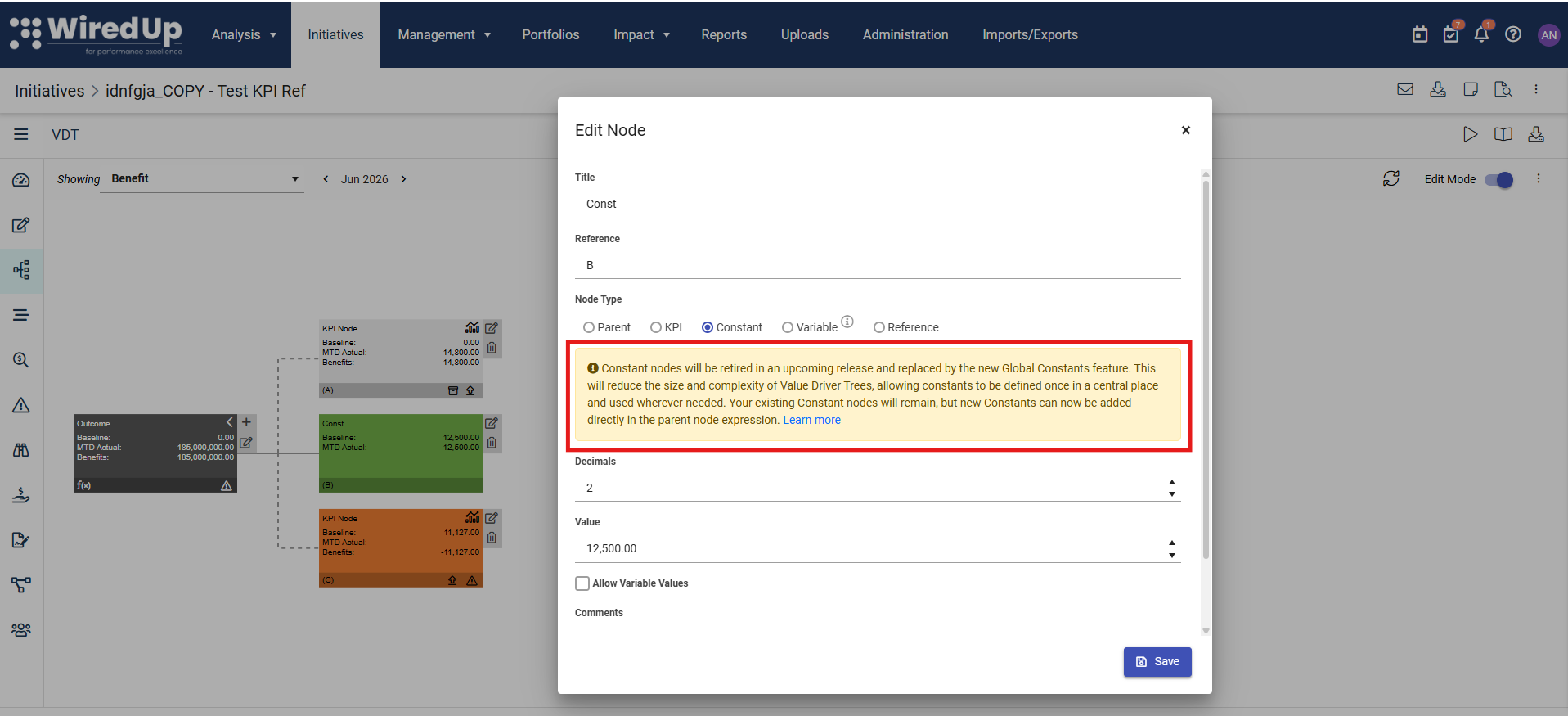
- Constant node - this node has static/constant values
- Variable node - this node only retrieves the Baseline, Actual, and Target values from the associated KPI, using the predefined KPI calculation method. It does not calculate or display Improvement, Benefit, or Variance values
- Reference node - allows you to reference a node within the VDT
- VDT node - a node that was imported from another VDT
Note that constant nodes will be disabled and replaced by Global Constant nodes. For more information on global constants, please see this article: Managing Global Constants
7. Zoom In and Out
Zoom in or out of a VDT by using the scroll of the mouse or using the zoom buttons.
Downloading the VDT
The VDT can be exported in multiple formats to support different use cases. Click on the download icon in the toolbar to access the download options:
Available Download Options:
- Download Excel (Visual)
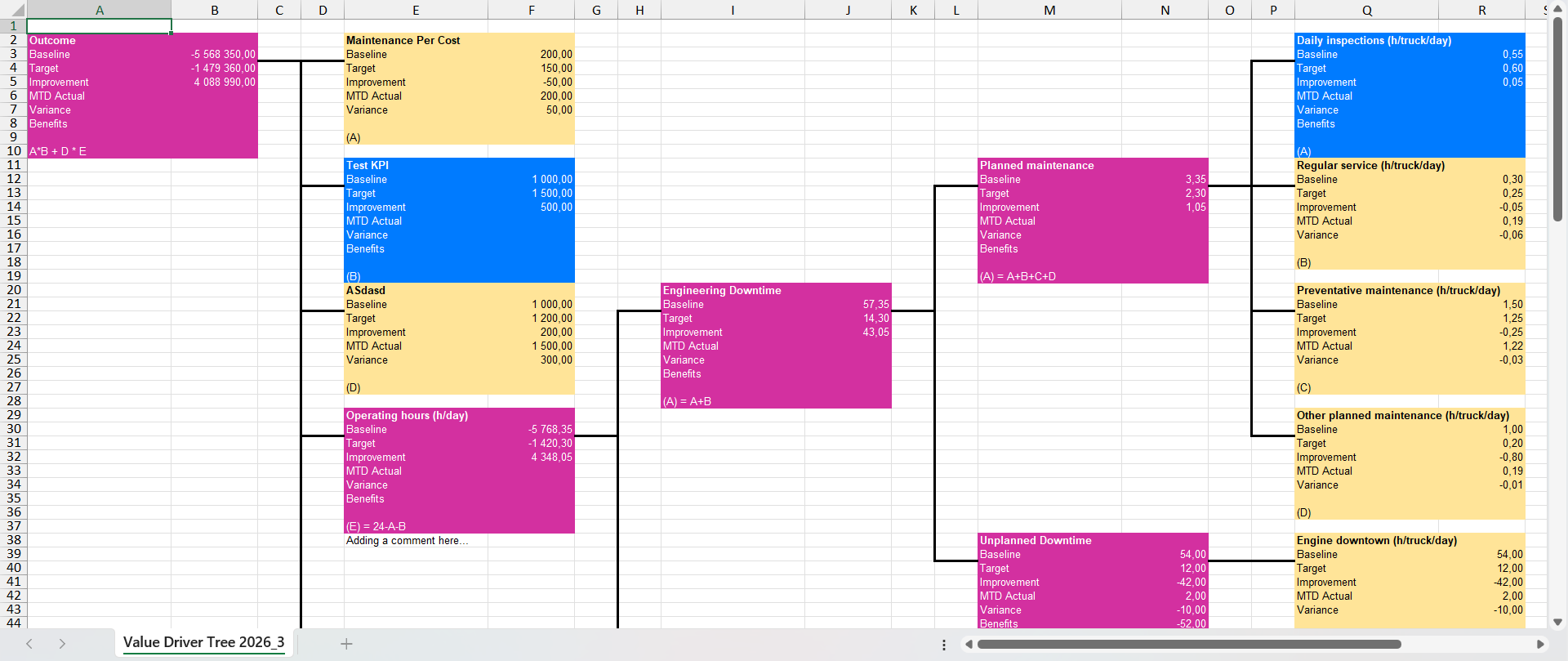
- Exports the VDT in a visual Excel format that mirrors the tree structure displayed in the UI
- Useful for presentations, reports, and visual analysis
- Preserves the hierarchical layout and formatting of the VDT
- Download Excel (Import Template)
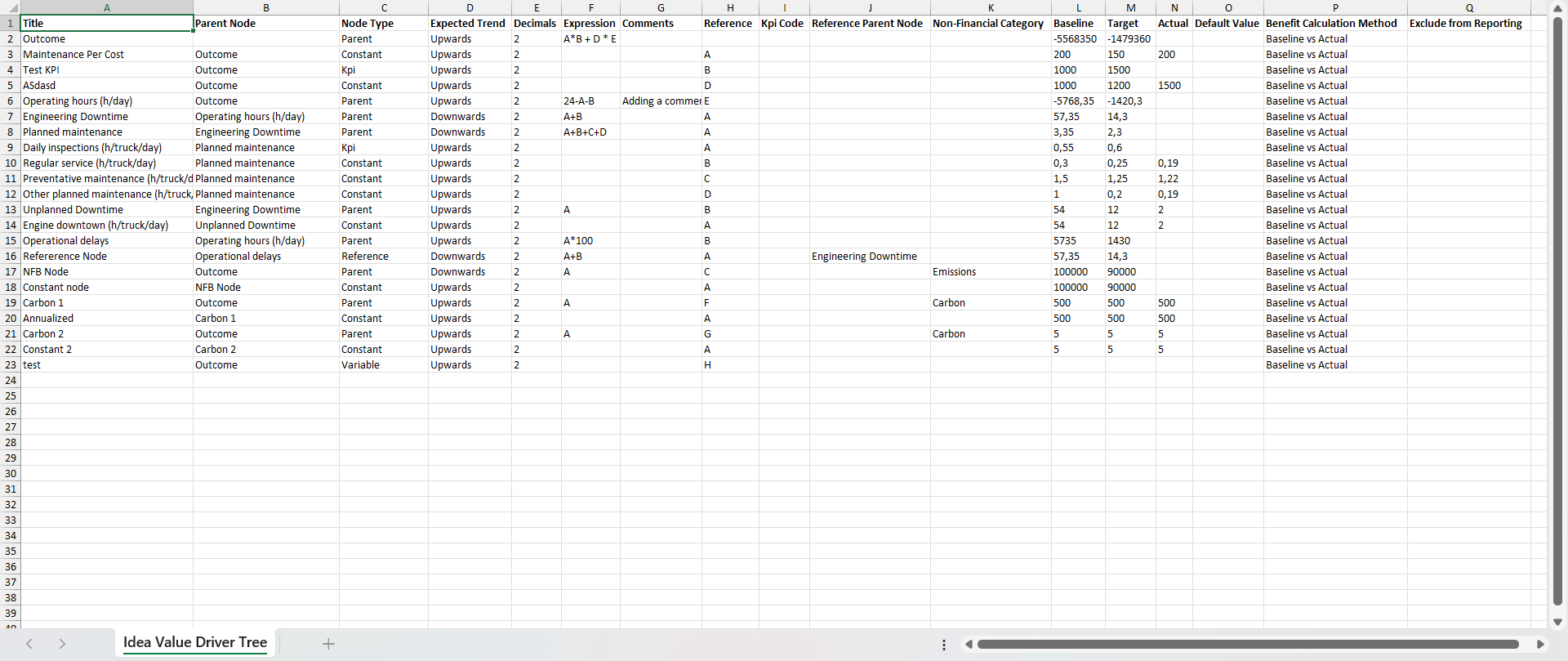
- Exports the VDT in the same structure and column layout as the VDT import template
- Enables round-trip workflows where you can export, modify, and re-import the VDT
- Matches the VDT import template structure with proper column layout and hierarchy representation
- When selected, the file will be processed and once complete, you can download the template from the notifications panel
How to Download:
- Click the download icon in the VDT toolbar
- Select your preferred download format from the dropdown menu:
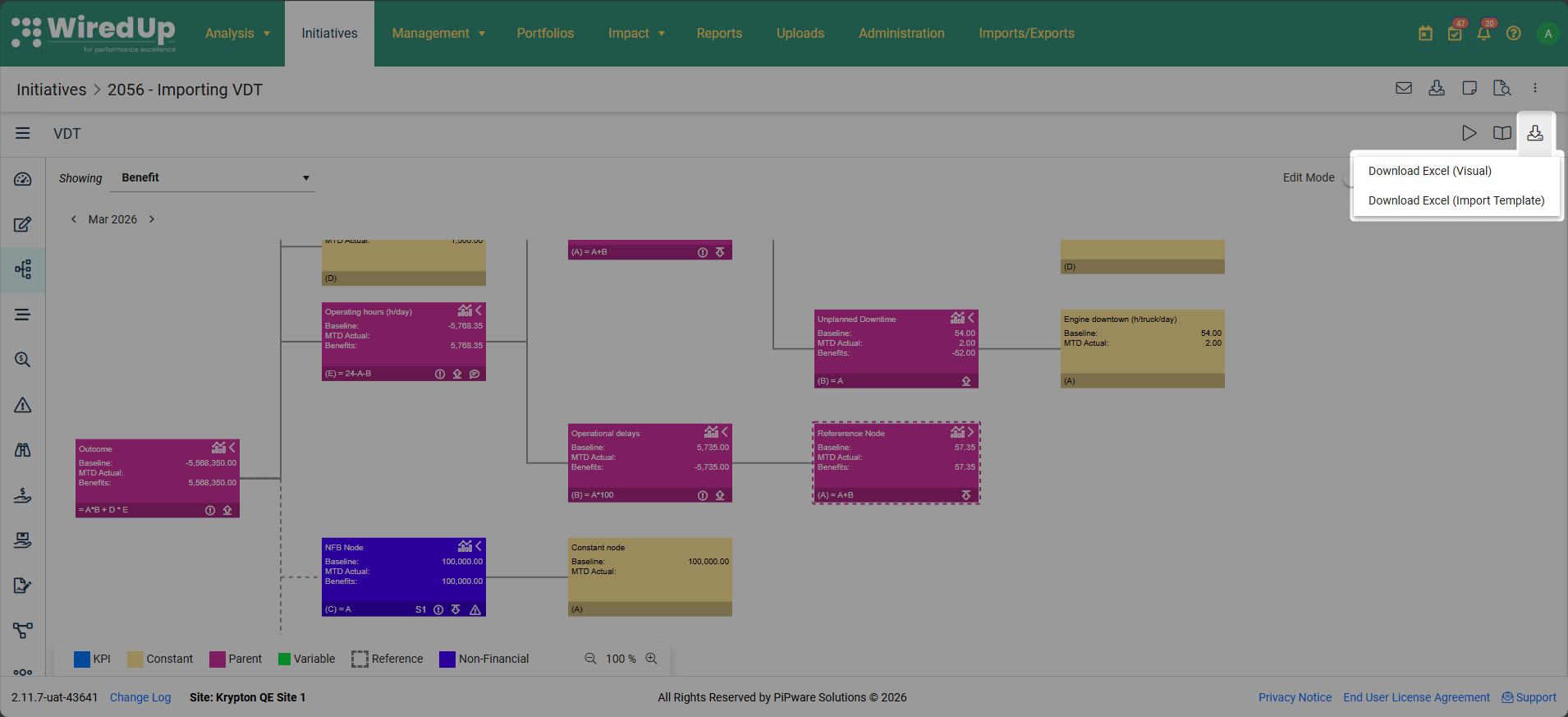
- Download Excel (Visual) for visual representation
- Download Excel (Import Template) for template-based export
- For Excel (Import Template) downloads, wait for the file to be processed
- Once processing is complete, navigate to the notifications panel to download your file
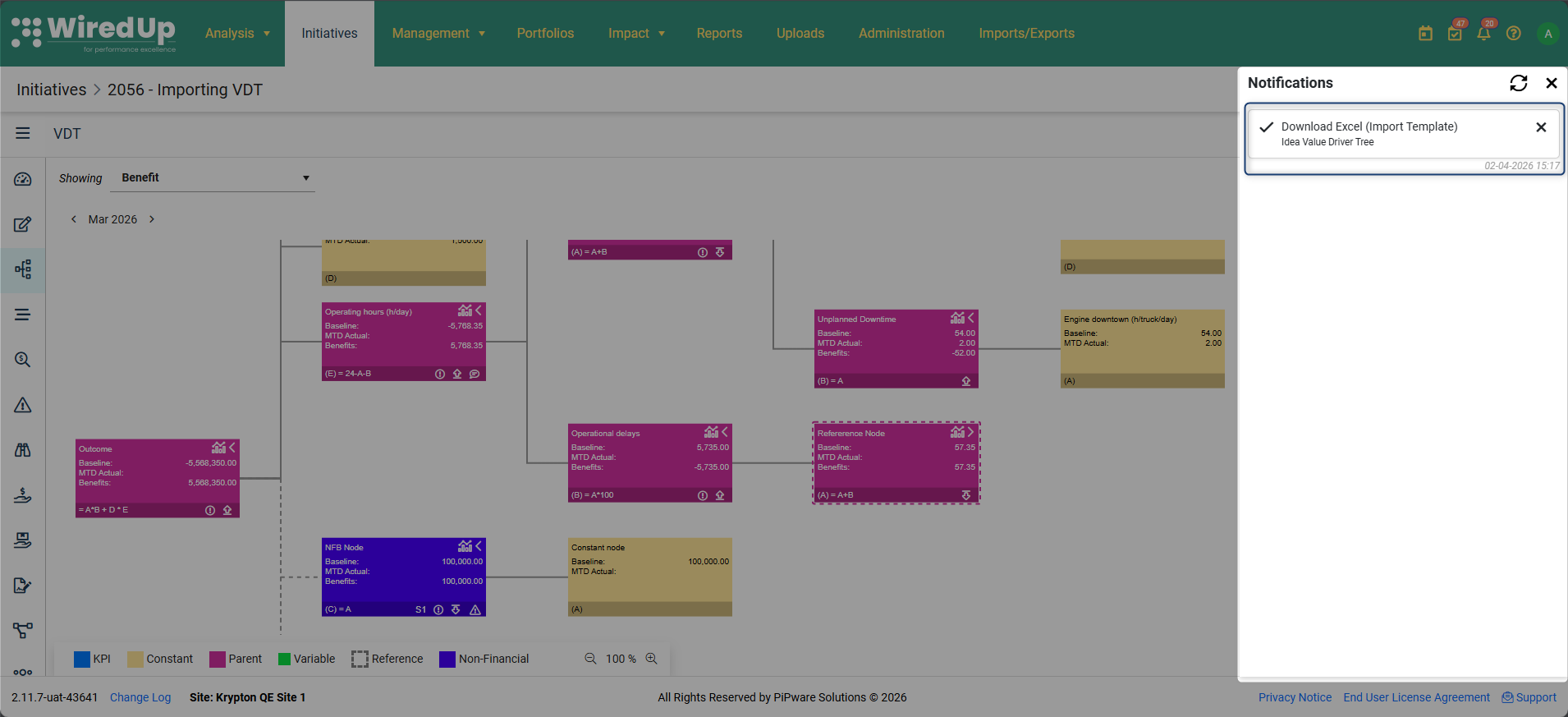
- For Excel (Visual) and PDF downloads, the file will download immediately
Use Cases:
- Excel (Visual): Best for presentations, stakeholder reports, and visual analysis
- Excel (Import Template): Best for making bulk changes to the VDT structure and re-importing
How does a Variable VDT Node work?
A variable VDT node sources Baseline, Actual and Target values directly from the KPI based on the configured KPI's calculation method.
VDT Views
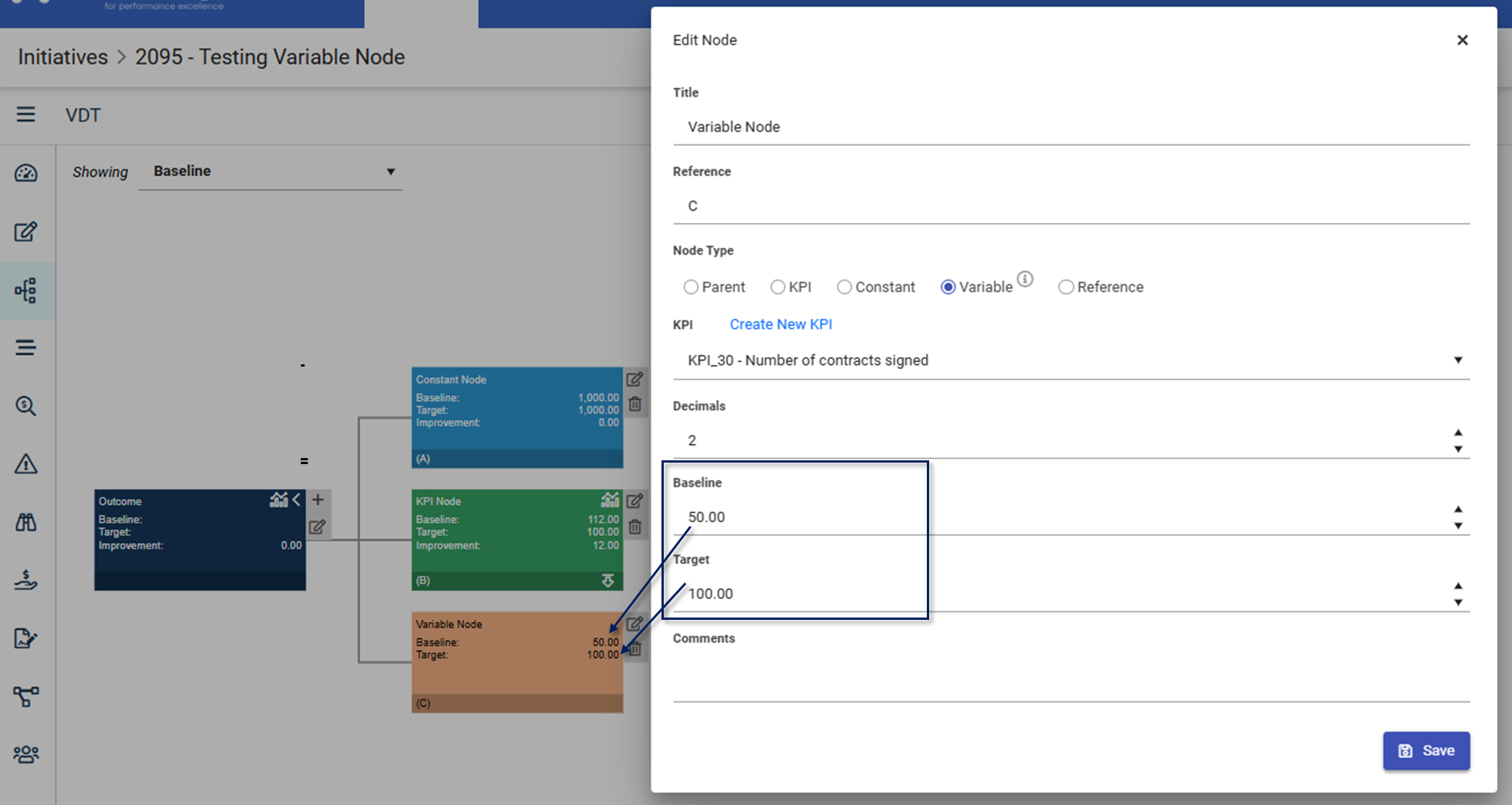
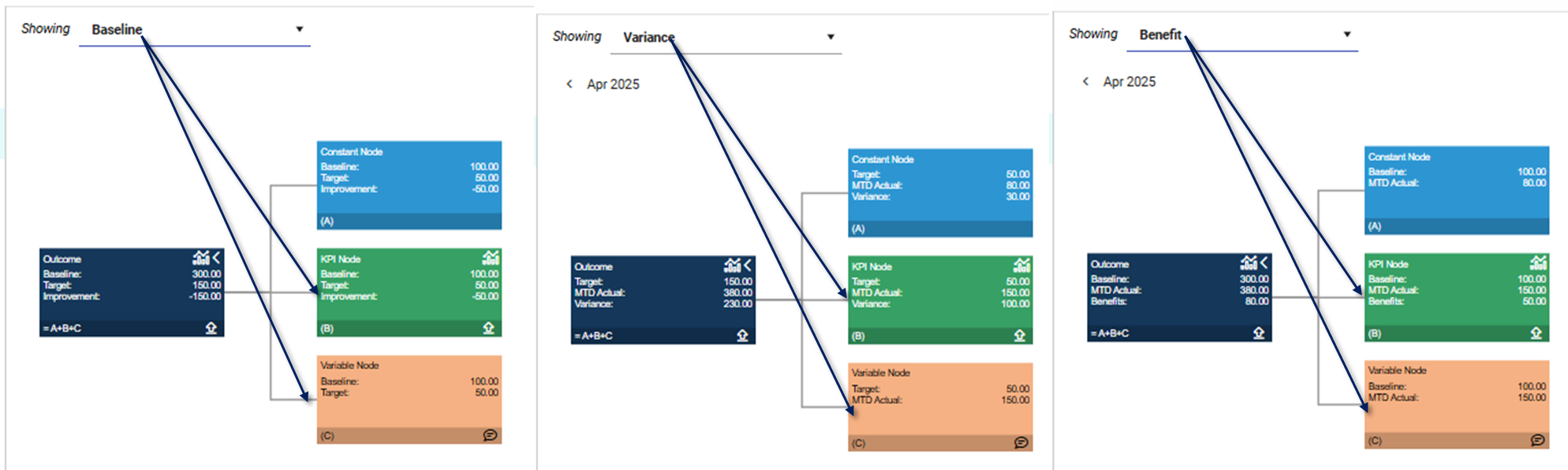
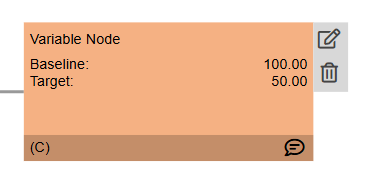
In the three VDT Views, a variable node is displayed as follows:
- In the Baseline view, the node will only display the Target and baseline fields
- these values are sourced from the KPI when the KPI is selected the first time
- these values are editable in the node configuration when in the baseline view but not in other views
- In the Variance view, the node will display the Target and MTD Actual values
- these values have the KPI calculation method applied
- these values are read-only in the node configuration
- this view is impacted by the "No Impact on Benefit" functionality is enabled
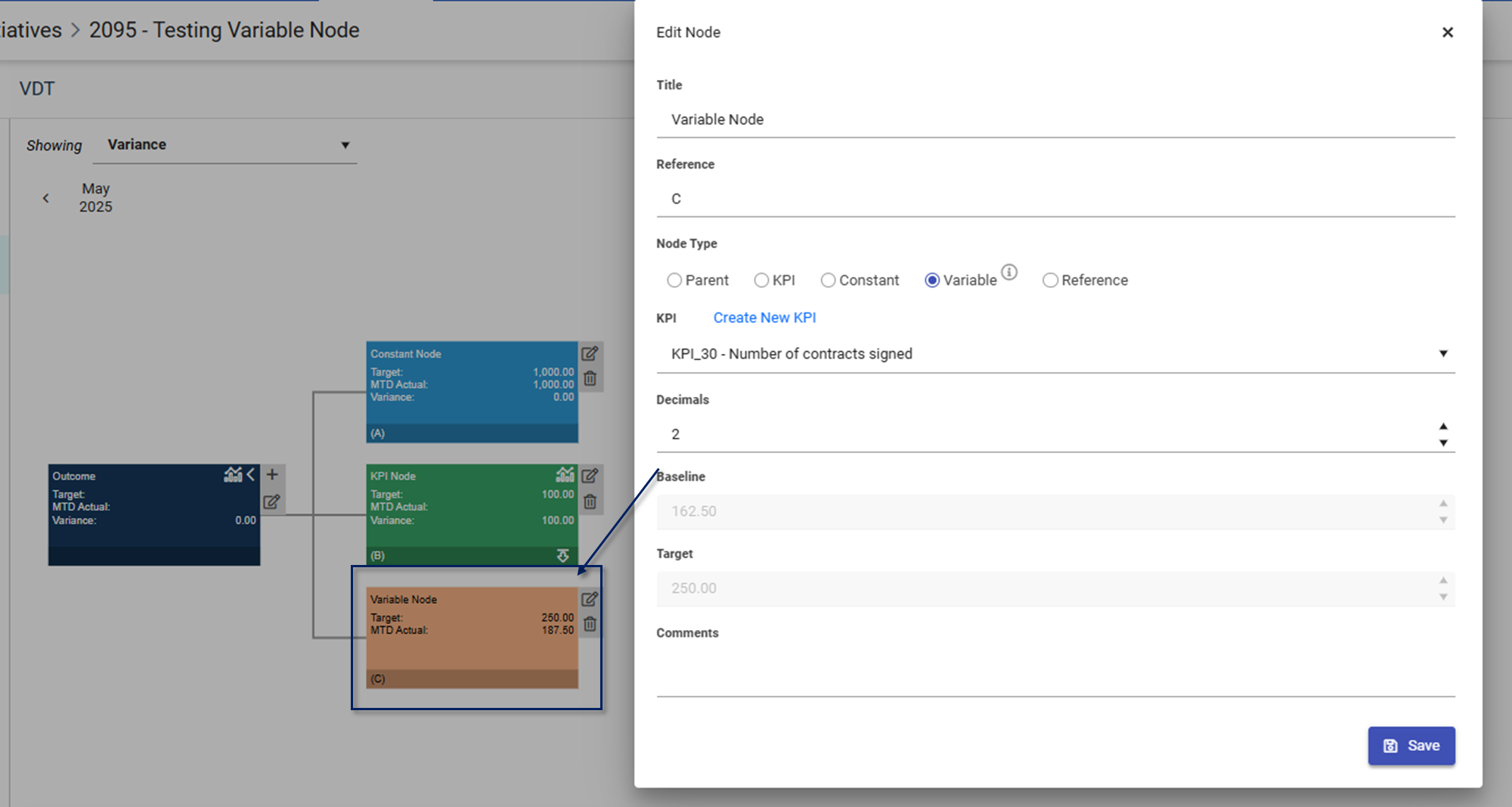
- In the Benefit view, the node will display the Baseline and MTD Actual values
- these values have the KPI calculation method applied
- these values are read-only in the node configuration
- this view is impacted by the "No Impact on Benefit" functionality is enabled
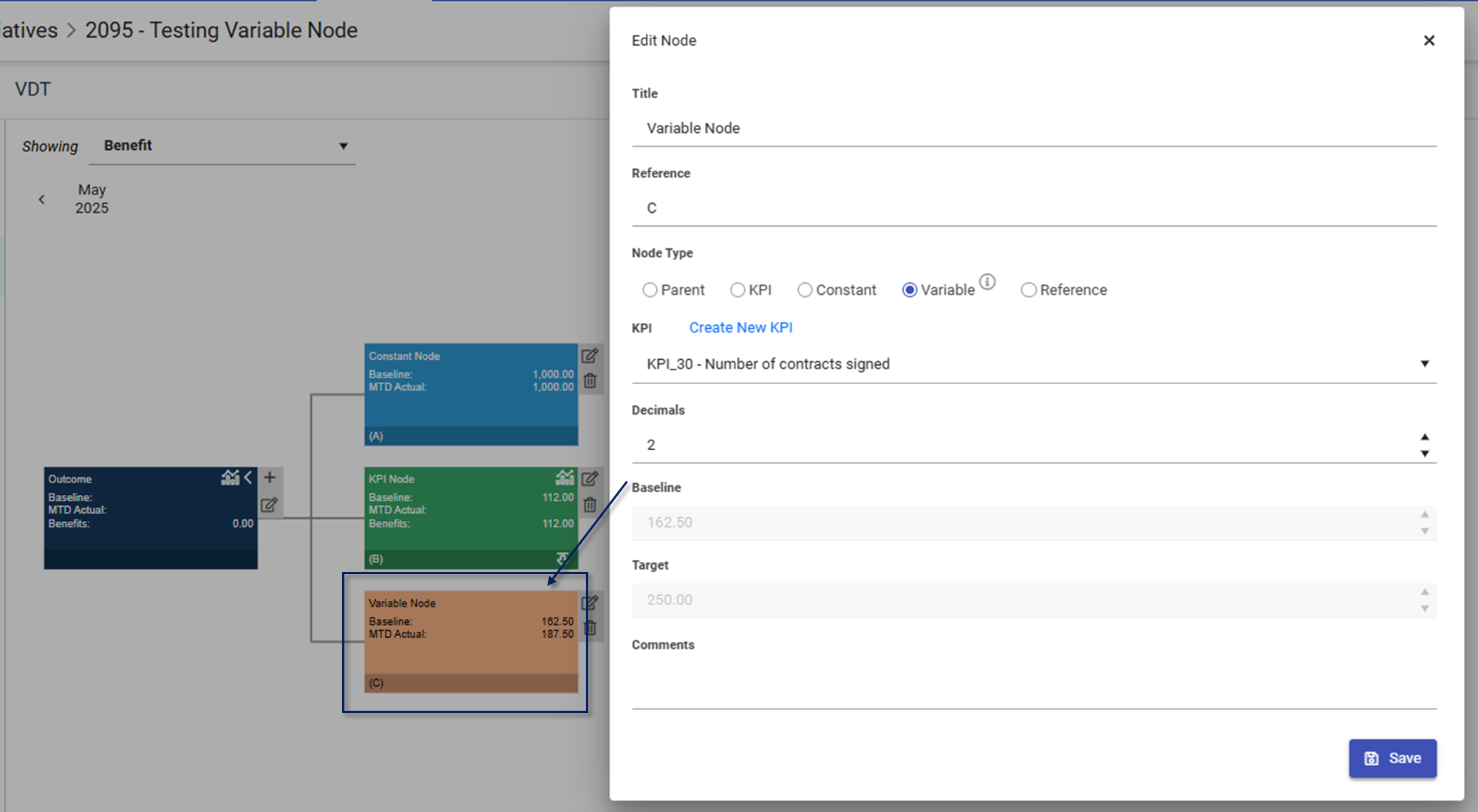
Note: if there are no monthly calculated method KPI values to source, the values in the Variable and Benefit views of the VDT will be shown as blankNote: For more information on how the "No Impact on Benefit" functionality affects Variable nodes and KPI nodes, see the Impact of No Impact on Benefit capability on VDT nodes articleVariable Node vs KPI node
The difference between a normal KPI node and a Variable node is:
- a variable node does not calculate or display the improvement, variance or benefit value. Whereas a KPI node would calculate the improvement, variance and benefit value.
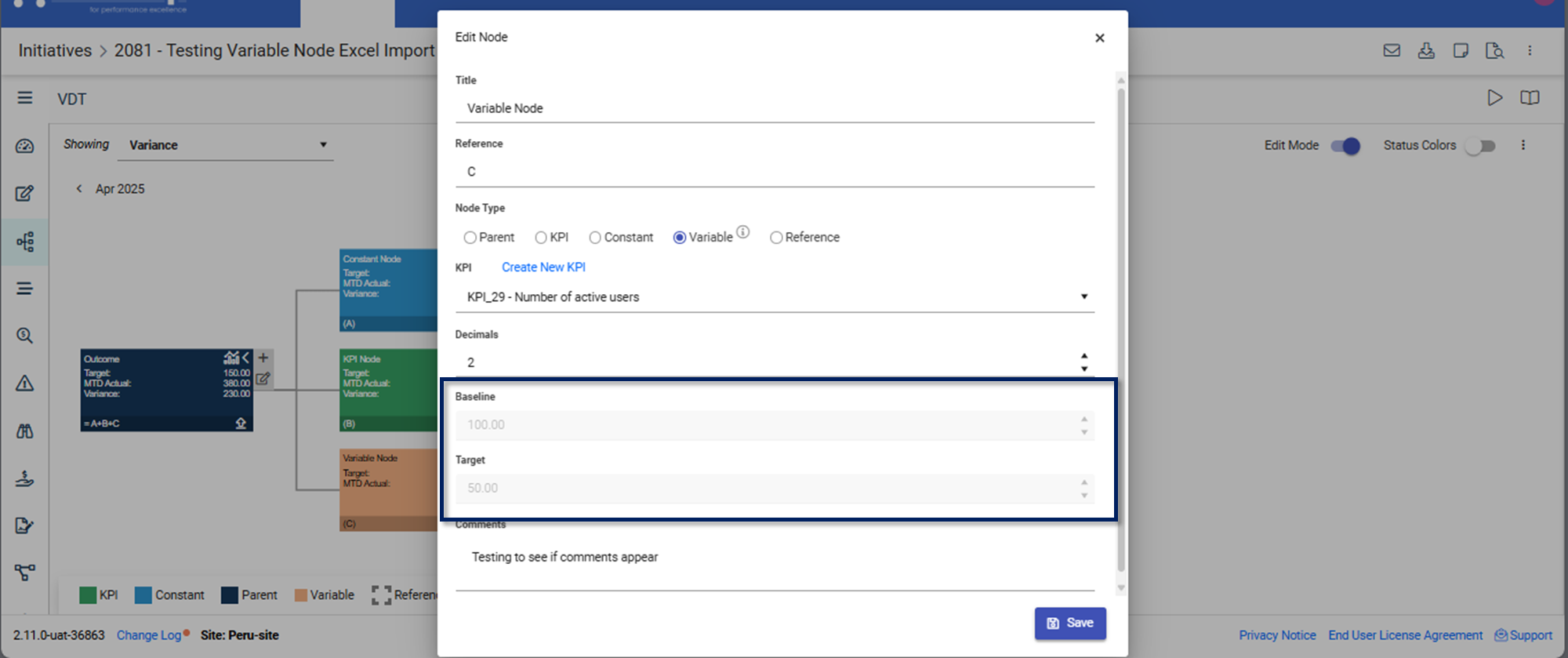
- variable node does not allow the user to edit Baseline and Target values when in the Benefit or Variance view. These values are only sourced from the KPI itself. A KPI node provides that flexibility to enter default values or source from the KPI.
- a variable node does not display a KPI chart or trend icon. Whereas a KPI node displays icons to view the KPI chart and trend icon
KPI Value Calculation Method on Variable Node
The values displayed on the variable node applies the calculation method configured on the KPI. For example, this KPI has Average per Period set as its Value Calculation Method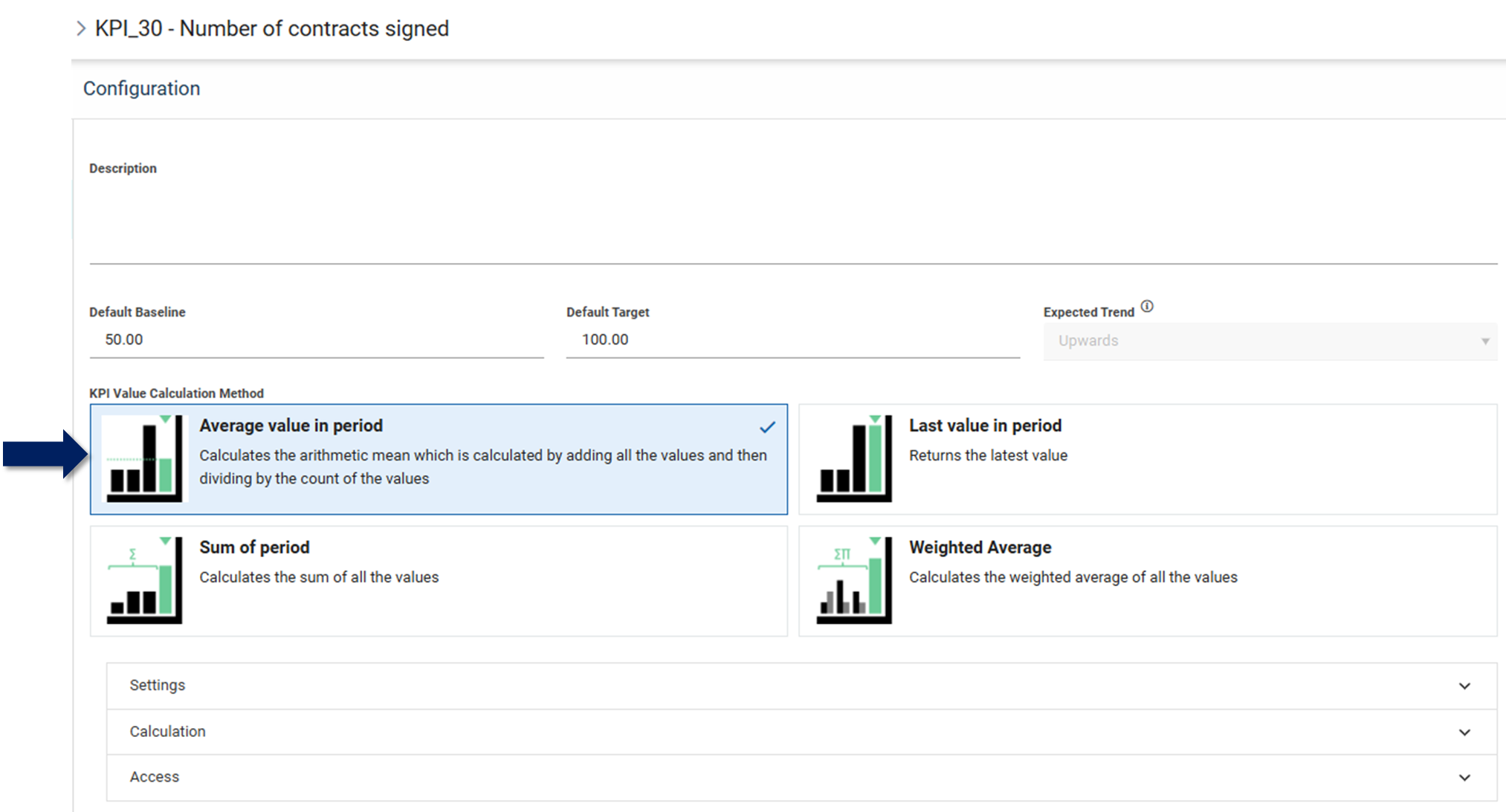
The KPI values for the month of May are as follows: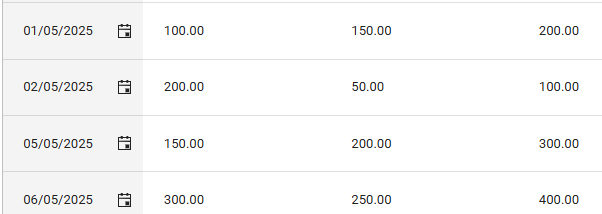
The Baseline and Target values displayed on the VDT apply the Average Calculation Method (Baseline = 150 + 50 + 200 + 250 = 650 / 4 = 162,50; Target = 200 + 100 + 300 + 400 = 1000 / 4 = 250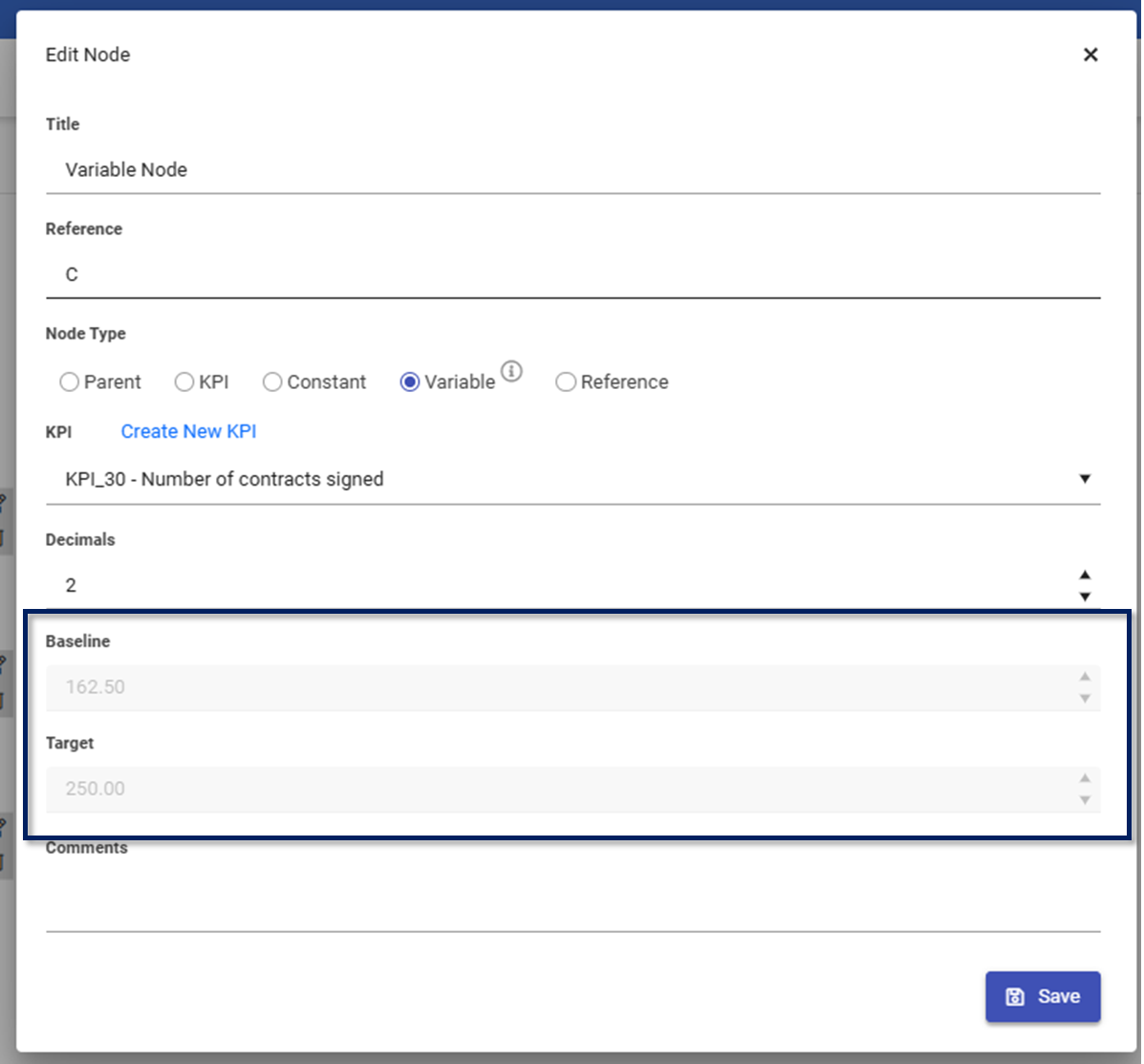
Importing a Variable Node
When a VDT with a Variable node is imported into an Idea VDT, the following is observed with the node:
- The connected KPI is still retained
- The Baseline and Target Values from the KPI are still retained in the Baseline View
- Monthly Baseline, Target and Actual values are sourced and displayed from the connected KPI when viewed in the Benefit and Variance View
- The Title, Reference, Decimals and Comments are retained in all the VDT views
No Impact on Benefit for Variable Nodes:
Variable nodes include a configurable "No Impact on Benefit" setting that controls whether historical values contribute to the initiative's benefit calculations. This setting is managed through the "Set Historical Baseline and Target values to Actual" checkbox, which is enabled by default.
When the checkbox is enabled (default behavior):
- For historical months, the system automatically sets the Target and Baseline values equal to the historical MTD Actual value in the Variance and Benefit views respectively
- This ensures no variance or benefits are generated from past periods
- Current and future month values continue to use the Baseline, Target, and Actual values sourced from the connected KPI
When the checkbox is disabled:
- Historical Baseline and Target values are sourced from the connected KPI for all time periods
- Historical values contribute to benefit calculations using the original KPI data
This design allows Variable nodes to serve as intermediate calculation points within the VDT structure while providing flexibility in how historical periods impact benefit outcomes.
Note: The "No Impact on Benefit" setting for KPI nodes has been retired. Variable nodes are now the standardized method for achieving "No Impact on Benefit" functionality. For more detailed information on how this feature works, see the Impact of No Impact on Benefit capability on VDT nodes article.Tracking Non-Financial Benefits
Parent nodes can now be tagged to track Non-Financial benefits :
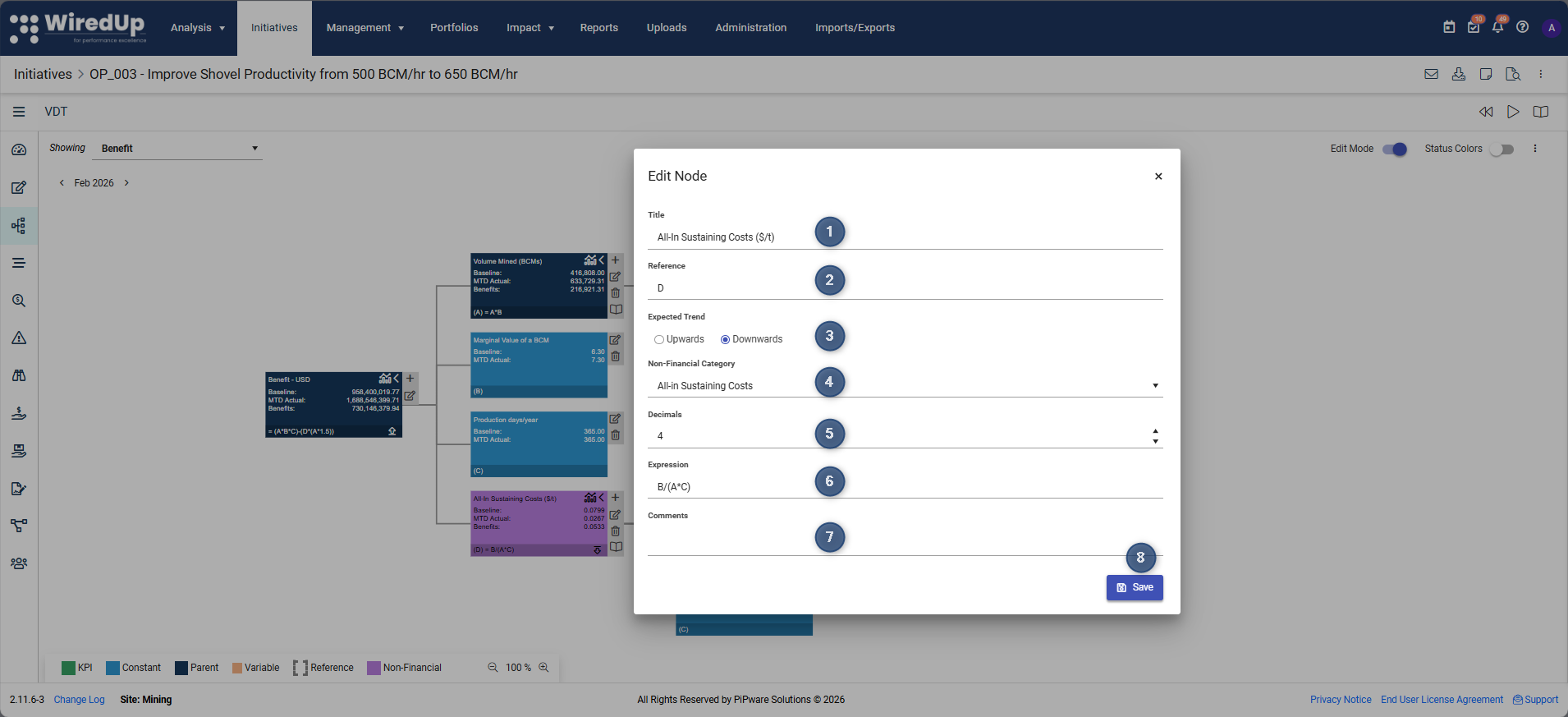
- Give the node a name
- Select a reference character that will be used
- Choose whether this node is aiming for an upwards or downwards trend
- Select the non-financial category this node is related to
- Input the number of decimal places for the node
- Input an expression if applicable
- Input Comments if applicable
- Click Save to add the node
Note: The expected trend of a non-financial parent node will not affect the expected trend of other financial parent nodesUsing Variable Baseline and Target Values for KPI Nodes
KPI nodes include an option to use variable baseline and target values for benefit calculations. When the "Use KPI variable baseline for benefit calculation" and/or "Use KPI variable target for benefit calculation" checkboxes are enabled:
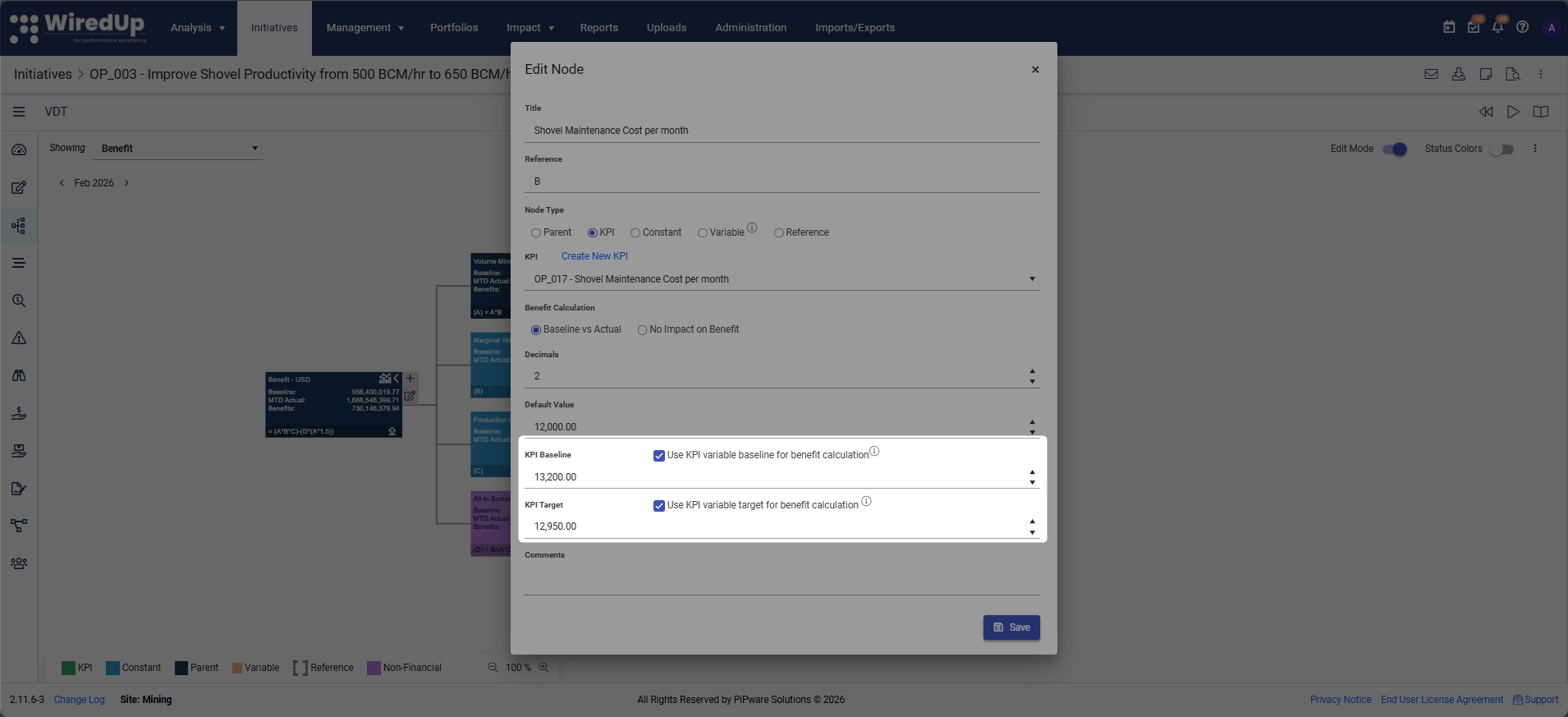
How it works:
- By checking these boxes, the variable Baseline and/or Target values, as captured in the linked KPI, will be utilized when calculating the Idea/Initiative benefits
- The displayed results of the KPI are contingent on the view you have selected
View-specific behavior:
- Baseline View: No variable values will be obtained or shown
- Variance View: The variance Target will be sourced and displayed on the node
- Benefit View: The variance Baseline will be sourced and displayed on the node
This allows you to source variable baseline/target values for the relevant month straight from the KPI, which will be displayed on both the node and the Benefits page.
Referencing Non-Financial Benefit Nodes
Nodes that reference Non-Financial benefits can be excluded from the aggregation of the Non-Financial benefit for the Idea/Initiative by enabling the "Exclude from Reporting" option:
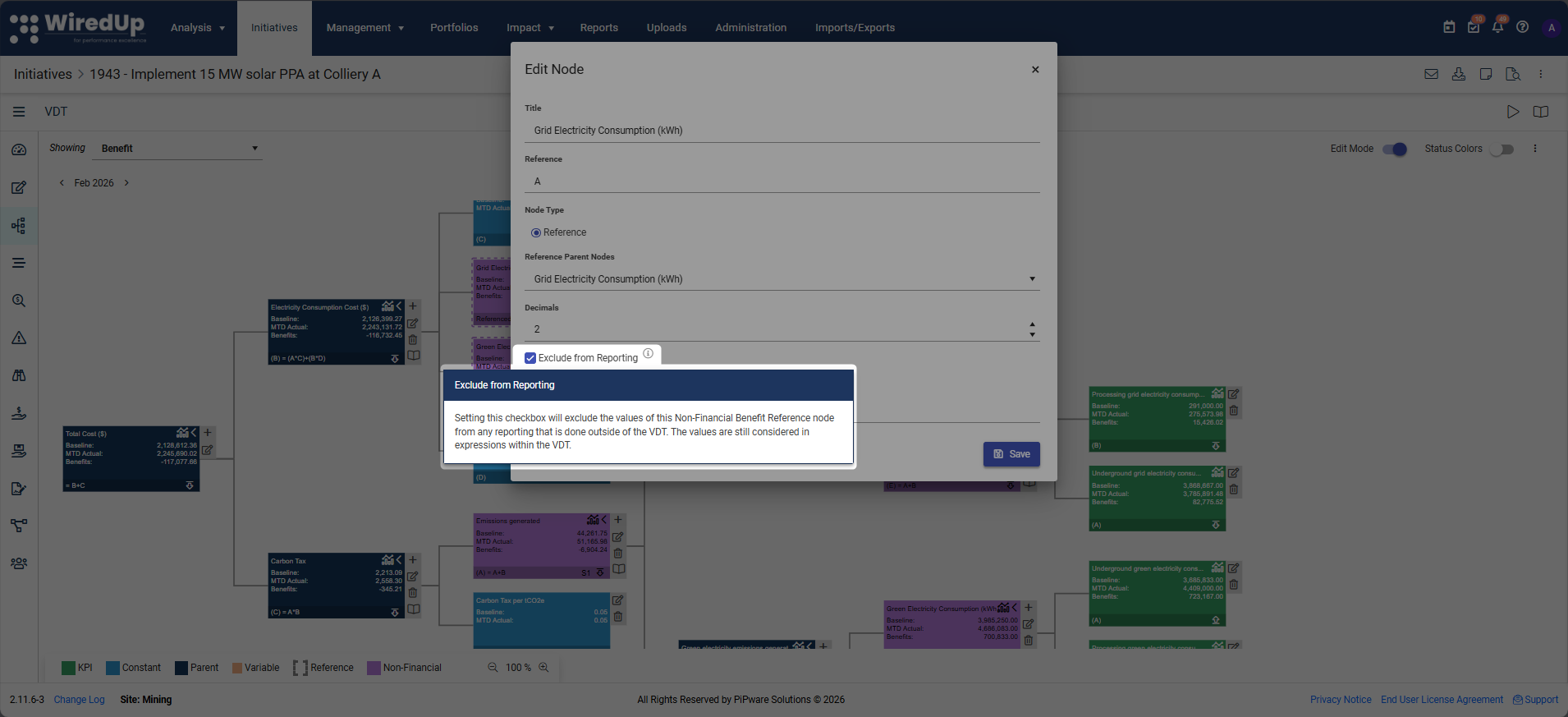
How Exclude from Reporting works:
Setting this checkbox will exclude the values of this Non-Financial Benefit Reference node from any reporting that is done outside of the VDT. The values are still considered in expressions within the VDT.
Use case: This is useful when you want to use a Non-Financial Benefit node for internal VDT calculations or data flow, but don't want those values to appear in external reports, dashboards, or aggregated benefit summaries for the initiative.
Importing a VDT
Instead of creating additional, lengthy parent nodes, you can choose to import them from another VDT within the same folder structure. You can only import a parent node into another parent node that has no additional nodes.
To import a node, click on the library icon and select either Import from Library or Import from Template option. 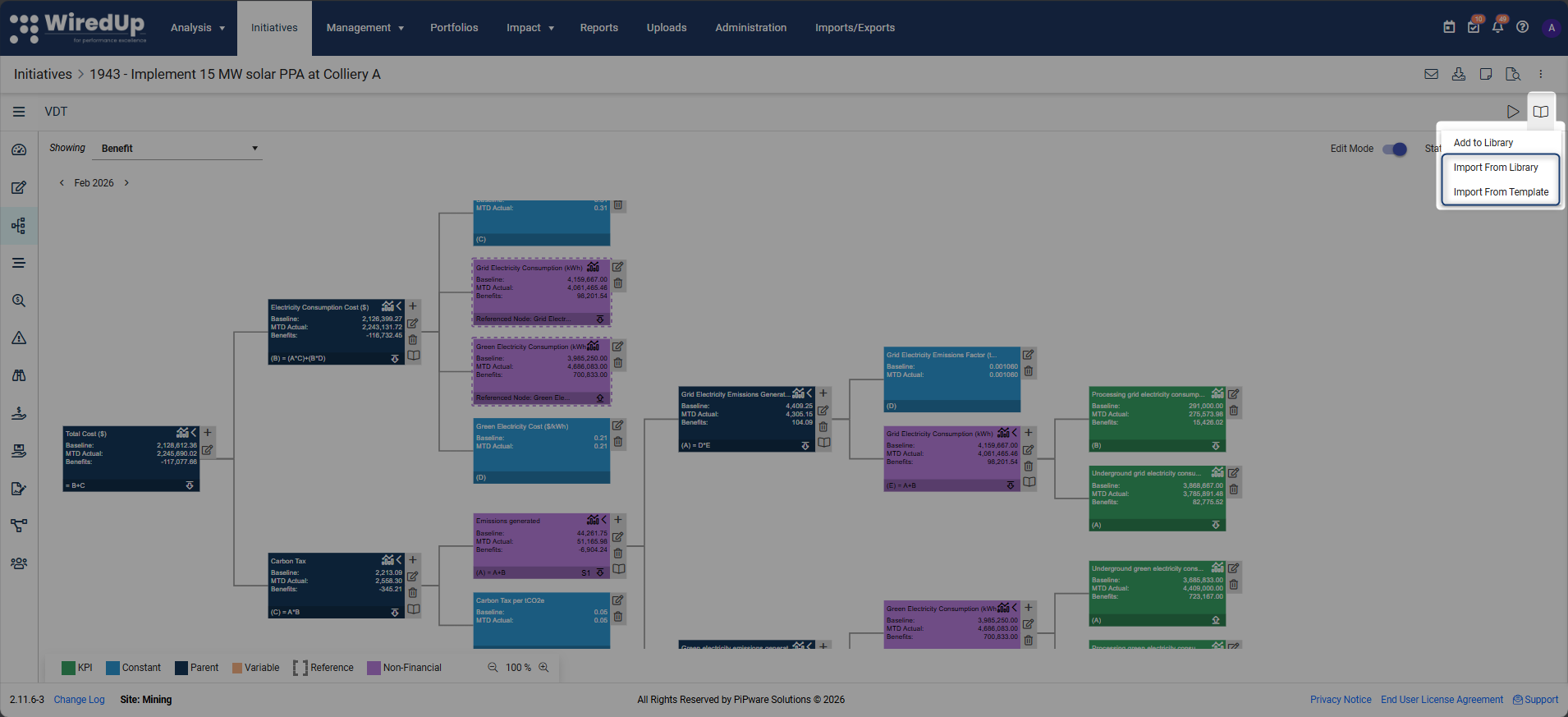
Adding a VDT to the Library
You can save your Idea VDT to the VDT Library for reuse across other initiatives. This allows you to standardize VDT structures and benefit calculation models across your organization.
To add a VDT to the Library:
- Open the Idea VDT you want to save to the library
- Click on the library icon to open the library menu
- Select Add to Library
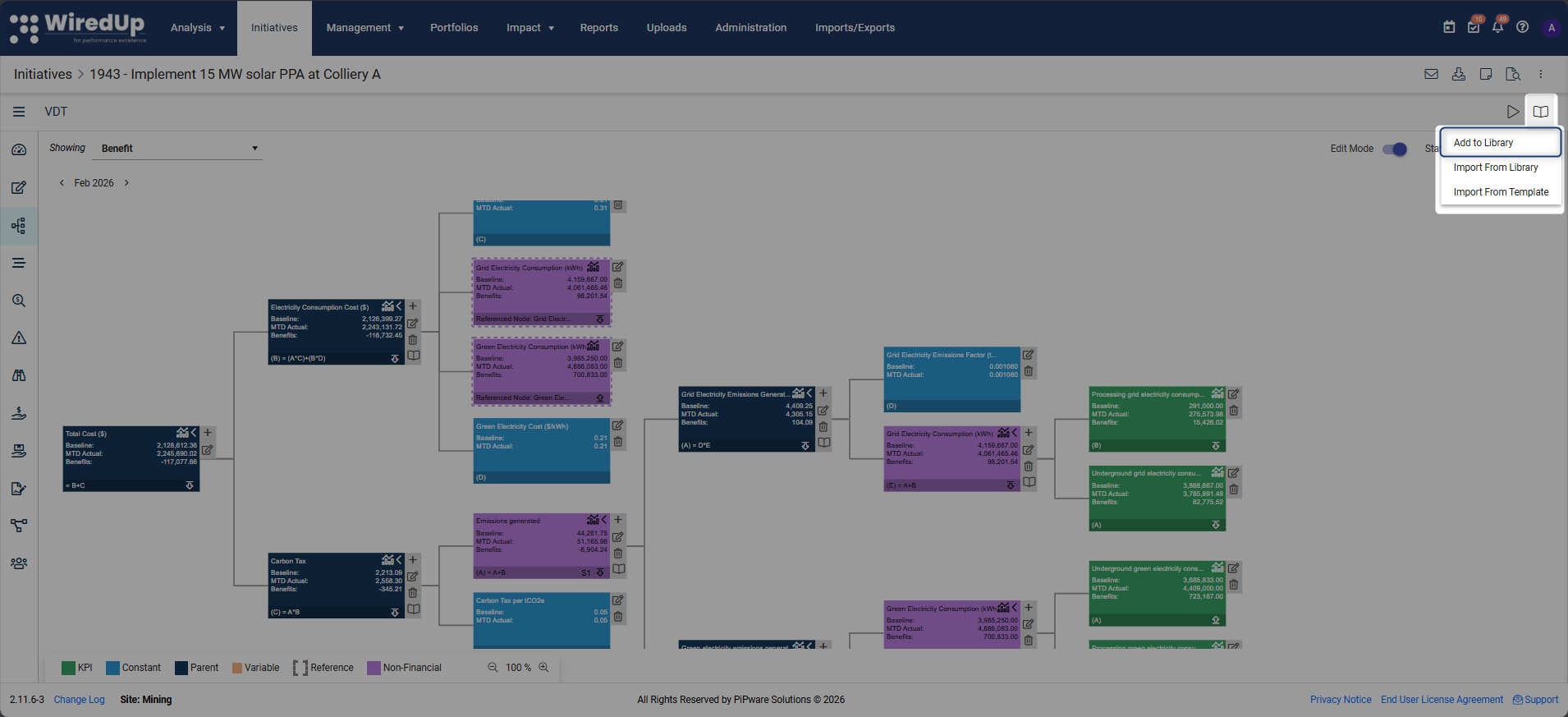
- Enter the following details:
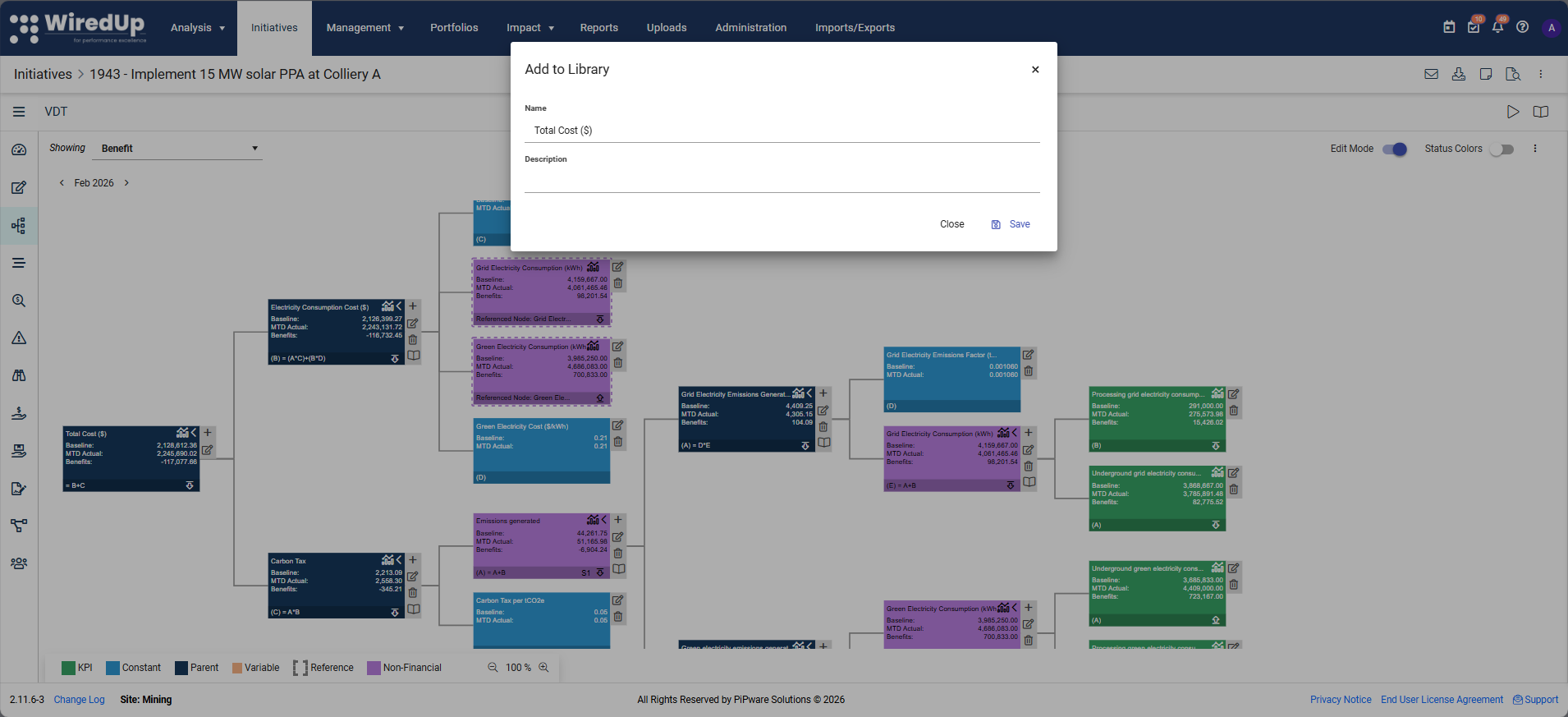
- Name: Provide a descriptive name for the VDT template
- Description: Add details about the purpose and use case for this VDT
- Click Save to add the VDT to the library
Once saved to the library, the VDT can be imported into other initiatives using the Import from Library option.
Benefits of adding VDTs to the Library:
- Reusability: Use proven VDT structures across multiple initiatives
- Consistency: Ensure standardized benefit calculation approaches
- Efficiency: Save time by not recreating VDT structures from scratch
- Best Practices: Share successful VDT models across teams and portfolios
Importing from Library
If you select the Import from Library option, the following pop-up screen will be displayed:
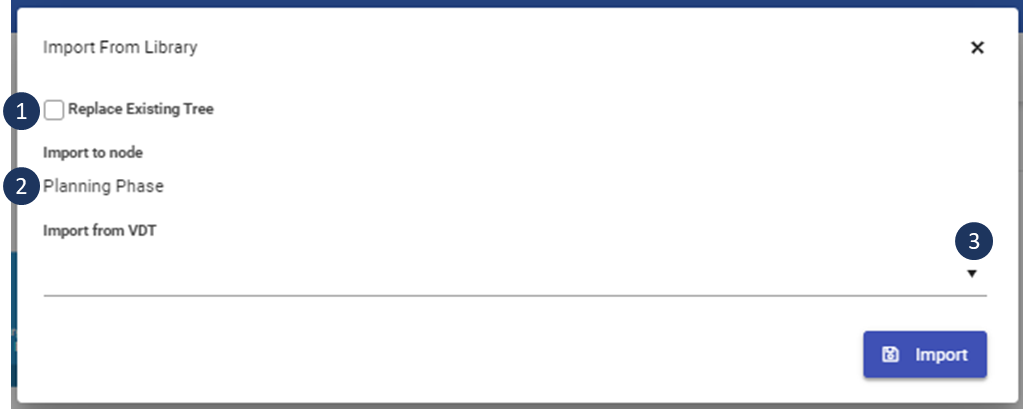
 | Select this checkbox if you want to replace the existing VDT with the imported VDT |
 | Select the import node that the VDT will be imported to. Note that the selected node must be an empty parent node |
 | Select the VDT from the drop-down list that you would like to import from. Note that on each VDT that appears from the list has a label to indicate whether it is a Value Hound VDT or an Initiative VDT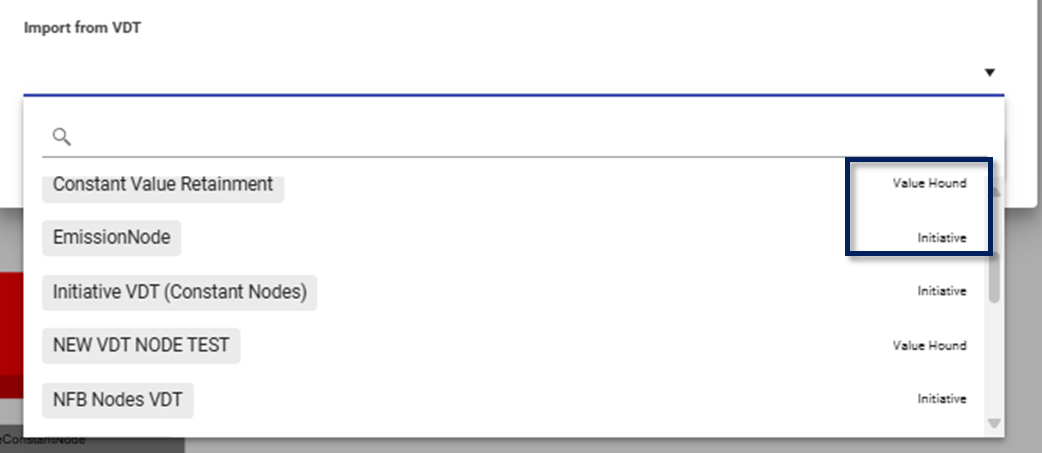 |
Once the import VDT has been selected, select the parent node you would like to import from, then select Import: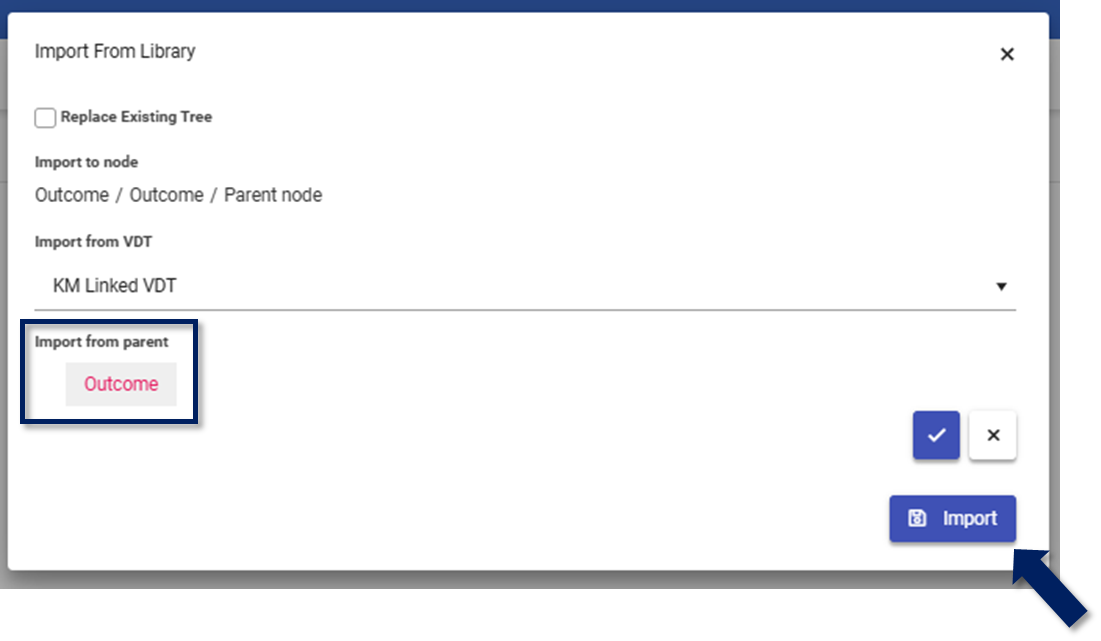
Importing from Template
Parent nodes can be imported from a VDT Excel file template obtained from the Import from Template option. To import this template, follow these steps below:
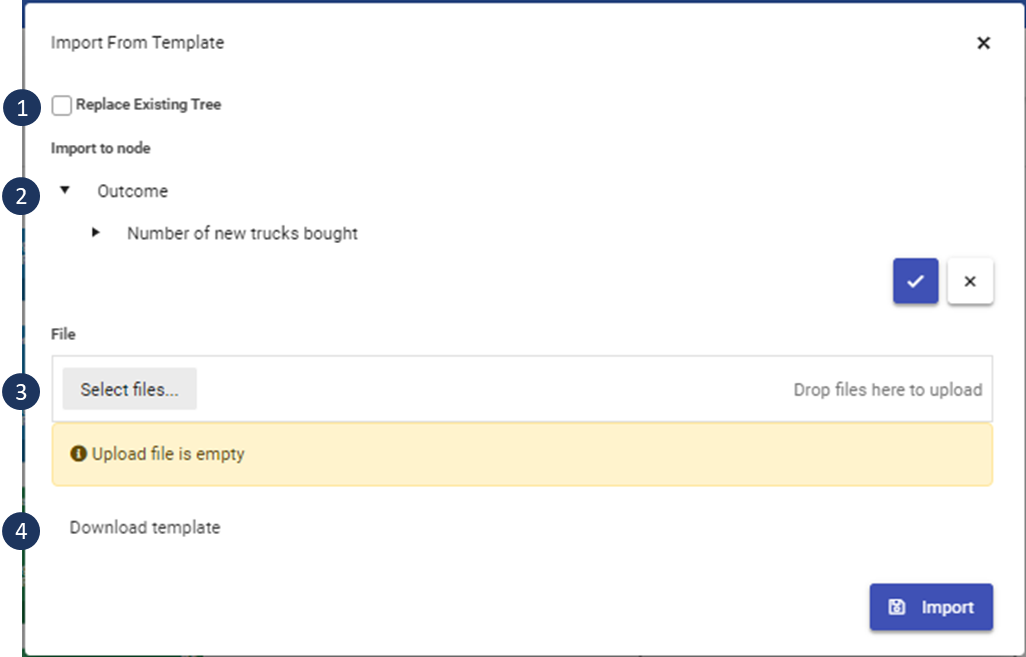
 | Select this checkbox if you want to replace the existing VDT with the imported VDT |
 | Select the import node that the VDT will be imported to. Note that the selected node must be an empty parent node |
 | Select the template file you would like to use for the import |
 | Click to download the template |
For more information on the VDT Library, please see this article: VDT Library and Template Management Part 1Importing a Linked VDT from the VDT Library
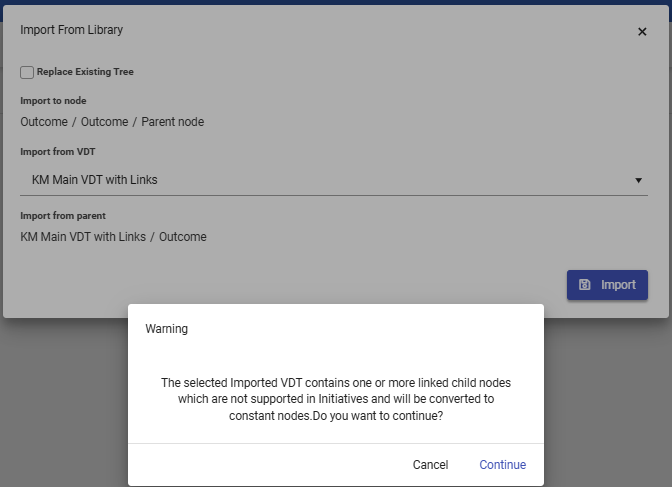
If you are importing from a linked Value Hound VDT (a VDT linked to another VDT), a warning message will be displayed because linked VDTs are not supported on Initiatives. As a result, the linked child nodes from the Value Hound VDT will be converted to constant nodes on the Idea VDT:
NOTE: when importing a VDT and it contains Emissions nodes, the import module will display an info message to inform the user that the initiative will be sourced to the Emissions module. This will only display when the Emissions feature is enabled.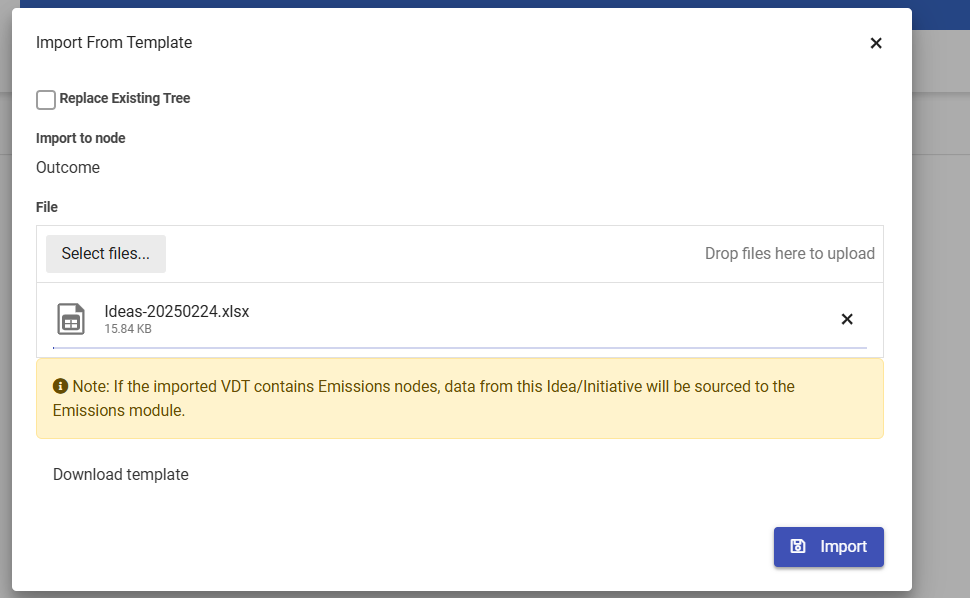
Tracking VDT Changes in the Change Log
The Change Log on Initiatives and Value Hound now captures a complete audit trail of all Value Driver Tree (VDT) changes, including node additions, edits, deletions, and canvas-level actions such as saving to or importing from the library.
What VDT Events Are Tracked
The Change Log automatically records the following VDT activities:
- Node additions — when a new node is added to the VDT canvas
- Node edits — when changes are saved to an existing node
- Node deletions — when a node is removed from the VDT canvas
- VDT saved to library — when the current VDT tree is saved to the library
- VDT imported from library — when a VDT tree is imported from the library
- VDT imported from template — when a VDT is imported from a file template
Viewing VDT Audit Entries
All VDT-related events appear in the existing Change Log panel on the Initiative or Value Hound record. Each entry follows the standard Change Log card format, showing:
- A descriptive header indicating the event type
- A message with relevant details
- Field change details (for node edits)
- The user avatar and name of the person who performed the action
- A timestamp showing when the event occurred
Understanding Each Event Type
Node Added:
When a user adds a new node to the VDT canvas, a Change Log entry is created showing: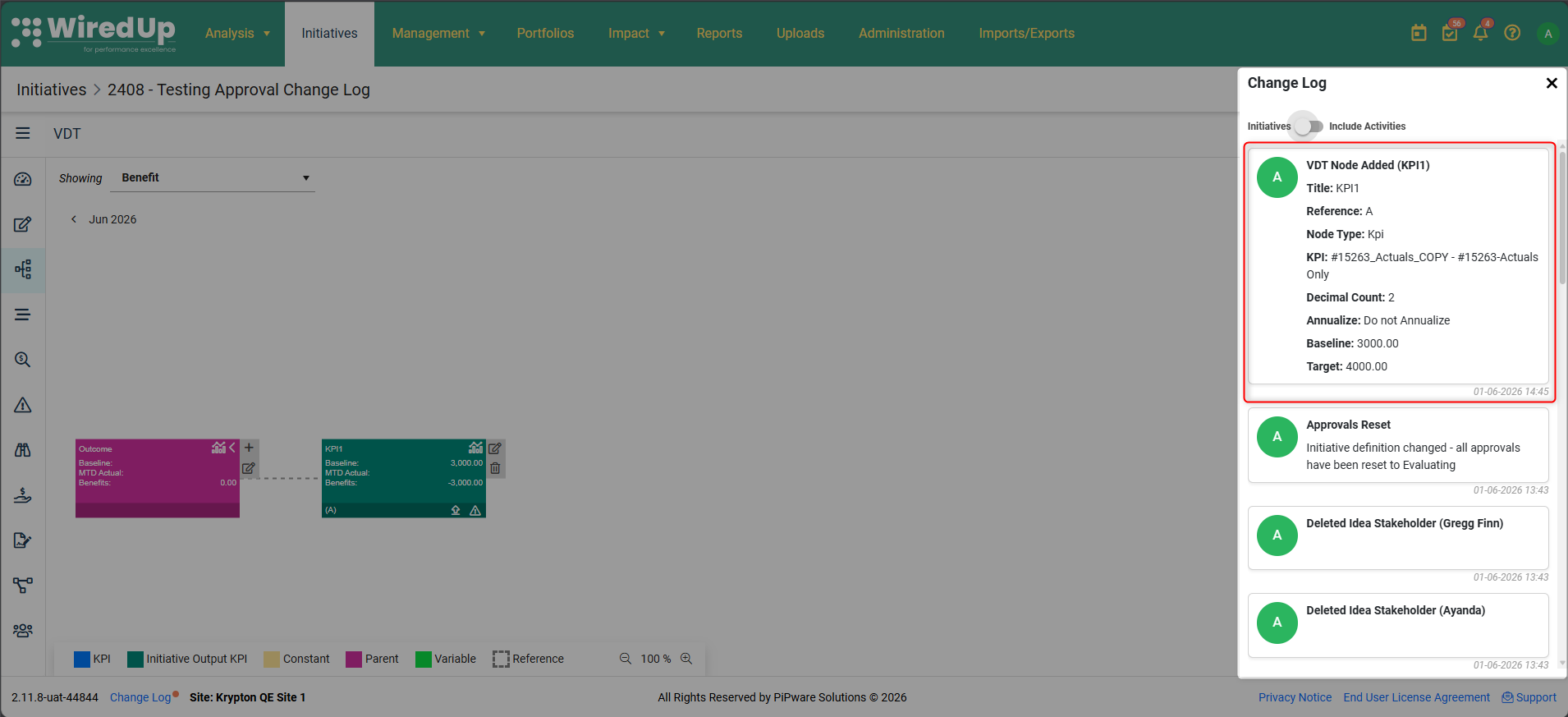
- Header: VDT Node Added ([Node Title])
- Message: Reference: [Reference], Type: [Node Type]
- User: The person who added the node
- Timestamp: Date and time the node was saved
Node Edited:
When a user saves changes to an existing node via the Edit Node modal, a Change Log entry is created. All field changes made within a single save action are grouped into one Change Log card, with each changed field listed showing the old value → new value.
Fields that are audited include (but are not limited to):
- Title
- Reference
- Node Type
- Expected Trend
- Non-Financial Category
- Decimals
- Expression
- Comments
- KPI (linked KPI — KPI node type only)
- Benefit Calculation (Baseline vs Actual / No Impact on Benefit — KPI node type only)
- Default Value (KPI node type only)
- Baseline (Use KPI variable baseline for benefit calculation — KPI node type only)
The entry shows: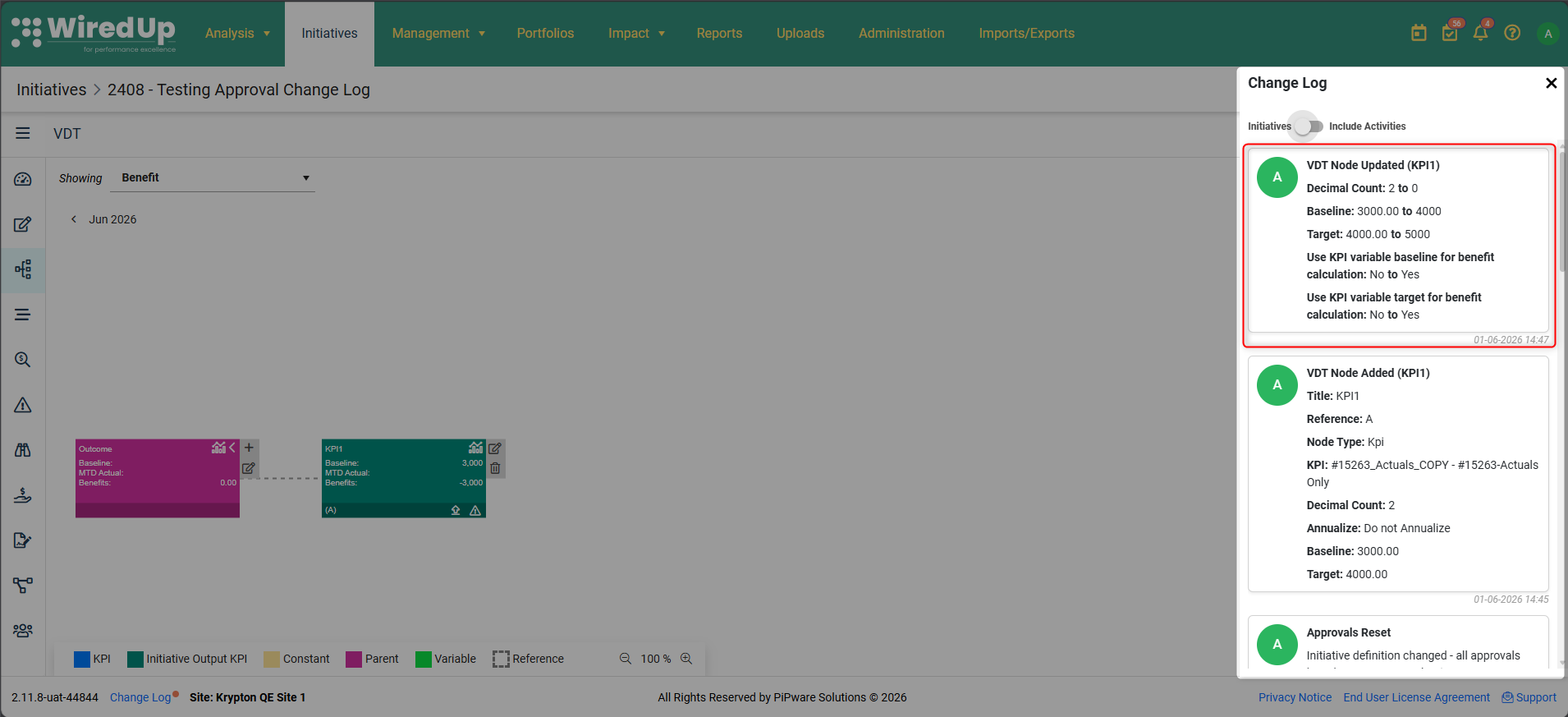
- Header: VDT Node Updated ([Node Title])
- Field changes: Each changed field listed as: [Field Name]: [Old Value] → [New Value]
- User: The person who saved the edit
- Timestamp: Date and time the edit was saved
Node Deleted:
When a user deletes a node from the VDT canvas, a Change Log entry is created showing:
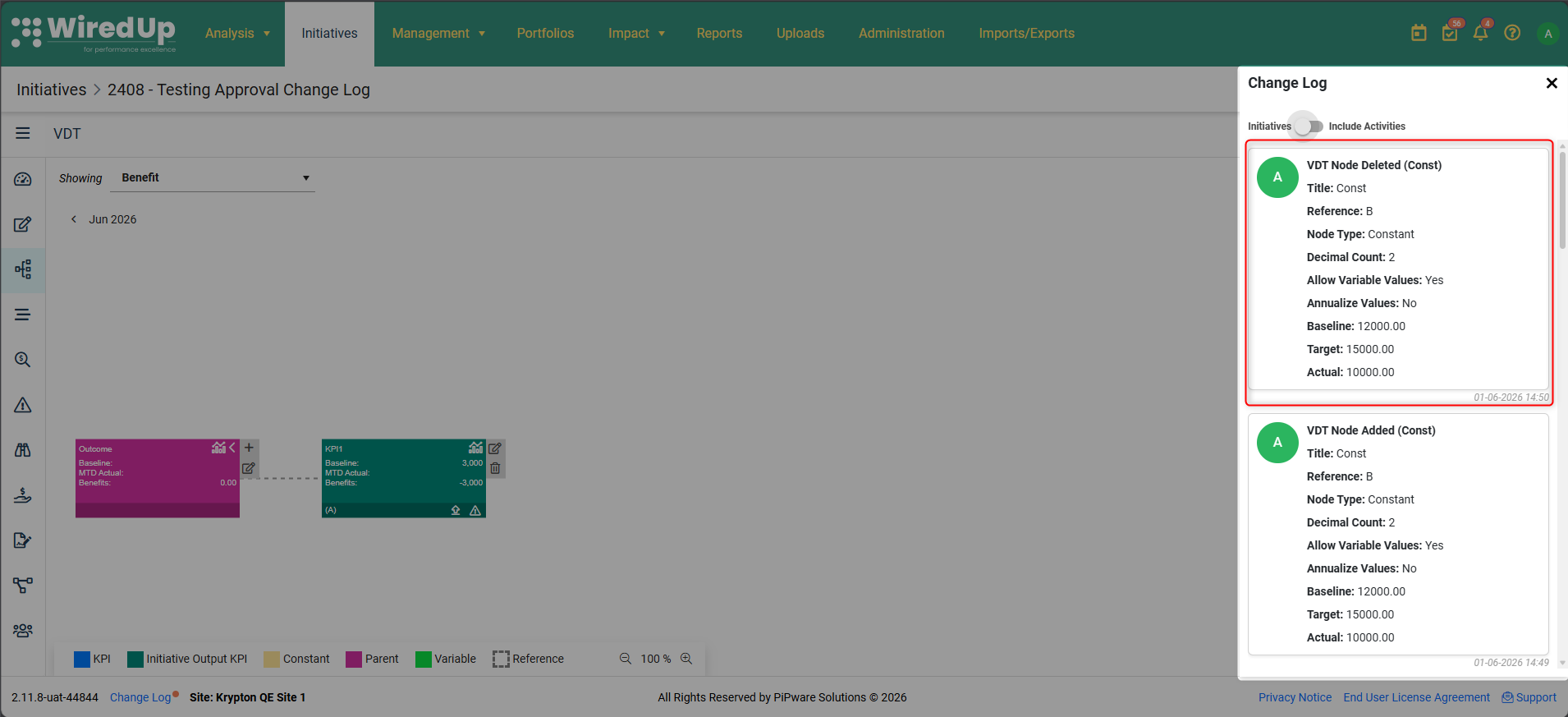
- Header: VDT Node Deleted ([Node Title])
- Message: Reference: [Reference], Type: [Node Type]
- User: The person who deleted the node
- Timestamp: Date and time of deletion
VDT Saved to Library:
When a user saves the current VDT tree to the library via the Add to Library action, a Change Log entry is created showing: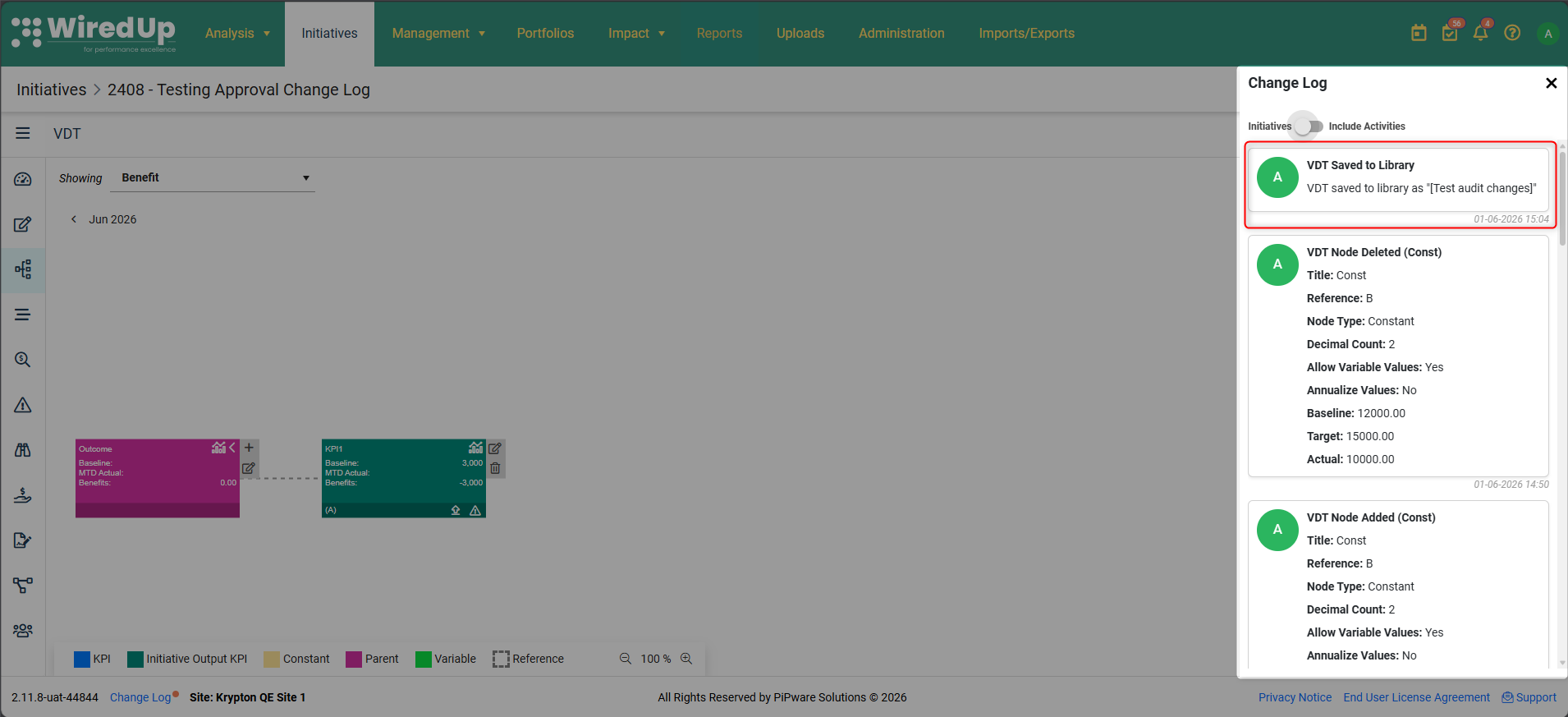
- Header: VDT Saved to Library
- Message: VDT saved to the library as "[Library Name]"
- User: The person who saved to the library
- Timestamp: Date and time of the save
VDT Imported From Library:
When a user imports a VDT tree from the library via the Import From Library action, a Change Log entry is created showing: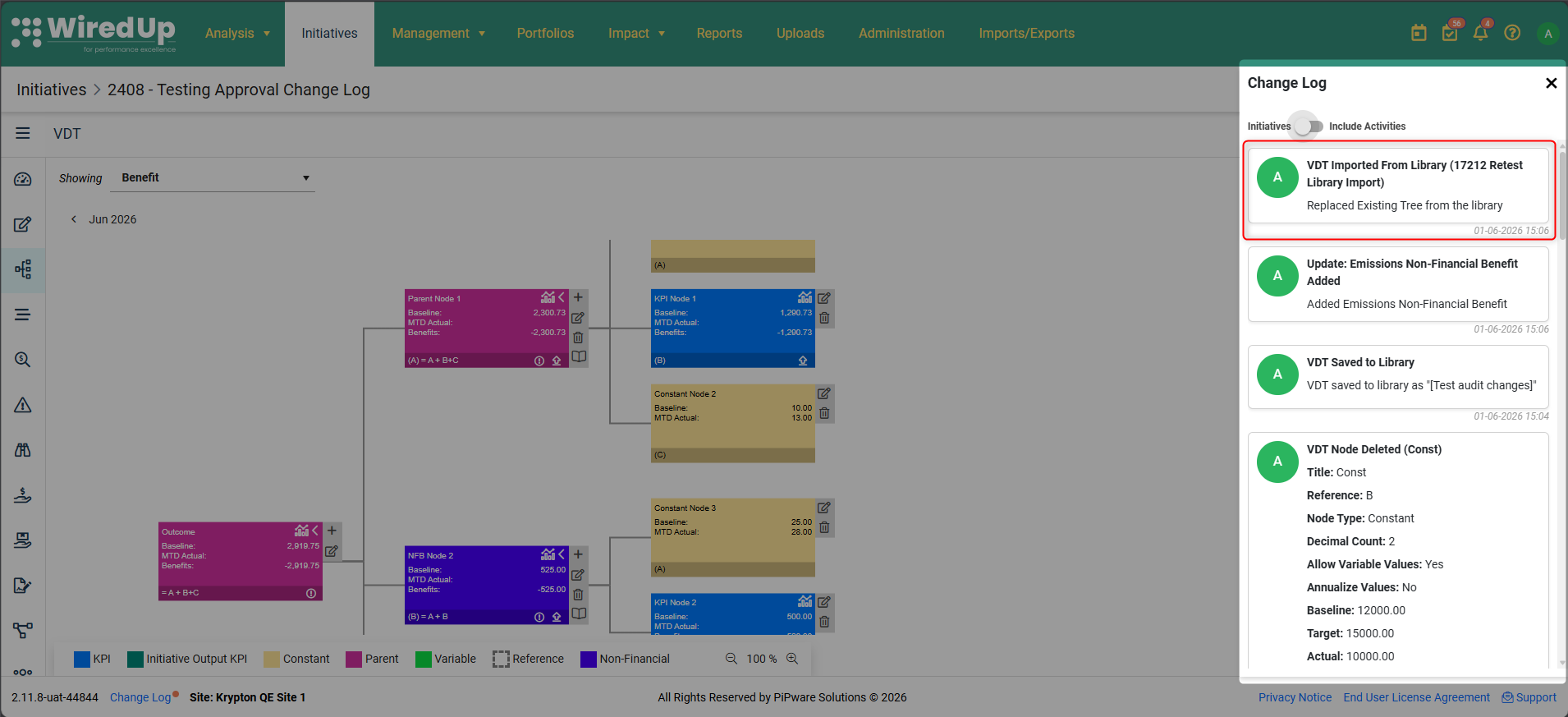
- Header: VDT Imported From Library (Source VDT Name)
- Message: Imported VDT from the library into node "[Import to Node Name]" OR Replaced Existing Tree from the library
- User: The person who performed the import
- Timestamp: Date and time of the import
VDT Imported From Template:
When a user imports a VDT from a file template via the Import From Template action, a Change Log entry is created showing:
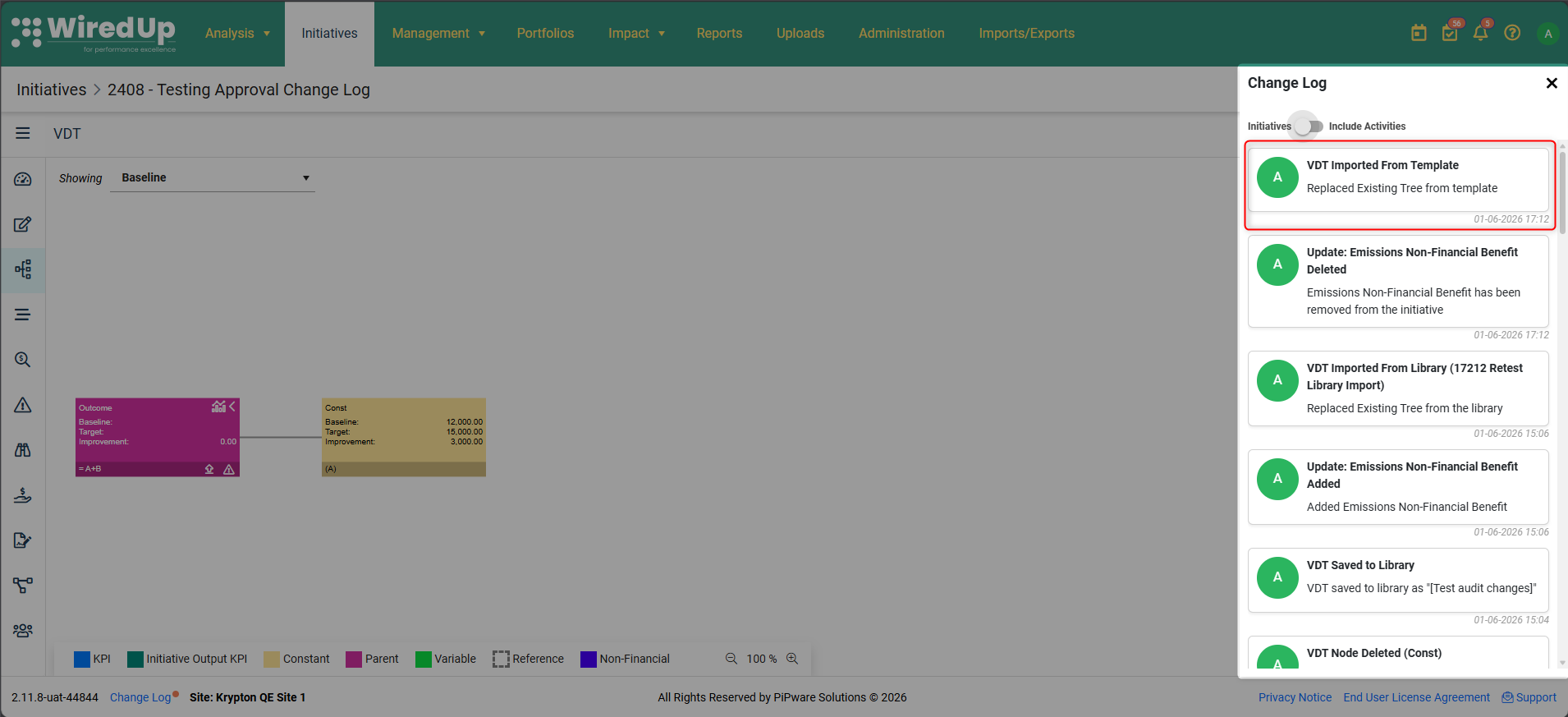
- Header: VDT Imported From Template
- Message: Imported VDT from template into node "[Import to Node Name]" OR Replaced Existing Tree from template
- User: The person who performed the import
- Timestamp: Date and time of the import
Accessing the VDT Audit Trail
Any user with access to view the Change Log on an Initiative or Value Hound can view all VDT audit entries. No additional permissions are required beyond existing Change Log view access.
Note: This VDT audit trail applies to all node types (Parent, KPI, Constant, Variable, and Reference) on both the Initiatives VDT and the Value Hound VDT. When multiple fields are changed on a node in a single save action, all changes are grouped into one Change Log entry rather than creating separate entries for each field.
VDT Recalculation
When you save changes to a node (add, edit, or delete), the VDT no longer performs a full page reload. Instead, the canvas updates immediately and triggers a background recalculation, allowing you to continue working without interruption.
How Recalculation Works
After saving a node, a countdown timer appears in the Content Bar showing "Recalculating in {xx}s" (default 15 seconds). This countdown:
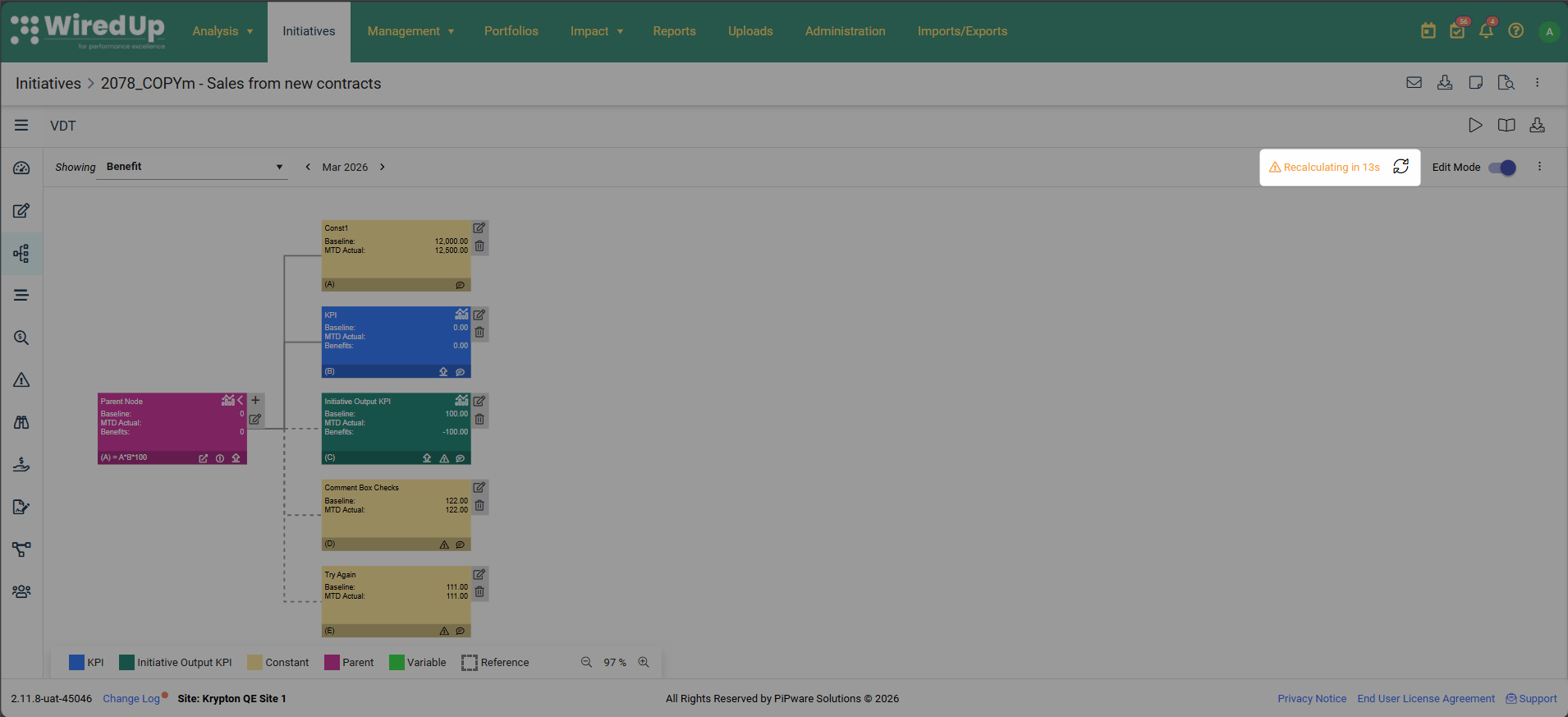
- Resets to the full duration each time you save another node
- Pauses when you open the Add/Edit/Delete Node modal
- Resumes from where it left off if you close the modal without saving
- Restarts from the beginning if you save changes in the modal
Refresh Icon
A refresh icon is always visible in the Content Bar next to the countdown timer. You can:
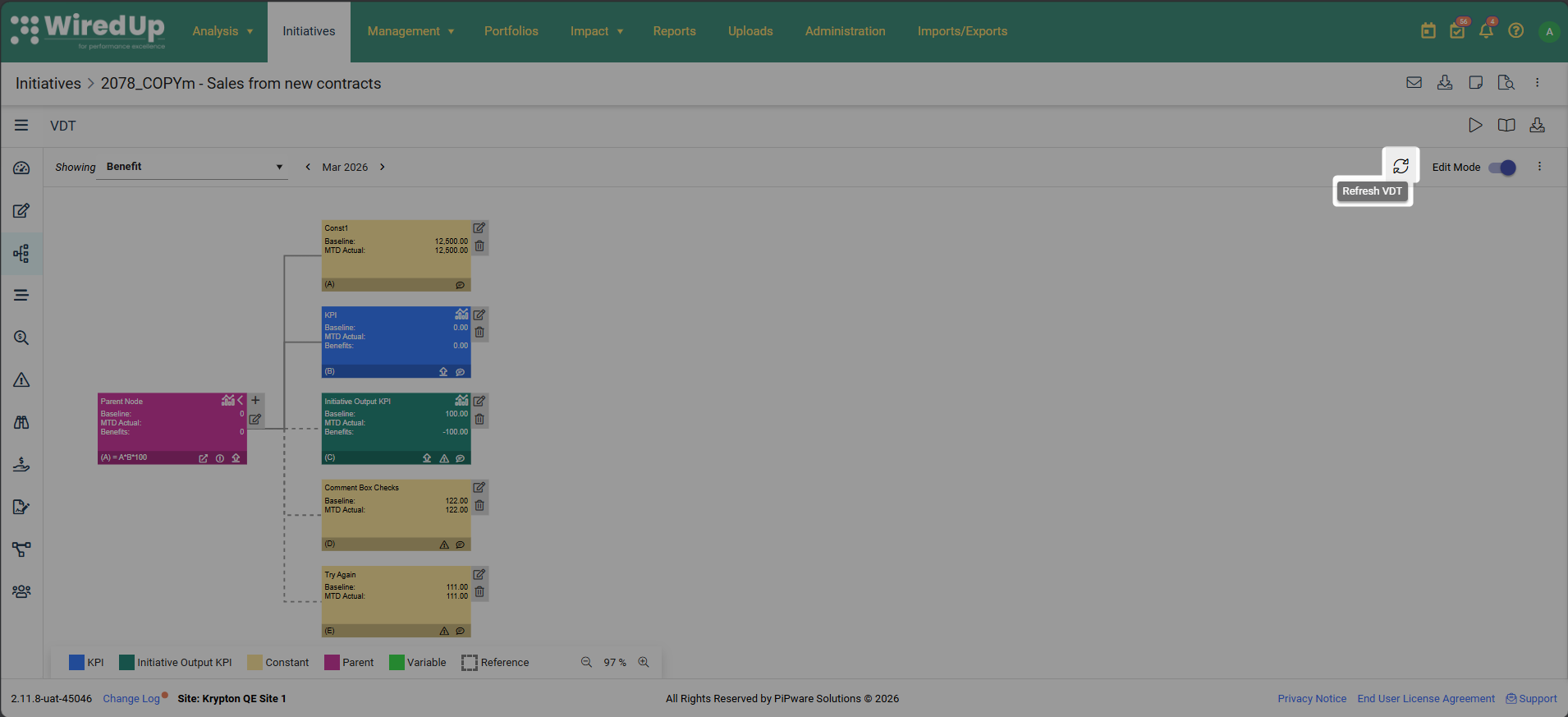
- Click the icon at any time to manually trigger an immediate recalculation
- Hover over the icon to see the "Refresh VDT" tooltip
- Watch the icon spin while recalculation is in progress
Recalculation States:
- Idle: No countdown, no label, refresh icon is static
- Countdown Active: "Recalculating in {xx}s" label visible and counting down, refresh icon is static
- Recalculating: Label shows "Recalculating...", refresh icon is spinning
- Complete: Label disappears, refresh icon returns to static state
When recalculation completes, all affected node values (Baseline, MTD Actual, Variance, and Benefit) update automatically on the canvas without disrupting your work. Your zoom level, pan position, and any open panels remain unchanged.
Next Steps
Now that you understand Idea/ Initiative VDTs. See article - Initiative Workplan.