
In This Article
Understanding the KPI List Interface
Customizing Columns with the Column Picker
Tips for Effective KPI Management
Overview
A KPI (Key Performance Indicator) is a measurable metric used to assess and track an organization's performance in achieving specific goals. They provide a clear, data-driven way to make informed decisions, improve processes, and ensure alignment with strategic priorities.
The purpose of Key Performance Indicators (KPIs) is to measure and evaluate an organization's progress and success in achieving its goals, enabling data-driven decision-making, process improvement, and alignment with strategic objectives. KPIs help ensure that a business remains focused on what matters most for its success and allows for ongoing performance monitoring and optimization.
The KPI List is a centralized screen in WiredUp where you can view, search, filter, and manage all Key Performance Indicators (KPIs) for your organization. This article explains how to access the KPI List, navigate its features, and perform common tasks such as adding, filtering, and customizing the display of KPIs.
Accessing the KPI List
To access the KPI List screen: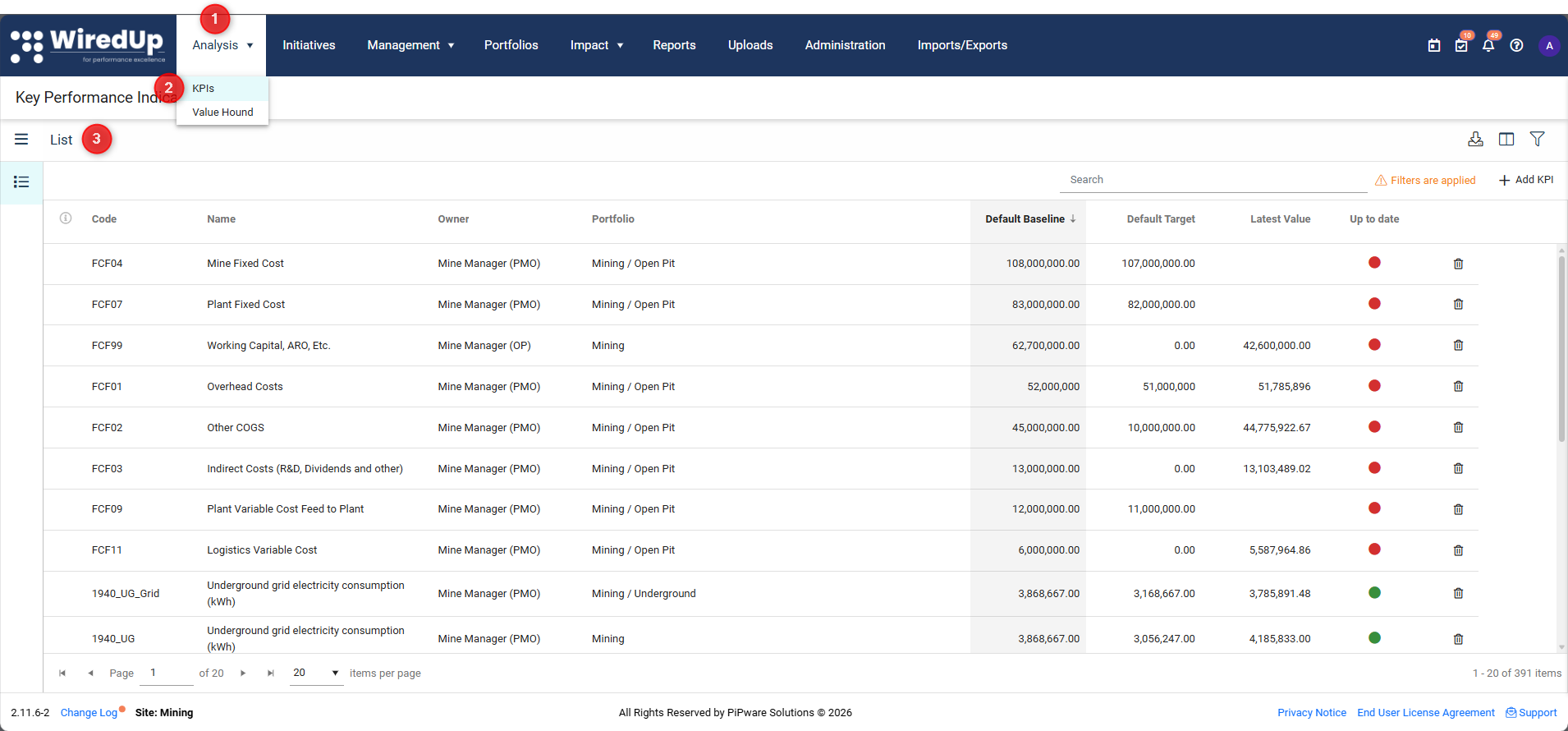
- Navigate to Analysis in the main menu
- Select KPIs from the dropdown options
- The KPI List screen will display all available KPIs for your organization
Understanding the KPI List Interface
The KPI List displays your KPIs in a table format with the following key information: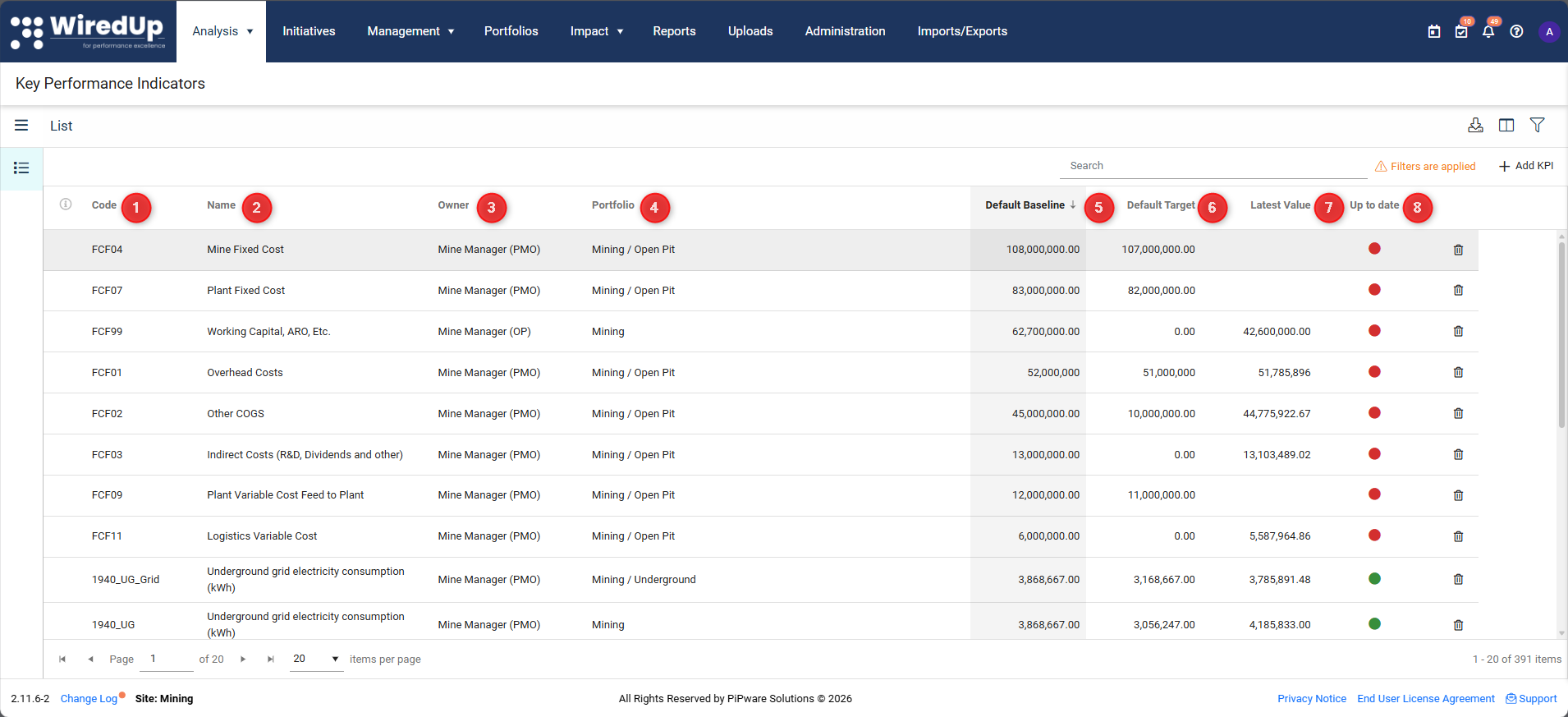
- Code: A unique identifier for each KPI
- Name: The descriptive name of the KPI
- Owner: The person responsible for the KPI
- Portfolio: The portfolio to which the KPI is assigned
- Default Baseline: The baseline value set for the KPI
- Default Target: The target value set for the KPI
- Latest Value: The most recent actual value recorded for the KPI
- Up to Date Status: A visual indicator showing whether the KPI data is current
- Green indicator: KPI data is up to date
- Red indicator: KPI data is not up to date
Note: You can sort the KPI List by clicking on any column name. Click once to sort in ascending order and click again to sort in descending order.What Makes a KPI "Up to Date"?
The "Up to Date" status is a data freshness indicator that shows whether a KPI has current values entered for its configured performance period. This status is updated automatically whenever KPI values are uploaded or modified.
For more information on KPI Values, please see this article: KPI Values : WiredUp
Green Indicator (Up to Date):
- The KPI has an actual value recorded for the current performance period
- Data has been captured within the expected timeframe based on the KPI's measurement cycle (daily, weekly, monthly, quarterly, etc.)
- The KPI is considered current and has the latest information available
Red Indicator (Not Up to Date):
- The KPI does not have an actual value recorded for the current performance period
- Data is missing or overdue for the current measurement cycle
- The KPI needs to be updated with current information
Important Note: The "Up to Date" status indicates data freshness only (whether values have been entered for the current period). It is not an indicator of performance against targets. A KPI can be "Up to Date" (green) but still be performing below target, or "Not Up to Date" (red) simply because data hasn't been entered yet for the current period.
How the Status is Updated:
- The status updates automatically in real-time whenever KPI values are uploaded or edited
- There is no fixed system refresh schedule—updates occur immediately when data is entered
- This applies to manual data entry, bulk imports, or API updates
Example: If a KPI is configured to track monthly performance and it's currently March 2026, the KPI will show as "Up to Date" (green) only if it has at least one actual value entered for March 2026. If the latest value is from February 2026 or earlier, it will show as "Not Up to Date" (red).
Searching for KPIs
To quickly find specific KPIs: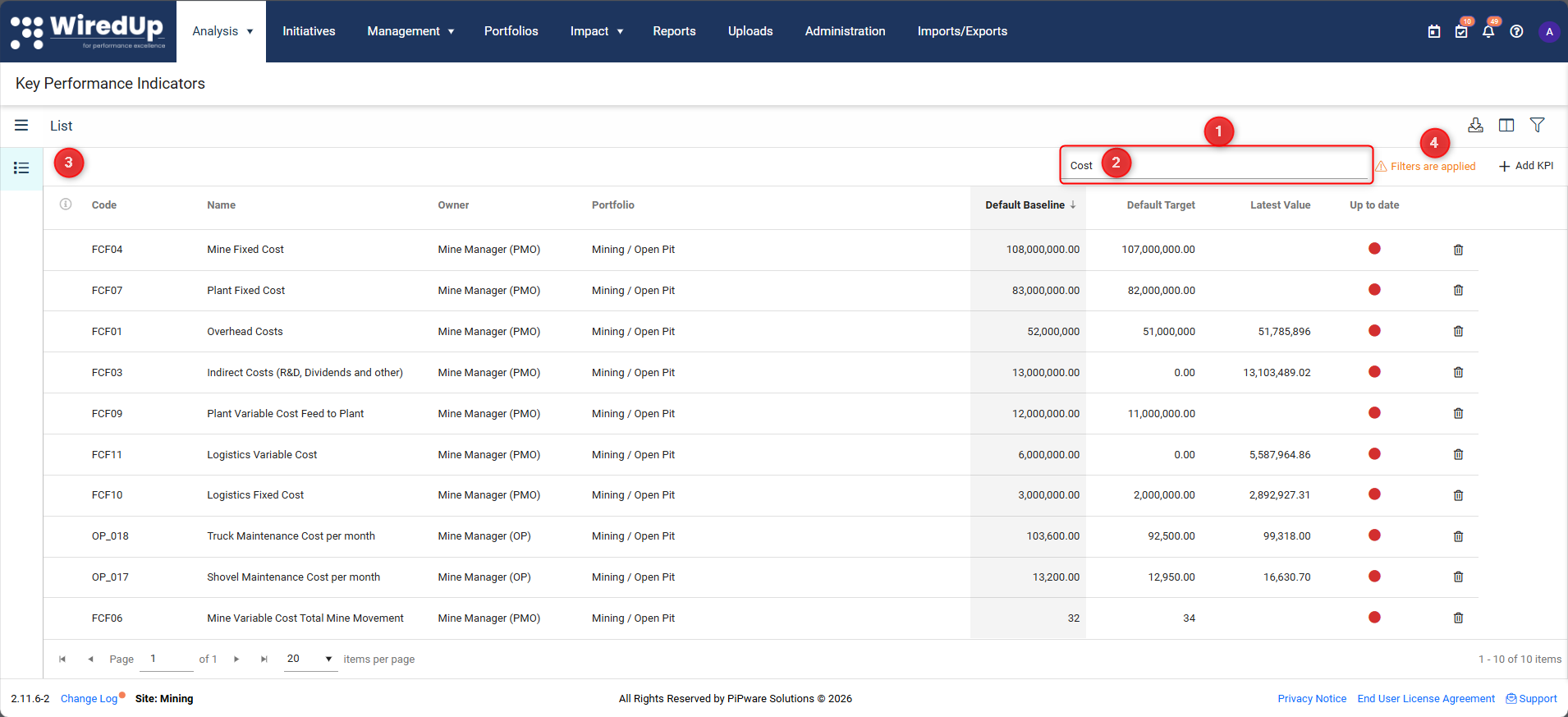
- Locate the search bar at the top of the KPI List screen
- Enter the KPI code or KPI name you're looking for
- The list will automatically filter to show matching results
- When filters are active, you'll see a "Filters are applied" notification
Filtering KPIs
To apply advanced filters to your KPI List: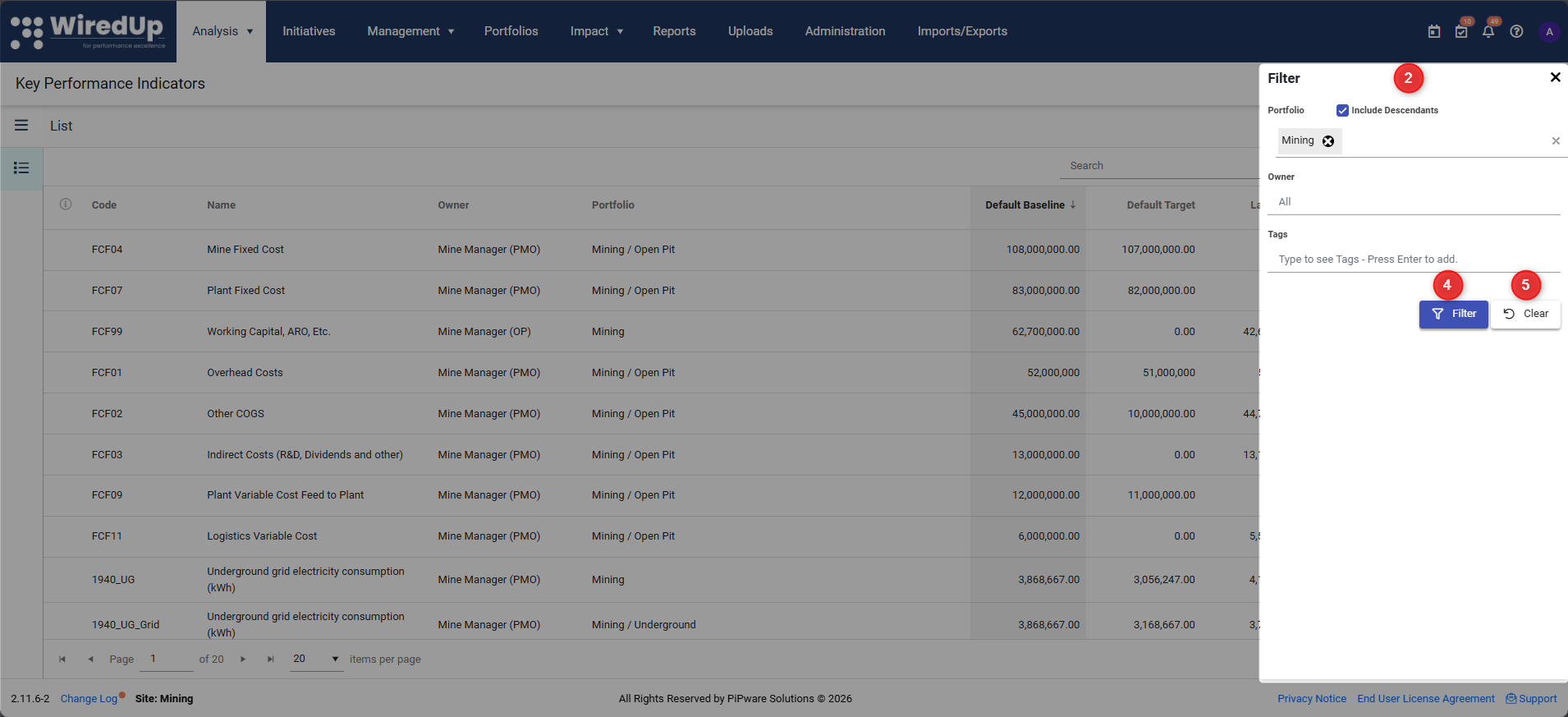
- Click the Filter icon at the top of the screen
- Select from the available filter options:
- Portfolio: Filter by portfolio, with an option to Include Descendants to show KPIs from child portfolios
- Owner: Filter by the person responsible for the KPI
- Tags: Filter by assigned tags
- Select your desired filter criteria
- Click Filter to update the KPI List
- To remove all filters, click the Clear button
Note: When filters are applied, the system displays a "Filters are applied" message to remind you that you're viewing a filtered subset of KPIsThe KPI list now included the ability to save filters for future use. For more information about this feature, please see this article: Saving Filters : WiredUp
Adding a New KPI
To create a new KPI: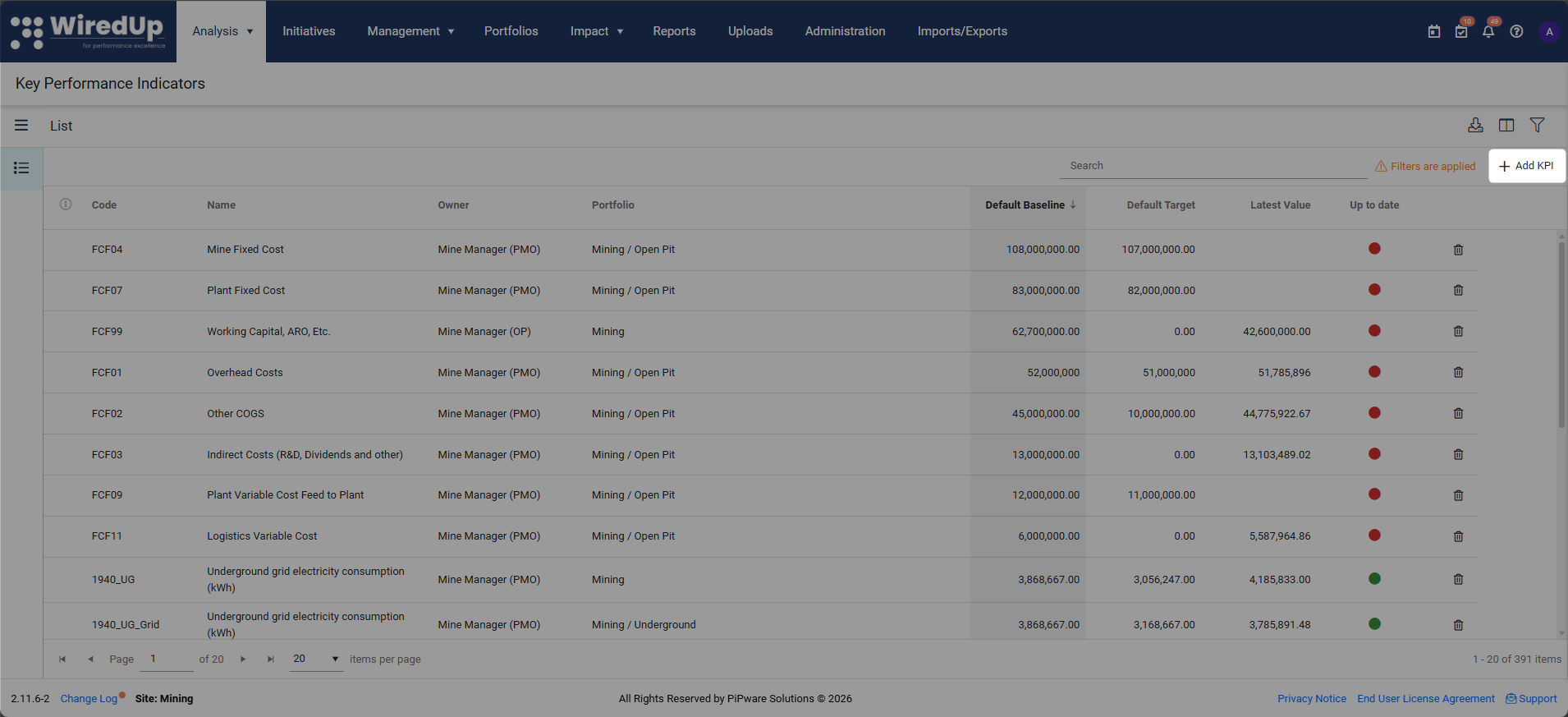
- Click the "+Add KPI" button located at the top of the KPI List screen
- Complete the required fields in the KPI creation form
- Save your new KPI
- The new KPI will appear in your KPI List
For more information on how to create a KPI, please see this article: Adding a KPIDeleting a KPI
To remove a KPI from your list: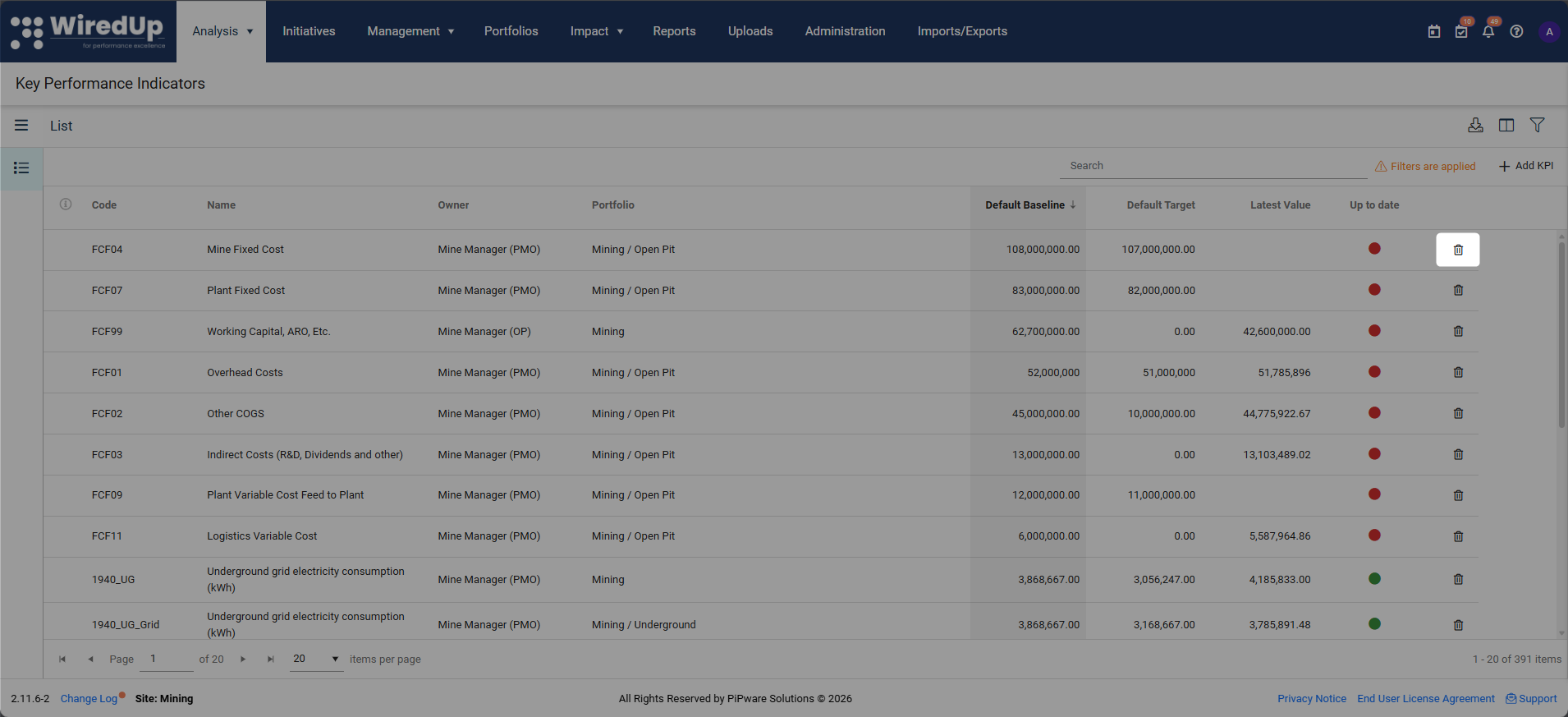
- Locate the KPI you want to delete in the list
- Click the bin icon (delete icon) next to the KPI
- Confirm the deletion when prompted
Warning: Deleting a KPI is permanent. Ensure you no longer need the KPI and its associated data before proceeding.Importing KPIs
You can quickly access the import functionality to bulk import KPIs using a template file.
Accessing KPI Import
To import KPIs:
- Locate and click the KPI Import icon at the top-right of the KPI List screen
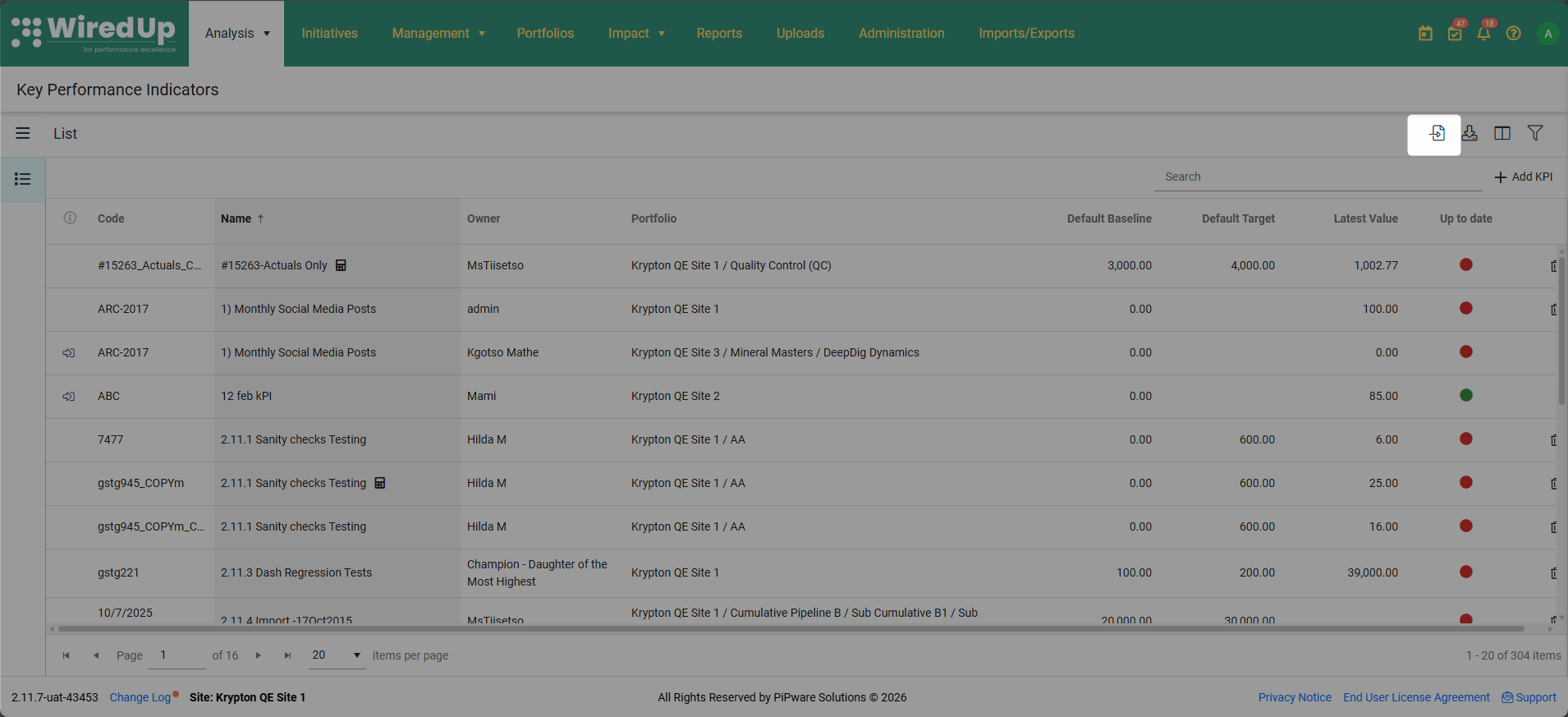
- You will be automatically navigated to the Imports/Exports module
- The Add Import dialog will open automatically with:
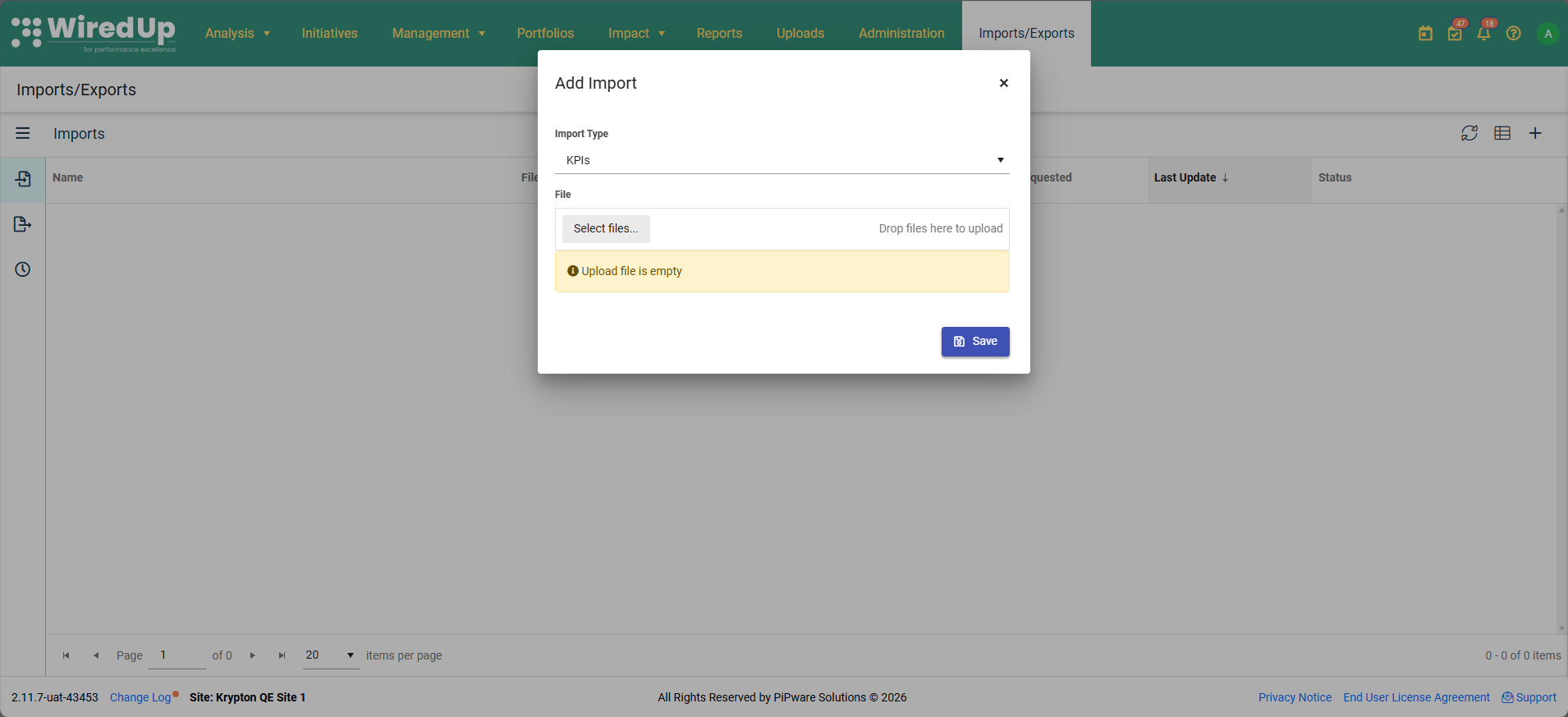
- Import Type pre-selected as KPIs
- A file upload area ready for you to select your import file
When to Import KPIs
Importing KPIs is useful when you need to:
- Create multiple KPIs at once
- Bulk update existing KPI configurations
- Migrate KPIs from another system
- Standardize KPI setup across portfolios
Tip: Always download the latest KPI import template to ensure your file includes all required fields and follows the correct format.Note: For detailed information about the KPI import template structure and rules, refer to the KPIs Import Template Rules and Sample article.Downloading the KPI List
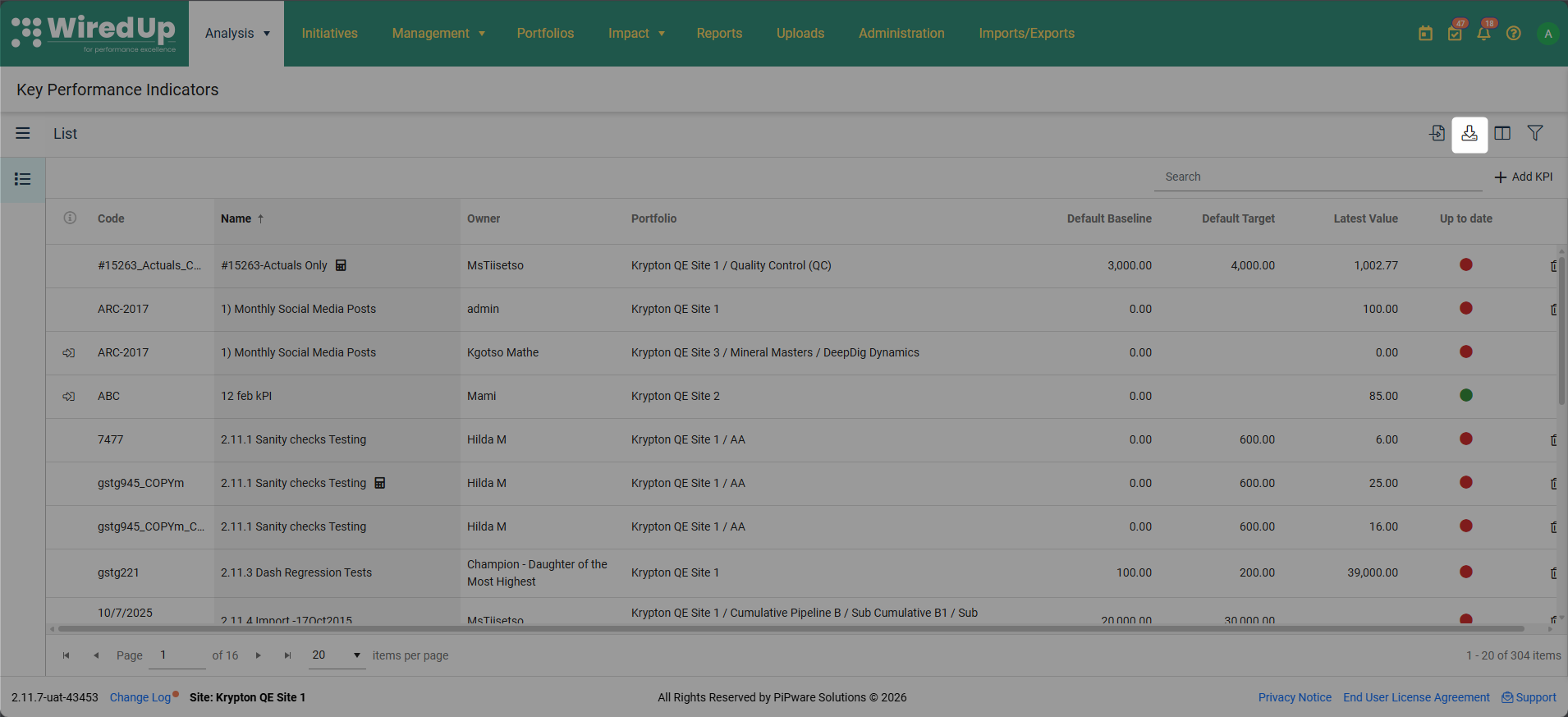
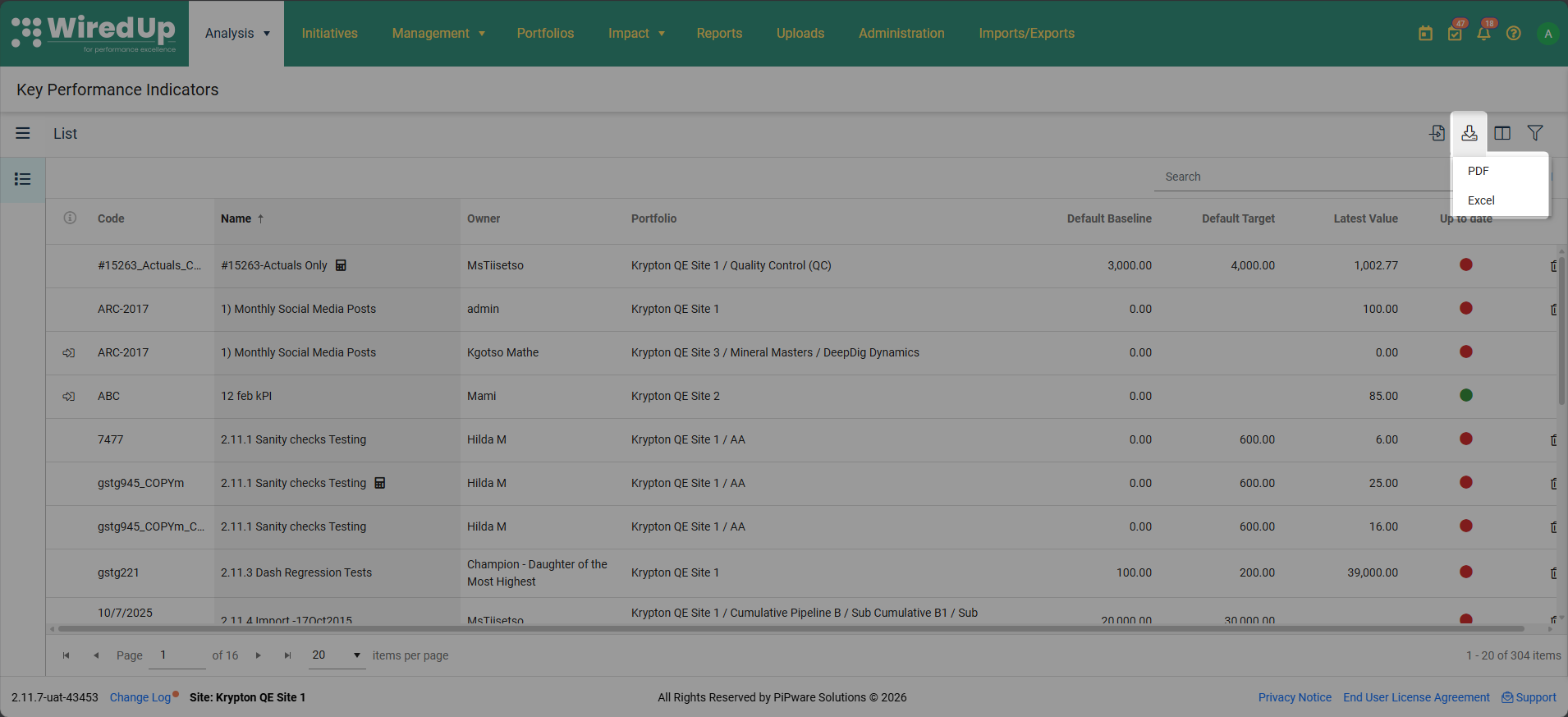
You can download the KPI list either in PDF format or Excel format. To download the KPI list, follow the steps outline below:
- Select the Download icon located at the top-right of the KPI list
- Select either to download the KPI list in PDF format or Excel format. The file will be downloaded to your folder
Customizing Columns with the Column Picker
To customize which columns are displayed in your KPI List: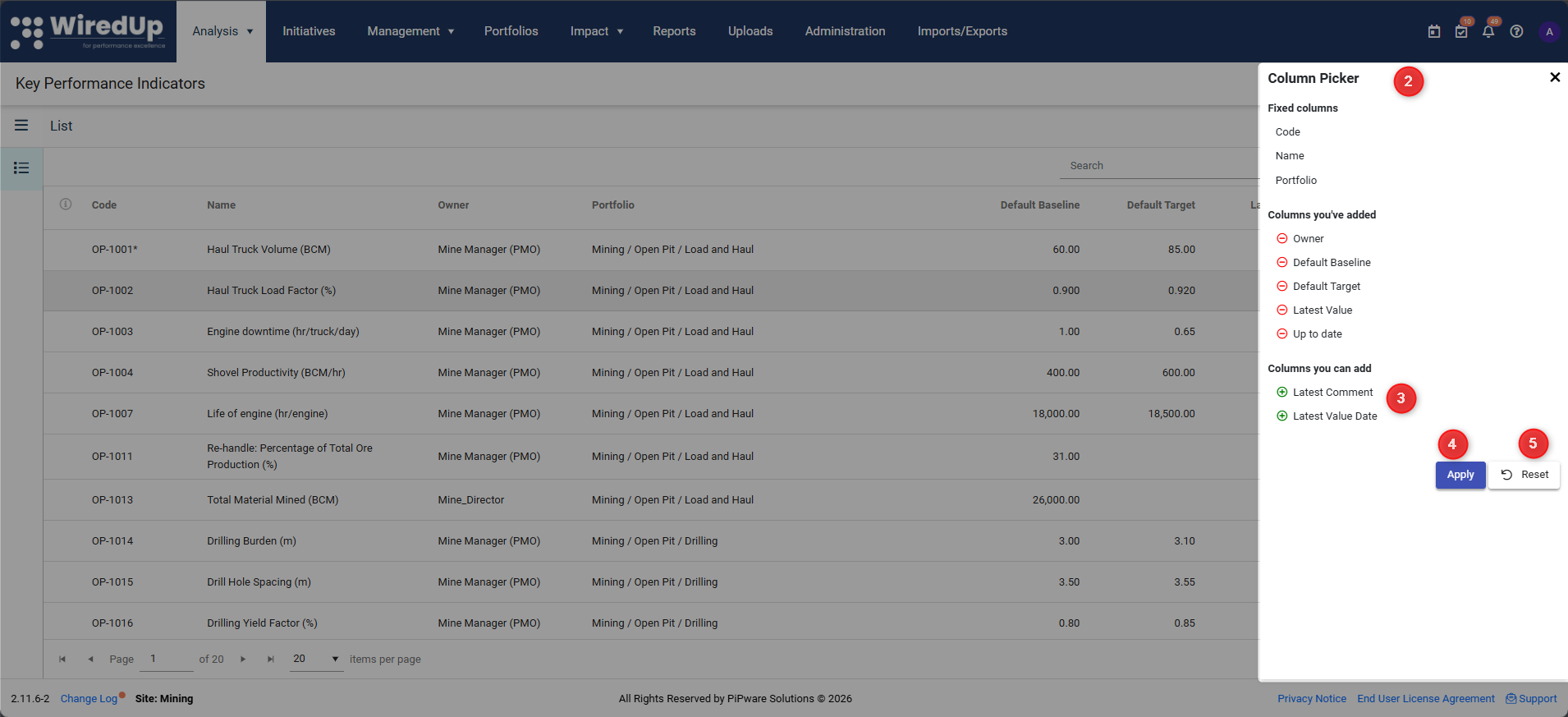
- Click the Column Picker icon at the top of the screen
- In the Column Picker dialog:
- Fixed columns will remain visible and cannot be removed
- Optional columns can be added or removed by checking or unchecking them
- Select the columns you want to display
- Click Apply to save your column preferences
- To restore the default column layout, click Reset
Your column preferences will be saved for future sessions.
Viewing the Latest Comment
To view the most recent comment on a KPI: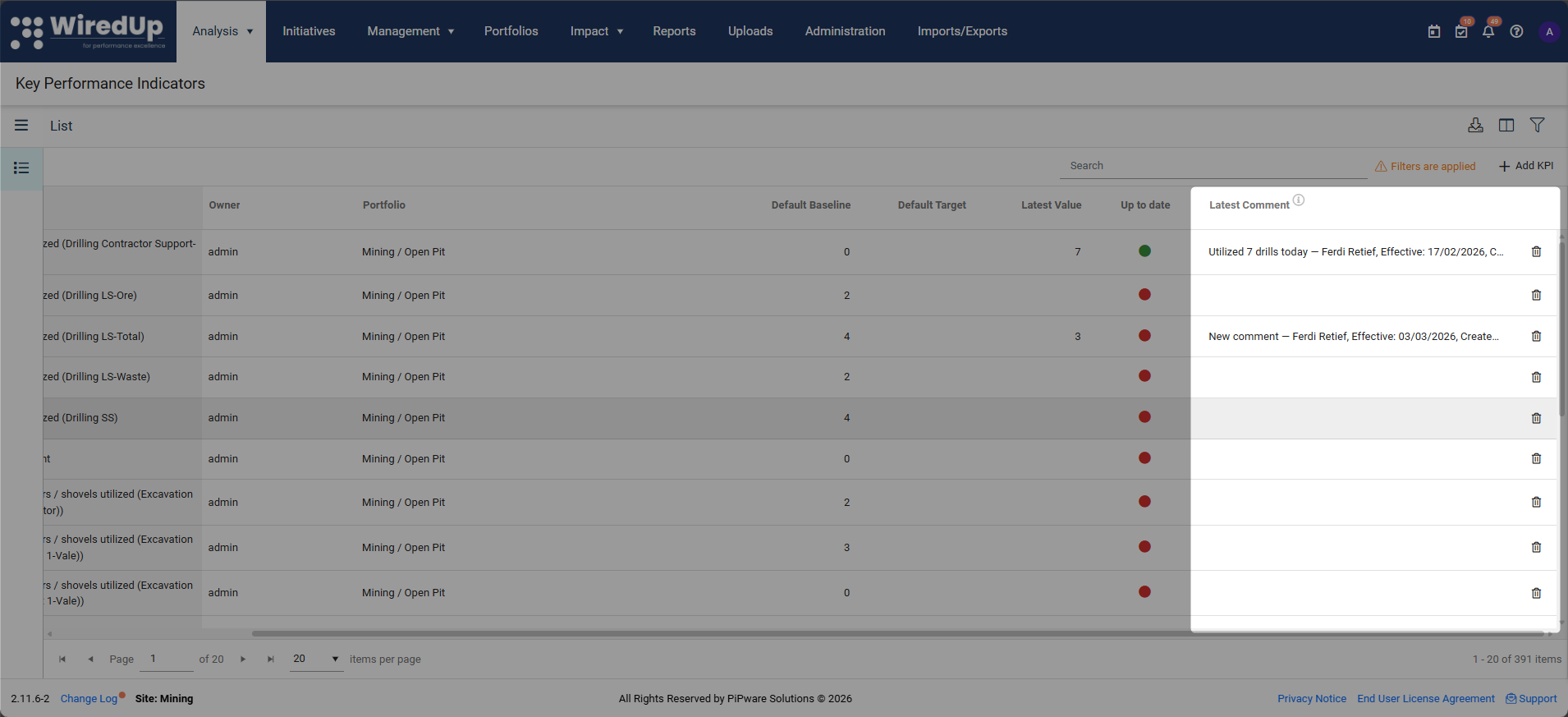
- Add the Latest Comment column from the column picker
- Locate the KPI in the KPI List
- The latest comment will be displayed in the list view
- This allows you to quickly see recent updates or notes without opening the full KPI details
For more information on the commentary feature, please see this article: KPI Commentary Feature
Tips for Effective KPI Management
- Regular Reviews: Check the "Up to Date" status indicators regularly to ensure your KPI data remains current
- Consistent Naming: Use clear, consistent naming conventions for KPIs to make searching easier
- Use Tags: Apply tags to KPIs to create logical groupings for easier filtering
- Portfolio Structure: Utilize the "Include Descendants" option when filtering by portfolio to get a comprehensive view of KPIs across your organizational hierarchy
Next Steps
Now that you understand how to use the KPI List, you may want to explore:
- Adding a KPI: Learn how to set up KPIs